How to Use Apps in Photoshop: Complete Guide
EpicPxls offers 99+ curated apps for Photoshop, all with a commercial license and editable source files (Figma, Sketch, PSD). Download your chosen apps from EpicPxls, then use Photoshop's import function. Most resources include Photoshop-native files for seamless opening.
Last updated February 13, 2026
Everything you need to know about using apps in Photoshop.
Trusted by designers at leading companies
Top Apps for Photoshop
Handpicked resources from our curated collection
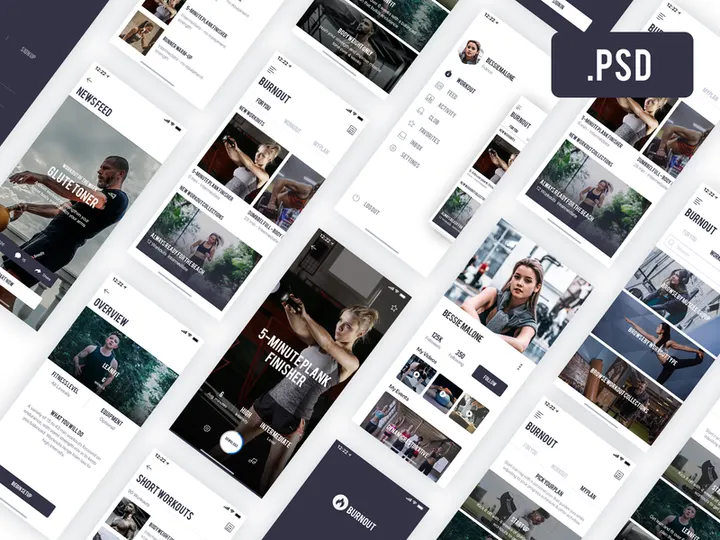
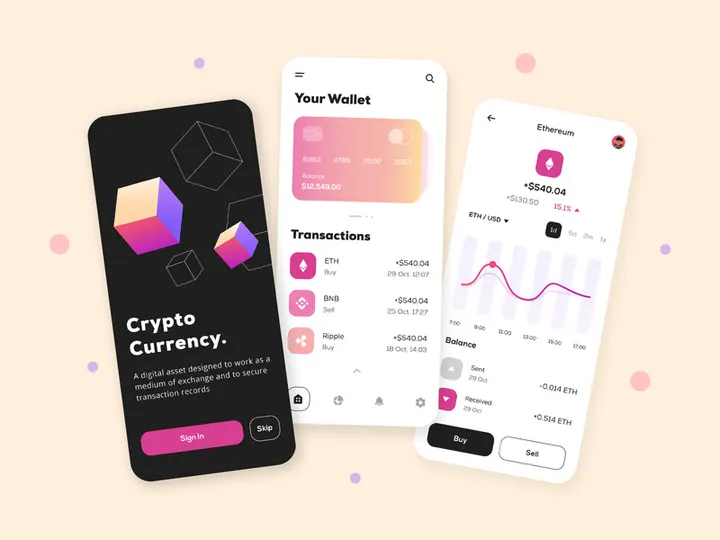
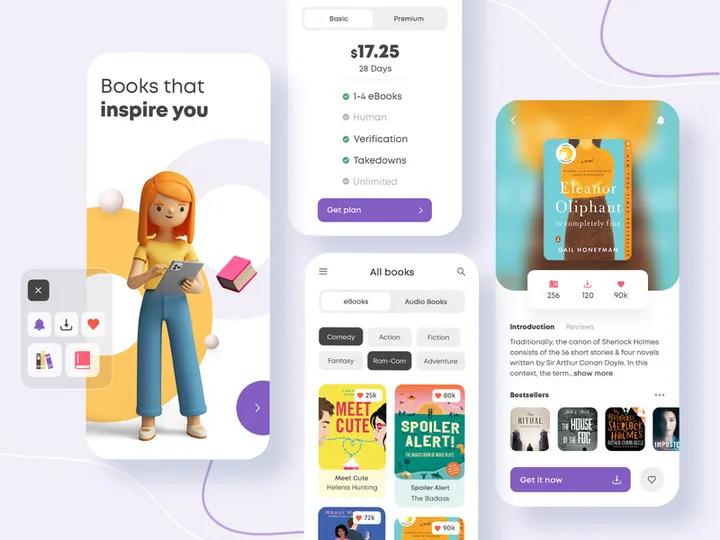
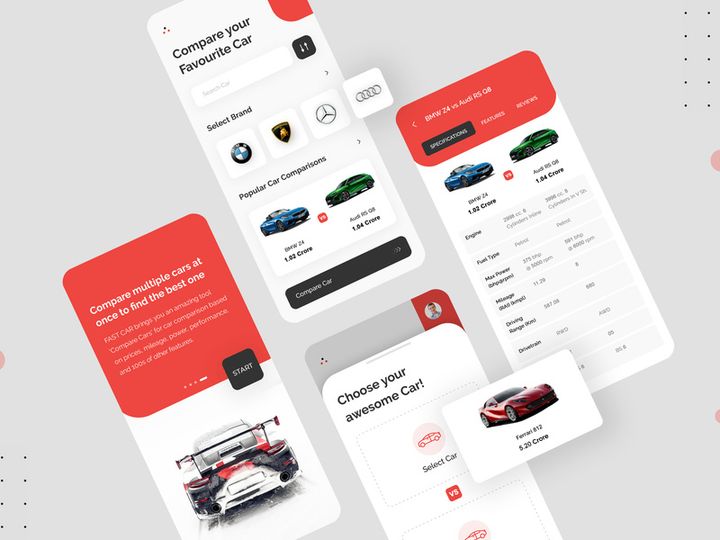
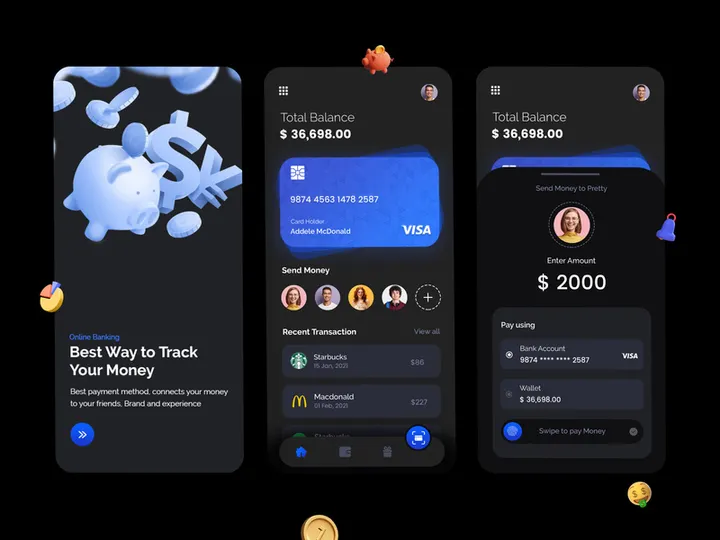
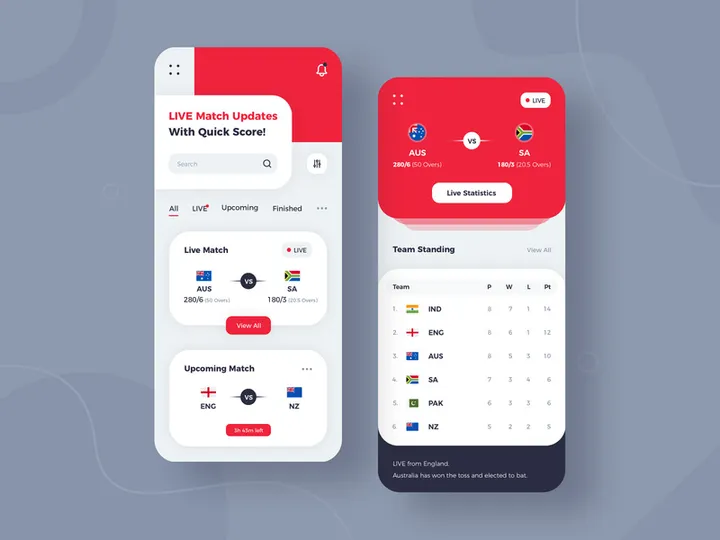
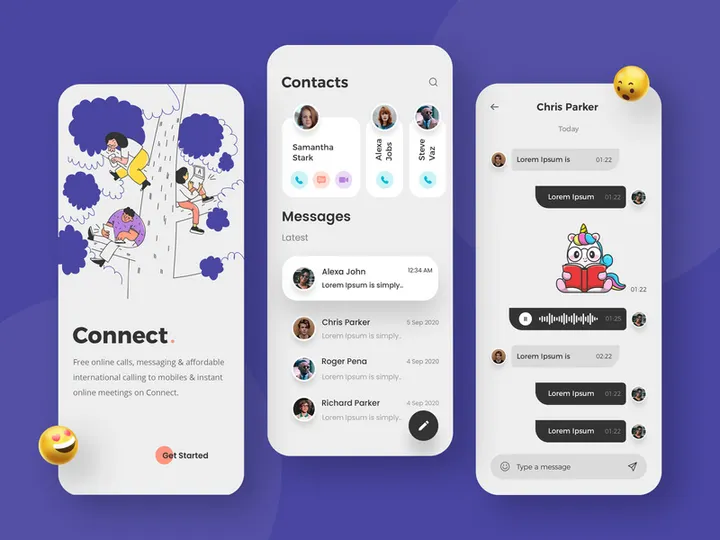
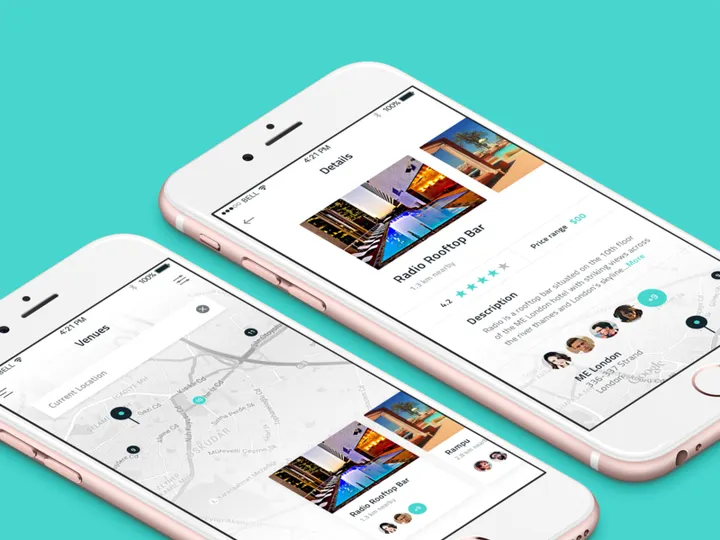
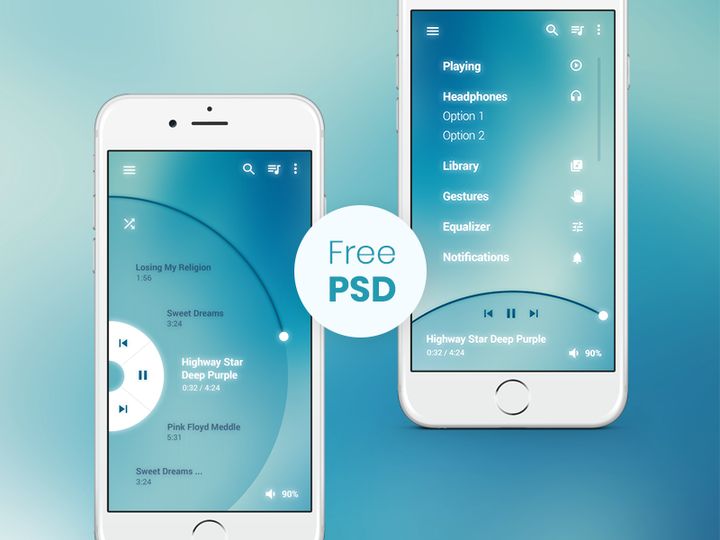
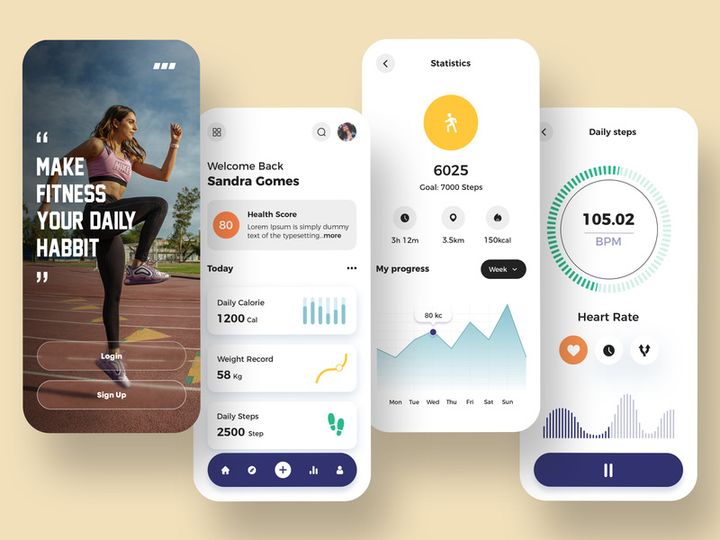
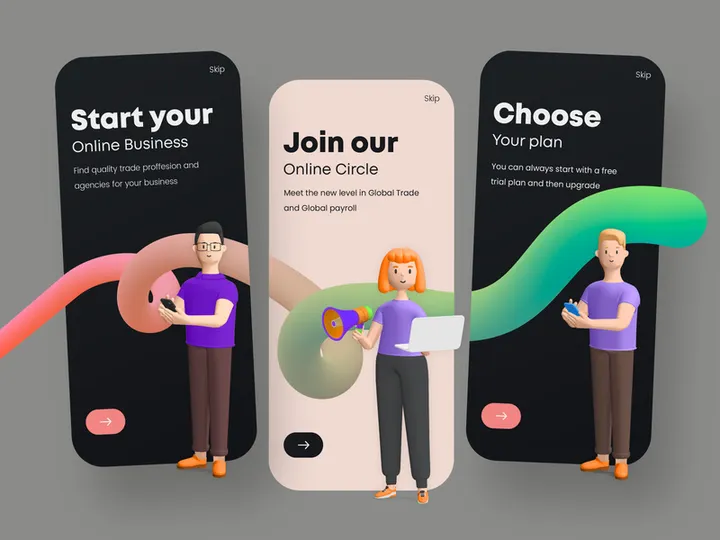
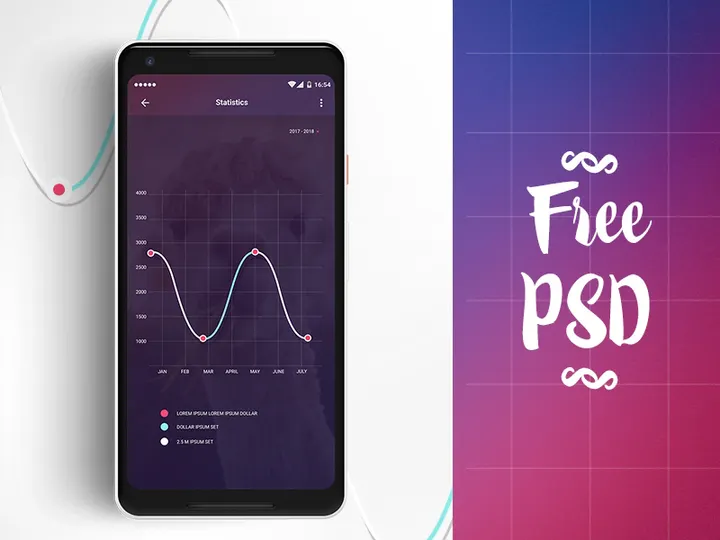
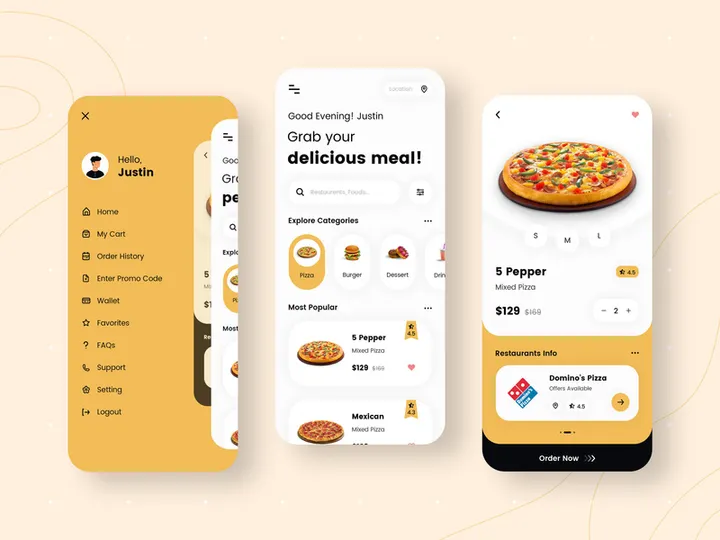
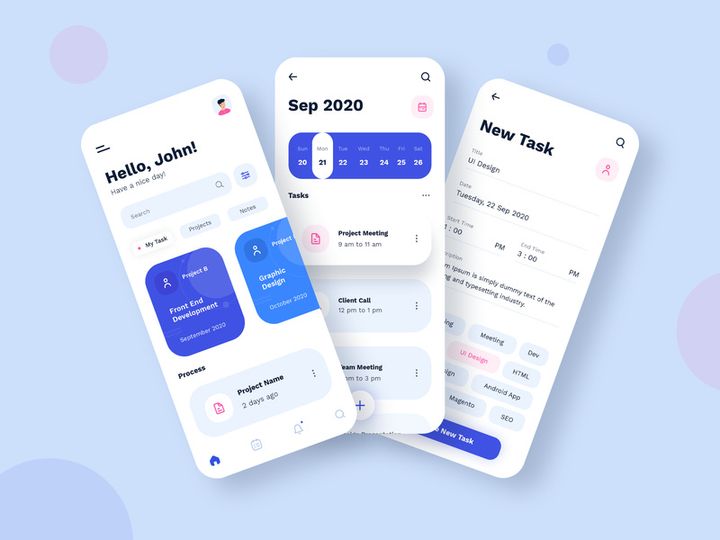

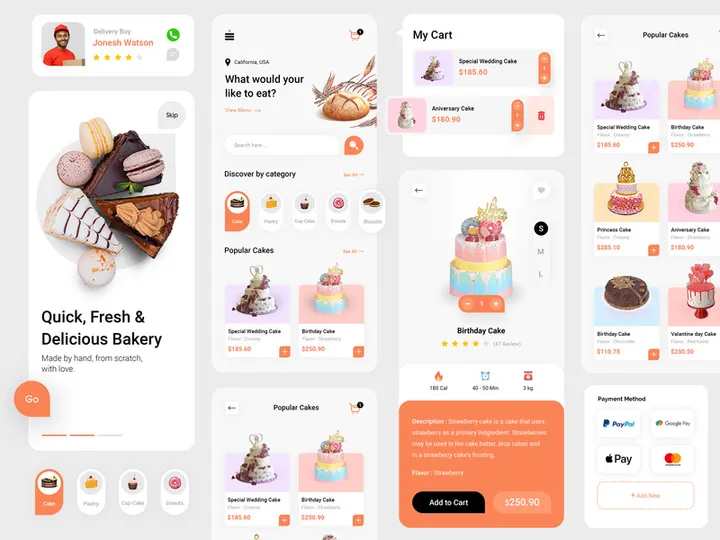


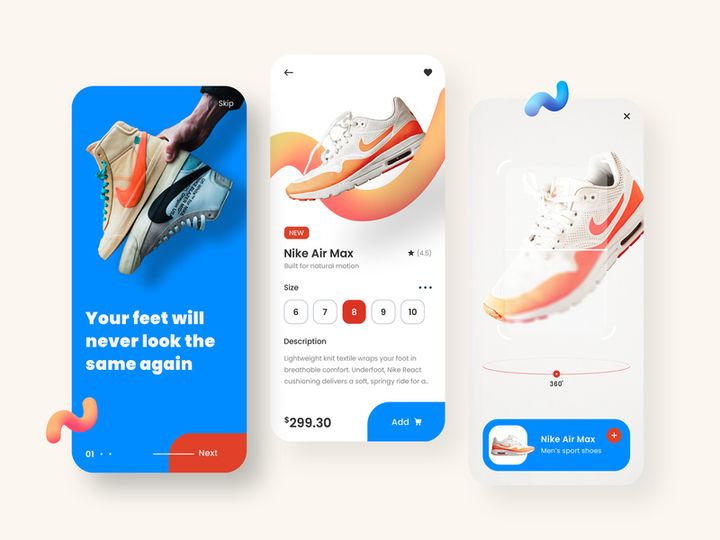
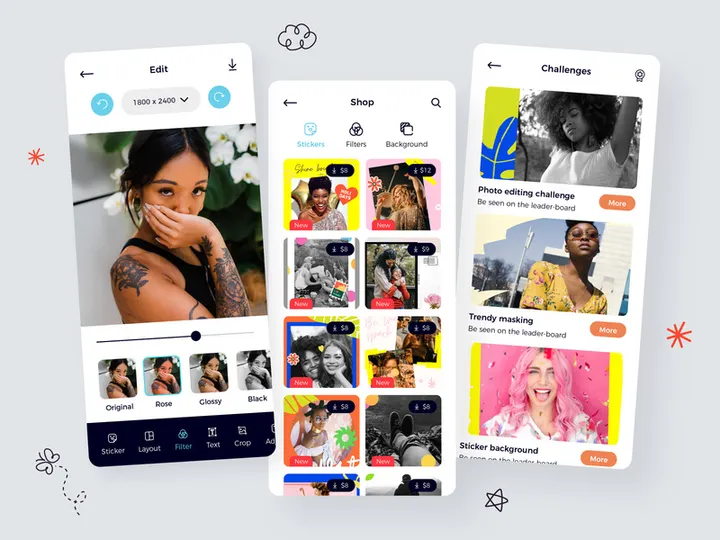
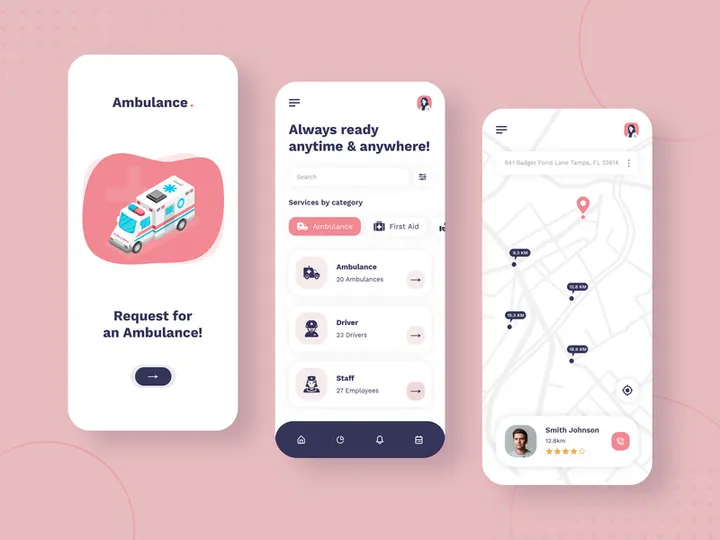

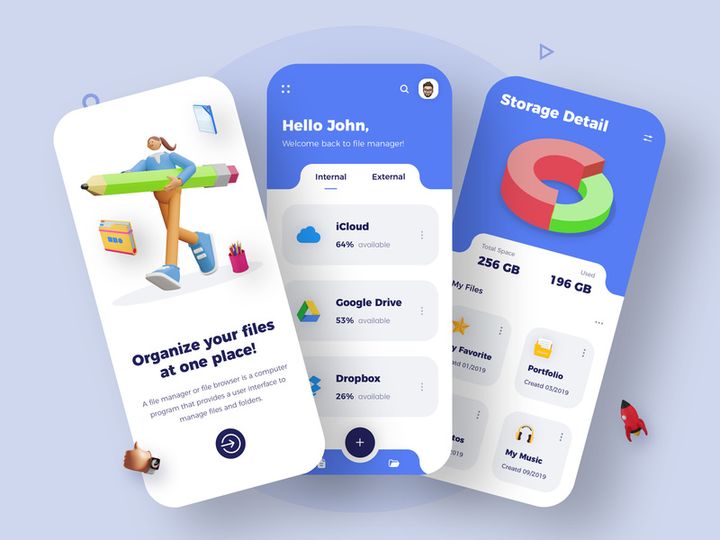
Try Our Free Resources
Download any of these for free - no account required
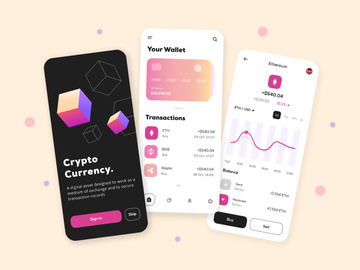
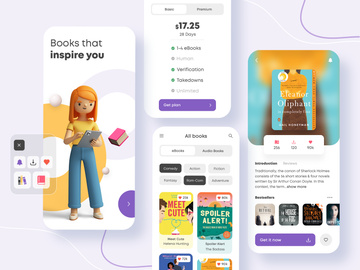
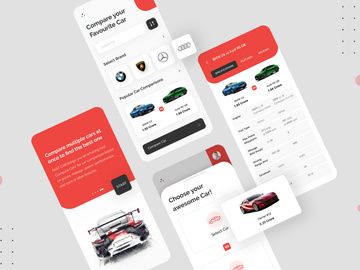
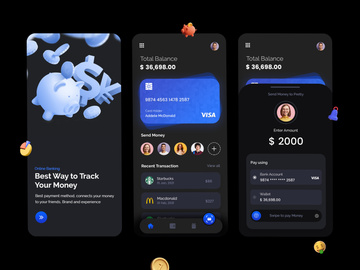
Getting Started with Apps in Photoshop
Adobe Photoshop is one of the most powerful tools available for digital design, and its compatibility with external apps and resources expands its capabilities even further. Whether you're a UI/UX designer, a web developer, or a digital artist, integrating apps into Photoshop can streamline your workflow, boost productivity, and help you deliver professional-quality results faster. To begin using apps in Photoshop, you’ll need a few prerequisites in place. First, ensure you have the latest version of Adobe Photoshop installed—ideally, the most recent Creative Cloud release. This guarantees access to the newest features and improved compatibility with modern file formats. You’ll also need a stable internet connection to download and sync resources from online platforms.
Once Photoshop is set up, the next step is finding compatible apps and design resources. Many platforms offer downloadable files tailored for Photoshop, but not all are created equal. Look for trusted sources that provide well-organized, layered files with clear labeling and non-destructive editing support. One such platform is EpicPxls, which offers a growing library of over 91+ resources specifically designed for digital design workflows. These include app templates, UI kits, icon sets, and interface components that are fully compatible with Photoshop. The beauty of using curated resources from EpicPxls is that they're optimized for quick integration, saving you hours of design time.
These resources often come in formats like PSD, SVG, or AI, making them easy to import directly into Photoshop. With 91+ resources available and counting, designers can find everything from mobile app layouts to dashboard interfaces—ready for customization. Whether you're building a prototype or refining a high-fidelity design, starting with a solid foundation from a reliable source like EpicPxls gives you a competitive edge. Once your environment is ready and your resources are selected, the next step is learning how to import these apps into Photoshop effectively.
How to Import Apps into Photoshop
- Download the Correct File Format: Before importing, ensure you're downloading a file compatible with Photoshop. The most widely supported format is PSD (Photoshop Document), which preserves layers, masks, and effects. However, you may also encounter AI (Adobe Illustrator), SVG (Scalable Vector Graphics), or even Figma files. While Photoshop can import many of these, PSD files offer the most seamless experience. When sourcing from platforms like EpicPxls, always check the file format before downloading to avoid compatibility hiccups.
- Locate the Downloaded File: After downloading, navigate to your default downloads folder or the location where you saved the file. Keep your files organized in clearly named folders, especially if you plan to import multiple app resources. A well-structured directory makes future edits and team collaboration much smoother.
- Launch Photoshop and Choose “Open”: Open Adobe Photoshop and go to File > Open. Browse to the location of your downloaded app file and select it. Click “Open” to begin the import process. For PSD files, Photoshop will load all layers, groups, and adjustment settings exactly as they were saved.
- Handle Non-PSD Files with Care: If you're importing an AI or SVG file, Photoshop may prompt you with import options. Choose “Shape Layer” for vector scalability or “Rasterize” if you need pixel-based editing. For Figma designs, you may need to export as PNG or SVG first and then place them into Photoshop using File > Place Embedded.
- Review Layer Structure: Once imported, open the Layers panel to inspect the organization. Well-designed resources from platforms like EpicPxls typically feature clearly labeled groups, smart objects, and nested components. This structure allows for easy customization and ensures you’re not working on flattened or uneditable layers.
- Save Your Working File: After successful import, immediately save the file under a new name using File > Save As. This preserves the original resource for future use and prevents accidental overwrites. Choose PSD as your format to retain maximum editability.
By following these steps, you ensure a smooth onboarding process for any app resource. Paying attention to file types and layer integrity at this stage can prevent issues later in your design workflow. With your app successfully imported, you're now ready to begin customizing and building upon the design.
Step-by-Step: Working with Apps in Photoshop
Editing Layers and Components
Once your app design is imported into Photoshop, the real work begins. The key to efficient customization lies in understanding how to edit layers and components effectively. Start by exploring the Layers panel, where all elements of the app design are organized. Look for labeled groups such as “Buttons,” “Navigation,” “Icons,” or “Screens.” These groupings make it easy to locate and modify specific parts of the interface. Double-click on text layers to change labels, headings, or input placeholders. Use the Character panel to adjust font size, weight, and color to match your brand guidelines.
For visual elements like buttons or icons, consider using Smart Objects. These allow you to scale or transform elements without losing quality. Double-click a Smart Object to edit it in a separate window, make your changes, and save—the update will reflect automatically in your main design. You can also apply layer styles such as drop shadows, strokes, or gradients to modernize the look of existing components. To maintain consistency across screens, use the Eyedropper tool to sample colors from the original palette or define your own swatches in the Swatches panel.
Organizing Your Apps Library
As you collect more app resources—especially from a rich source like EpicPxls with its 91+ resources—it becomes crucial to maintain an organized library. Create a dedicated folder on your local drive or cloud storage labeled “Photoshop Apps” and subdivide it by category: e.g., “Mobile Apps,” “Web Interfaces,” “Dashboard Kits.” Within Photoshop, use the Libraries panel (Window > Libraries) to create digital collections of frequently used assets like logos, icons, and color themes. Drag and drop elements from your designs into a library to save them for future projects.
Additionally, adopt a consistent naming convention for layers and groups. Instead of default names like “Layer 1,” use descriptive labels such as “Header Bar – Home Screen” or “Primary Button – CTA.” This not only helps you navigate complex files but also benefits team members who may review or edit your work. Regularly purge unused layers and merge static elements to keep file sizes manageable. A clean, well-organized app library enhances efficiency and reduces the time spent searching for assets.
Exporting for Production
Once your app design is finalized, it’s time to export for development or presentation. Photoshop offers flexible export options depending on your output needs. For web and mobile applications, go to File > Export > Export As or use the newer Export As > Quick Export as PNG for single layers. Choose PNG for high-quality graphics with transparency, JPEG for photographic elements, and SVG for scalable icons and vectors (if saved as shape layers).
When preparing assets for developers, consider using the “Generate” feature under File > Generate > Image Assets. This allows you to automatically export layers or groups by simply adding a file extension to their names (e.g., “button.png” or “icon.svg”). This batch export function saves time and ensures consistency. For print or high-resolution mockups, use Save As with TIFF or PDF format at 300 DPI. Always include design specs such as font sizes, color codes, and spacing measurements in a separate document or overlay to facilitate smooth handoff. Proper exporting ensures your app designs are production-ready and developer-friendly.
Troubleshooting Common Photoshop Issues
File Won’t Open
If a downloaded app file fails to open in Photoshop, the most common causes are version incompatibility or incorrect file format. Older versions of Photoshop may not support files saved in newer versions. To resolve this, update to the latest Creative Cloud release. If the file is in a non-native format (e.g., Figma or Sketch), it must be exported to a compatible type like PSD, PNG, or SVG before import. Always verify the file extension and ensure it matches what Photoshop supports. When sourcing from trusted libraries like EpicPxls, check the product description for version requirements and included file types to avoid surprises.
Missing Fonts or Assets
Another frequent issue is missing fonts. When you open an app file, Photoshop may display a “Missing Fonts” dialog. This happens when the original designer used fonts not installed on your system. To fix this, you can either install the correct fonts—often listed in the resource’s documentation—or allow Photoshop to substitute a similar typeface. For better control, use the Type > Replace All Missing Fonts option to apply a consistent fallback. Similarly, if linked smart objects or external assets are missing, relink them via the Properties panel or re-embed the assets directly into the PSD file to prevent future breaks.
Performance Problems
Large app files with dozens of layers and high-resolution images can slow down Photoshop. To improve performance, close unused documents and increase Photoshop’s memory allocation in Edit > Preferences > Performance. Reduce the number of history states and cache levels if you don’t need extensive undo functionality. Flatten or merge non-essential layers, and convert high-resolution images to smart objects to reduce memory usage. Saving frequently and using scratch disks on fast SSDs can also enhance responsiveness. For complex projects with 91+ resources, working in smaller, modular PSDs rather than one massive file can significantly boost speed and stability.
Advanced Photoshop Tips for Apps
Batch Processing
When working with multiple app screens or icon variations, batch processing can save hours. Use Photoshop’s Actions panel (Window > Actions) to record repetitive tasks like resizing, applying filters, or exporting. Once recorded, apply the action to a folder of files via File > Automate > Batch. This is ideal for generating multiple icon sizes or converting mockups to different color themes. Automating these workflows ensures consistency and frees you to focus on creative decisions.
Plugins and Extensions
Extend Photoshop’s capabilities with plugins designed for app development. Tools that enable direct export to developer handoff formats, generate design specs, or sync with cloud libraries can dramatically improve efficiency. While Photoshop supports a wide range of third-party extensions, always download from secure sources to avoid security risks. Some plugins integrate with design systems, allowing you to pull in pre-built UI components or style guides directly into your canvas. This is especially helpful when working with standardized resources from platforms like EpicPxls.
Collaboration Workflows
Designing apps is rarely a solo effort. To support team collaboration, establish shared workflows using cloud storage and version control. Save your PSD files to shared drives (e.g., Dropbox, Google Drive, or Creative Cloud Files) and use clear naming conventions like “AppName_v2_Final.psd” to track iterations. Encourage team members to use Layer Comps to save multiple design states within a single file—ideal for showing different screen variations or interactive states. For larger teams, consider using shared Libraries in Photoshop to maintain consistent access to logos, buttons, and brand colors. When multiple designers work from the same 91+ resources library, it ensures visual harmony across the entire product suite.
Why Download from EpicPxls?
Commercial License
Use in personal and commercial projects
No Account Required
Download free resources instantly
Quality Curated
Every resource is reviewed for quality
Preview Files
See Figma and Photoshop files before downloading
Who Uses These Apps?
Professionals and teams who benefit most from our collection
UI/UX Designers
Speed up your workflow with ready-to-use apps for Photoshop. Perfect for prototyping and client presentations.
Developers
Get production-ready assets without design skills. Export in any format for web and mobile apps.
Startups & Agencies
Save design budget with affordable premium apps. Commercial license included for client work.
Marketing Teams
Create professional campaigns faster. All apps are optimized for social media and ads.
Apps for Photoshop FAQCommon questions about these resources
Simple, Transparent Pricing
Get unlimited access to all premium resources
Yearly
- 20 downloads per month
- All file formats
- Commercial license
Lifetime
- Unlimited downloads forever
- All file formats
- Commercial license
Ready to Get Started?
Access 4,441+ free design resources today.
Browse Free ResourcesView Premium PlansEarn 85% and
more on all sales
Upload your products and put them up
for sale at whatever price you want.


