How to Use Illustrations in PDF: Complete Guide
EpicPxls offers 183+ curated illustrations for PDF, all with a commercial license and editable source files (Figma, Sketch, PSD). Download your chosen illustrations from EpicPxls, then use PDF's import function. Most resources include PDF-native files for seamless opening.
Last updated February 13, 2026
Everything you need to know about using illustrations in PDF.
Trusted by designers at leading companies
Top Illustrations for PDF
Handpicked resources from our curated collection


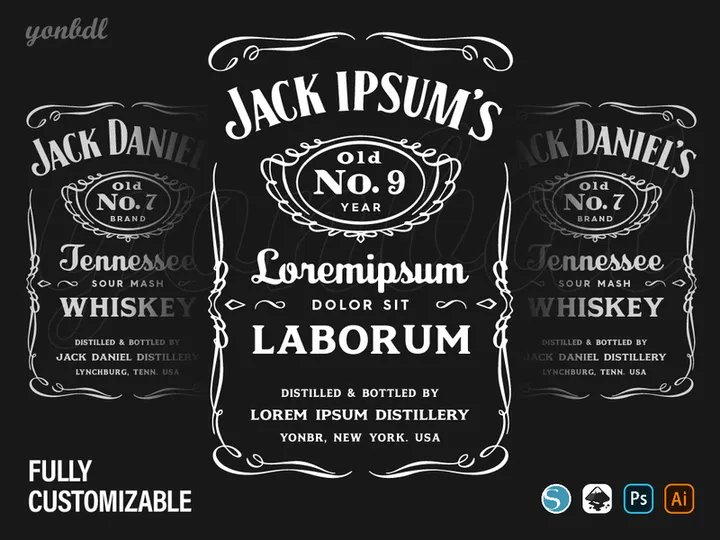

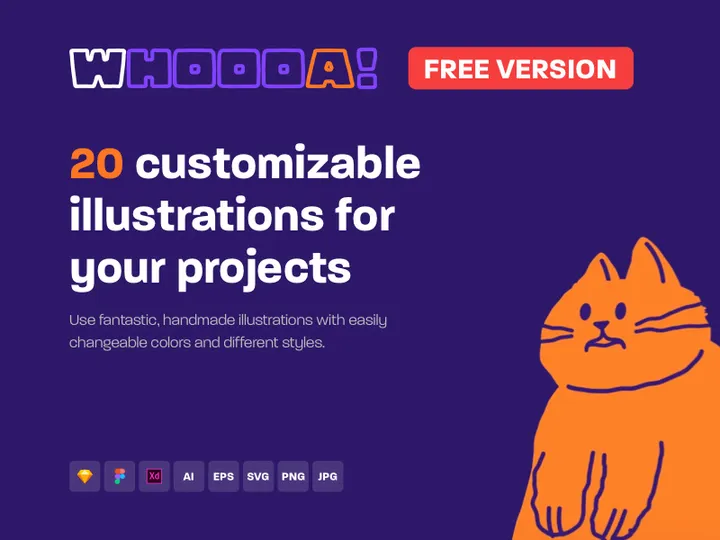

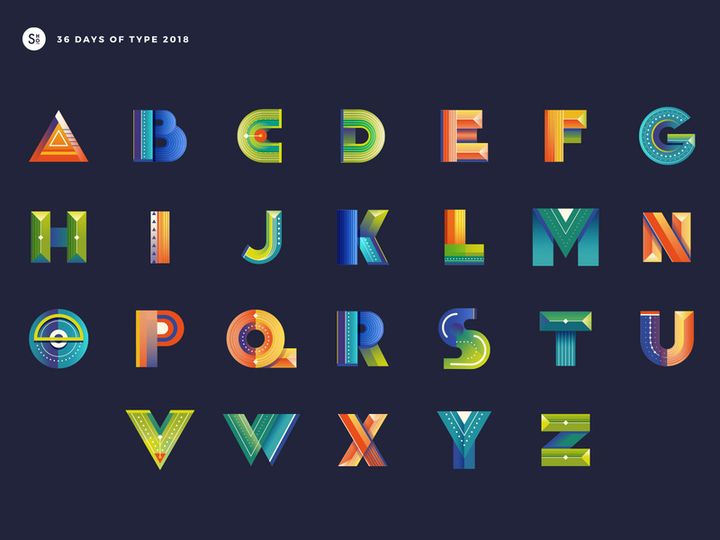
![[Part 7] Website illustrations set preview picture](https://imgproxy.epicpxls.com/De1k26J4yn21FJLEkO1cx5SRoMTVQ2x9Lt7-lTmY_dQ/rs:fill:720:540:0/g:no/aHR0cHM6Ly9pdGVt/cy5lcGljcHhscy5j/b20vdXBsb2Fkcy9w/aG90by9hYzc0NGY5/MWM1MmY3NjIyYmY5/ZWM4MjgxNjNmNTc2/Ng.jpg)

![[Part 1] Website illustrations set preview picture](https://imgproxy.epicpxls.com/Pr8PqmBLDUSXAZIpbQPhTjm6m6UCzjhQHAPKp2DulYY/rs:fill:720:540:0/g:no/aHR0cHM6Ly9pdGVt/cy5lcGljcHhscy5j/b20vdXBsb2Fkcy9w/aG90by9hYzY5ODRm/MmE0Y2RhYjNkZmFk/NWUwZTkzMDk3MzM5/Zg.jpg)
![[Part 9] Website illustrations set preview picture](https://imgproxy.epicpxls.com/CgUecmRGjyfg-Slsf00g3PK3nax_23m9PNDNjcQlTrI/rs:fill:720:540:0/g:no/aHR0cHM6Ly9pdGVt/cy5lcGljcHhscy5j/b20vdXBsb2Fkcy9w/aG90by9kMThhN2Vh/NWYyMGI3ZThmN2Y2/MGNhYjBkMjg1YTM3/Mw.jpg)
![[Part 11] Website illustrations set preview picture](https://imgproxy.epicpxls.com/1CSOJmg3bBb4kJ5KToaDSFBa45JXISSBWvSEgCC6lU8/rs:fill:720:540:0/g:no/aHR0cHM6Ly9pdGVt/cy5lcGljcHhscy5j/b20vdXBsb2Fkcy9w/aG90by9jYTk5NzIw/MWVlYmMzM2U5MWE0/OGViMmJiYTIzMThl/OA.jpg)
![[Part 4] Website illustrations set preview picture](https://imgproxy.epicpxls.com/I5CQ8IRtNAT8l1ihjP2-Y5UbDM5cSMrw8vnr7ApXeHQ/rs:fill:720:540:0/g:no/aHR0cHM6Ly9pdGVt/cy5lcGljcHhscy5j/b20vdXBsb2Fkcy9w/aG90by83NmM3OGUy/ZDE4OGU4MzkxMzI5/NTA1Yjc0NjM1OTVj/OQ.jpg)

![[Part 14] Website illustrations set preview picture](https://imgproxy.epicpxls.com/JlQfbjnOuoJzgMRcjfcadZzq-avv-O-YaHgAMpW0Wzs/rs:fill:720:540:0/g:no/aHR0cHM6Ly9pdGVt/cy5lcGljcHhscy5j/b20vdXBsb2Fkcy9w/aG90by80ZmNjYjYy/YzVhOTA5OGZkNDVl/NjUyZjk3MDdkOTY2/Yg.jpg)
![[Part 8] Website illustrations set preview picture](https://imgproxy.epicpxls.com/gC22oqmkDIJug2tifOWpYHTytjQMLCdh9fuPwe0Bp28/rs:fill:720:540:0/g:no/aHR0cHM6Ly9pdGVt/cy5lcGljcHhscy5j/b20vdXBsb2Fkcy9w/aG90by81MjFmNWU3/OTBmM2E2OWE1ZmU2/ODdmNTM5ZDk4ZTRm/NA.jpg)
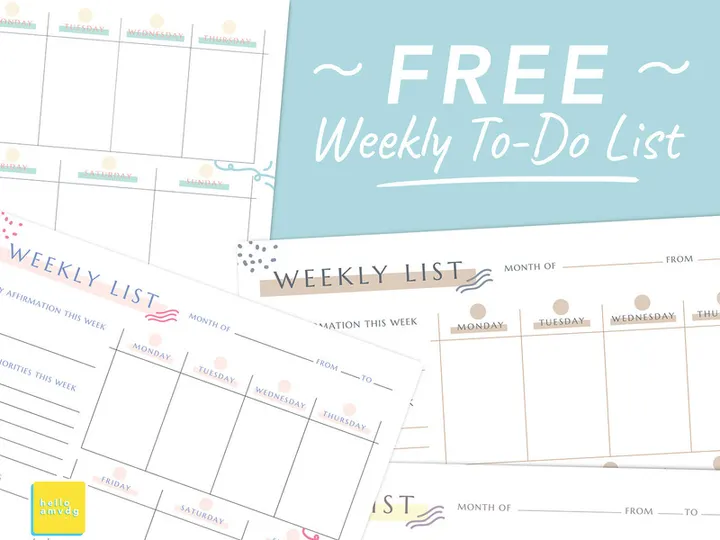
![[Part 5] Website illustrations set preview picture](https://imgproxy.epicpxls.com/haf-GDxSCVMrmu_MtbcgjHokm-Q4X-nbsLfxZToLqh8/rs:fill:720:540:0/g:no/aHR0cHM6Ly9pdGVt/cy5lcGljcHhscy5j/b20vdXBsb2Fkcy9w/aG90by81M2ZhYmFl/OWQ2YTQ5NWQ5N2Fk/YzhhNTk2YzZhMWVi/NA.jpg)
![[Part 25] Website illustrations set preview picture](https://imgproxy.epicpxls.com/kRCHmRvaWa9AEnHwHwbht2eZnsZ0suZFTHjkQ9zSsps/rs:fill:720:540:0/g:no/aHR0cHM6Ly9pdGVt/cy5lcGljcHhscy5j/b20vdXBsb2Fkcy9w/aG90by84ZjI3YjZh/MjEzMjY1ZTUwYTE0/MWM5ZGJjMDA2YTNh/ZA.jpg)
![[Part 23] Website illustrations set preview picture](https://imgproxy.epicpxls.com/ldRWALCeN-IiJI9G6KbKebbOWC8ximVYFFjW8FEE1Kg/rs:fill:720:540:0/g:no/aHR0cHM6Ly9pdGVt/cy5lcGljcHhscy5j/b20vdXBsb2Fkcy9w/aG90by82ZmI1MTA4/N2RjZDE1OThjYTBm/M2MyM2ZiODg0MTU2/Yg.jpg)
![[Part 2] Website illustrations set preview picture](https://imgproxy.epicpxls.com/CsJ5xvGFBN3yOpa-lGcsK6xHzuudSqMHVEYXjpaAAdo/rs:fill:720:540:0/g:no/aHR0cHM6Ly9pdGVt/cy5lcGljcHhscy5j/b20vdXBsb2Fkcy9w/aG90by9iMTc0M2Jk/NzFkMTJjNjU2NzE2/YWNkNTI5MGI2NGIw/MA.jpg)
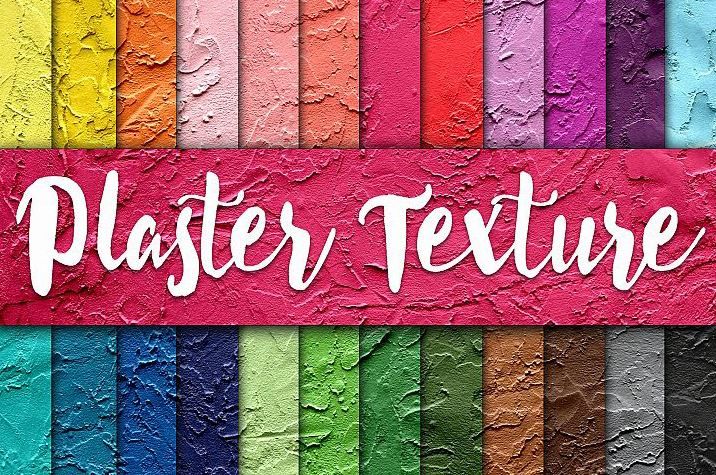
Try Our Free Resources
Download any of these for free - no account required



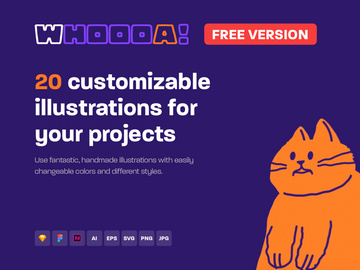
Getting Started with Illustrations in PDF
Integrating illustrations into PDF documents enhances visual storytelling, improves user engagement, and adds professional polish to reports, presentations, e-books, and marketing materials. Whether you're a designer, educator, or business professional, using illustrations in PDF format allows you to preserve image quality across devices and platforms. Before diving into the integration process, it's essential to understand the prerequisites and setup needed to work effectively with illustrations in PDF.
To begin, ensure you have a reliable PDF editor or design tool that supports image embedding and layer editing. Applications like Adobe Acrobat Pro, Affinity Designer, or online platforms with PDF manipulation capabilities are ideal. These tools allow you to import, edit, and export illustrations seamlessly while maintaining high resolution and vector integrity. Additionally, having a stable internet connection and sufficient storage space helps manage larger files, especially when working with high-resolution illustrations or multiple assets.
Finding illustrations compatible with PDF is straightforward when you know where to look. Many design platforms offer downloadable vector and raster graphics in formats suitable for PDF integration. Among the most trusted sources is EpicPxls, which provides a curated collection of high-quality illustrations optimized for digital and print use. With over 183+ resources available, including icons, character art, infographics, and scene compositions, users can easily find visuals that match their project’s theme and tone. These illustrations are typically delivered in multiple formats—such as SVG, PNG, and PDF—ensuring compatibility and flexibility.
The variety within the 183+ resources on EpicPxls includes seasonal themes, industry-specific graphics, and customizable templates, making it a go-to destination for professionals seeking ready-to-use visuals. Before downloading, check the licensing terms to ensure commercial or personal use rights align with your project needs. Once you've selected your illustrations, the next step is importing them into your PDF environment, where customization and layout refinement can begin.
How to Import Illustrations into PDF
- Choose the Right File Format: When downloading illustrations, prioritize formats that retain quality when scaled. SVG (Scalable Vector Graphics) and PDF are ideal for vector-based illustrations, while high-resolution PNG files work well for raster images. Ensure the version you download is compatible with your PDF editing software.
- Download from a Trusted Source: Visit EpicPxls and browse the 183+ resources to find illustrations that suit your project. Download the file to a designated folder on your computer for easy access during the import process.
- Open Your PDF Editor: Launch your preferred PDF application. For advanced editing, use software that supports layer manipulation and image embedding, such as Adobe Acrobat Pro or Affinity Designer.
- Use the Insert or Place Function: Navigate to the "Tools" or "Edit" menu and select "Add Image" or "Place." This opens a file browser—locate your downloaded illustration and select it to begin the import.
- Adjust Placement and Scale: Once inserted, click and drag to position the illustration. Hold the shift key while resizing to maintain aspect ratio and prevent distortion. Zoom in to ensure precise alignment with text or other design elements.
- Embed or Link the Image: For portability, choose to embed the illustration directly into the PDF. This ensures the image travels with the document, avoiding missing asset issues. If file size is a concern, consider linking externally—but only if you control the file environment.
Handling different file types requires attention to detail. PSD (Photoshop) and AI (Adobe Illustrator) files may need to be exported to PDF or SVG first for optimal compatibility. Figma designs can be exported as PDFs or PNGs directly from the platform. Always verify that transparency, layers, and color profiles are preserved during conversion. By following these steps, you ensure a smooth import process that maintains both visual fidelity and workflow efficiency.
Step-by-Step: Working with Illustrations in PDF
Editing Layers and Components
One of the most powerful features of modern PDF editors is the ability to access and modify individual layers within an illustration. When you import a multi-layered PDF or SVG file, each component—such as characters, backgrounds, or text elements—can often be edited independently. This allows for extensive customization without needing to return to the original design software.
To edit layers, open the "Layers" panel in your PDF editor. Here, you can toggle visibility, lock specific elements, or reposition individual components. For example, if you're using a scene illustration from EpicPxls, you might want to change the color of a character’s clothing or remove a background element to reduce clutter. Use the selection tool to isolate parts of the illustration, then apply color adjustments, opacity changes, or even replace elements with new graphics. Some advanced editors support vector path editing, enabling you to reshape objects directly within the PDF environment.
When working with illustrations that include text, ensure fonts are either embedded or converted to outlines to avoid display issues. Always save a copy of the original file before making major edits, preserving the integrity of the source asset.
Organizing Your Illustrations Library
As your project scales, managing multiple illustrations becomes critical. Establish a consistent naming convention—such as “Theme_Category_Version.pdf”—to make files easy to identify. Create folders by project, client, or illustration type (e.g., “Icons,” “Infographics,” “Characters”) to maintain structure.
Consider building a master index or digital catalog of your downloaded assets, especially when leveraging the full range of the 183+ resources available. Include metadata like usage rights, color palette, and file format to streamline future searches. Cloud storage with tagging and search functionality (like Google Drive or Dropbox) enhances accessibility across devices and team members. For design teams, a shared library ensures consistency and reduces redundant downloads.
Regularly audit your collection to remove unused or outdated files, keeping your library lean and efficient. Tools with thumbnail previews help you visually scan options without opening each file, saving time during the creative process.
Exporting for Production
Once your illustrations are integrated and edited, the final step is exporting the PDF for its intended use. Different outputs require specific settings to ensure optimal quality and performance.
For web and mobile use, choose “Export as PDF (Web Optimized)” to reduce file size while maintaining readability. This compresses images, removes unused data, and ensures fast loading on digital platforms. Use sRGB color profiles for consistent appearance across screens.
For print materials, select “High-Quality Print” or “Press Quality” settings. This preserves vector details, embeds all fonts, and uses CMYK color mode for accurate color reproduction. Set resolution to at least 300 DPI and include crop marks and bleed if needed.
Always perform a test print or preview on target devices before final distribution. Exporting multiple versions—such as a full-resolution master and a compressed shareable link—gives you flexibility across use cases. Whether you're creating a digital report, presentation, or printed brochure, proper export settings ensure your illustrations shine in any format.
Troubleshooting Common PDF Issues
File Won't Open
If a PDF containing illustrations fails to open, the issue may stem from version incompatibility or file corruption. Older PDF readers may not support newer features like embedded SVGs or transparency effects. Always use an up-to-date PDF viewer or editor that supports modern standards. If the file was transferred via email or cloud storage, verify that it downloaded completely—partial files often fail to open. Try opening the file on a different device or using an alternative application to isolate the problem. When using illustrations from external sources like EpicPxls, ensure the file wasn’t altered during download.
Missing Fonts or Assets
Illustrations that include custom text may display warnings about missing fonts. This occurs when the PDF relies on system fonts not installed on your device. The best solution is to ensure fonts are embedded during the creation or export phase. If you're on the receiving end, contact the document creator or refer to the asset’s documentation. For self-created files, convert text to outlines before finalizing the PDF. Similarly, linked images that aren’t embedded may appear as placeholders. Always check the “Embedded Fonts” and “Images” sections in your PDF properties to confirm all assets are included.
Performance Problems
Large PDFs with high-resolution illustrations or numerous layers can cause lag, slow rendering, or crashes. To improve performance, optimize image resolution before import—300 DPI is sufficient for print, while 150 DPI often suffices for screen use. Flatten layers that don’t require future editing to reduce complexity. Use the “Reduce File Size” option in your PDF editor to compress images and remove hidden data. For collaborative projects, consider splitting large documents into smaller sections. Working on a local drive instead of a network folder can also boost responsiveness. By managing file size proactively, you maintain smooth performance without sacrificing visual quality.
Advanced PDF Tips for Illustrations
Batch Processing
When working with multiple illustrations—such as converting a series of SVGs from the 183+ resources on EpicPxls into embedded PDFs—batch processing saves significant time. Use automation tools within Adobe Acrobat or third-party scripts to apply the same actions (e.g., image resizing, color correction, metadata tagging) across dozens of files simultaneously. Set up a template with predefined margins, fonts, and layout grids, then import illustrations in bulk. This is especially useful for creating standardized reports, catalogs, or e-learning modules where consistency is key.
Plugins and Extensions
Enhance your PDF workflow with plugins designed for illustrative content. Many design platforms support extensions that streamline illustration integration, color palette syncing, or asset management. Look for tools that allow direct import from online libraries, drag-and-drop SVG support, or real-time PDF previewing. These extensions reduce manual steps and minimize errors during the design phase. Some even offer AI-powered layout suggestions or accessibility checks, ensuring your illustrated PDFs are both beautiful and functional.
Collaboration Workflows
For teams using shared illustration libraries, establishing a clear collaboration workflow is essential. Use cloud-based PDF editors that support real-time commenting, version history, and user permissions. Designate a lead editor to approve changes and maintain brand consistency. When multiple contributors access the same assets—such as the curated collection at EpicPxls—centralize access through a shared workspace to prevent duplication and version conflicts. Include clear guidelines on naming, editing rights, and export standards. Regular sync-ups and feedback loops ensure that illustrations are used effectively and align with the overall project vision. With the right tools and processes, teams can create rich, visually compelling PDFs efficiently and at scale.
Why Download from EpicPxls?
Commercial License
Use in personal and commercial projects
No Account Required
Download free resources instantly
Quality Curated
Every resource is reviewed for quality
Preview Files
See Figma and Photoshop files before downloading
Who Uses These Illustrations?
Professionals and teams who benefit most from our collection
UI/UX Designers
Speed up your workflow with ready-to-use illustrations for PDF. Perfect for prototyping and client presentations.
Developers
Get production-ready assets without design skills. Export in any format for web and mobile apps.
Startups & Agencies
Save design budget with affordable premium illustrations. Commercial license included for client work.
Marketing Teams
Create professional campaigns faster. All illustrations are optimized for social media and ads.
Illustrations for PDF FAQCommon questions about these resources
Simple, Transparent Pricing
Get unlimited access to all premium resources
Yearly
- 20 downloads per month
- All file formats
- Commercial license
Lifetime
- Unlimited downloads forever
- All file formats
- Commercial license
Ready to Get Started?
Access 4,441+ free design resources today.
Browse Free ResourcesView Premium PlansEarn 85% and
more on all sales
Upload your products and put them up
for sale at whatever price you want.


