Photoshop Add-Ons for Illustrator: 12+ Resources
EpicPxls offers 12+ curated photoshop add-ons for Illustrator, all with a commercial license and editable source files (Figma, Sketch, PSD). We have 12+ photoshop add-ons compatible with Illustrator, tested and verified for seamless integration.
Last updated February 12, 2026
Discover 12+ handpicked photoshop add-ons for Illustrator.
Trusted by designers at leading companies
Top Photoshop Add-Ons for Illustrator
Handpicked resources from our curated collection
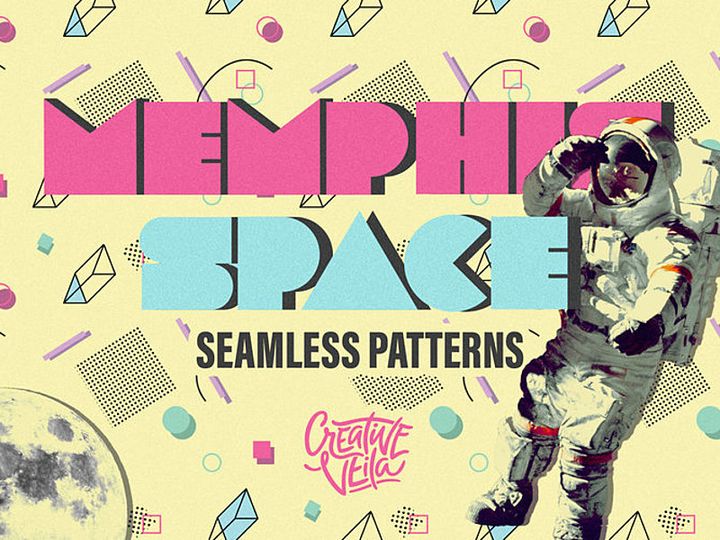
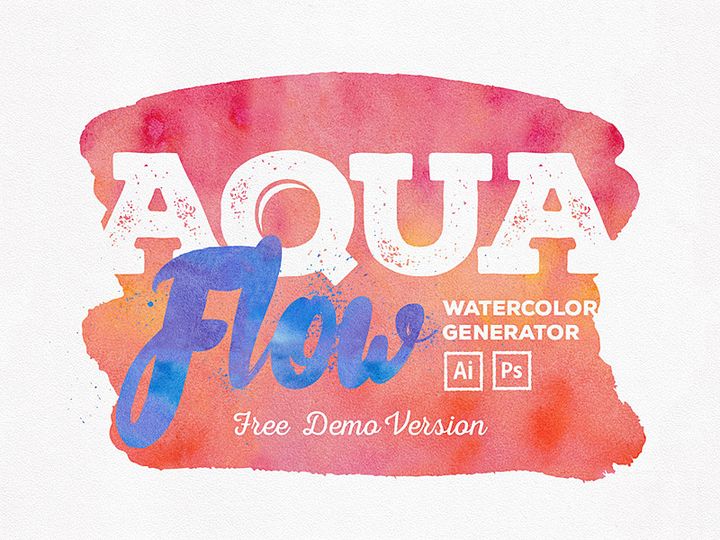
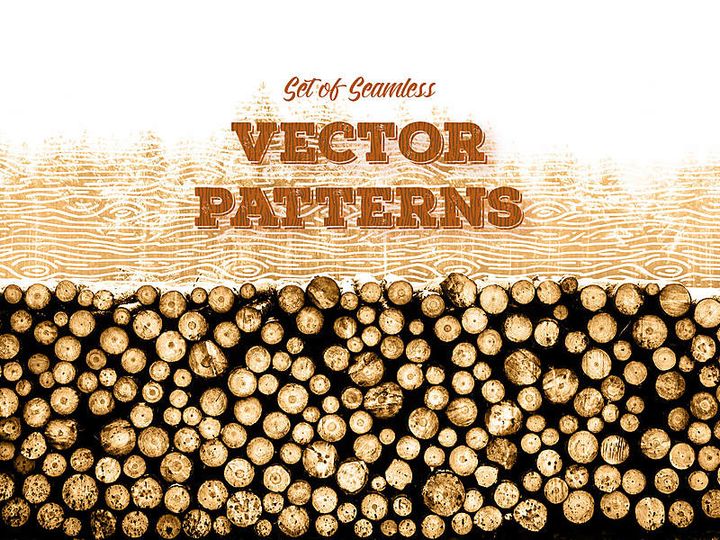
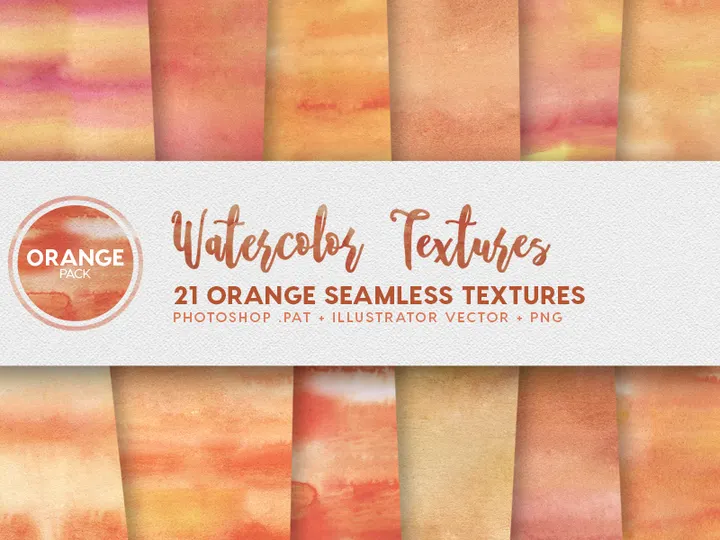
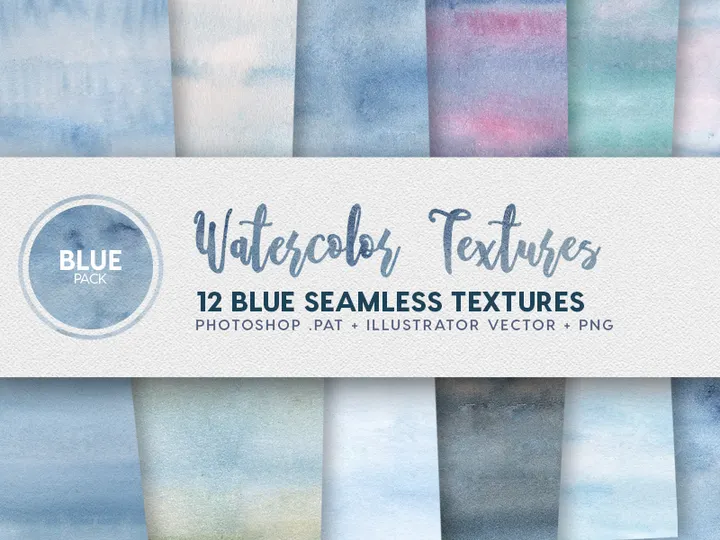
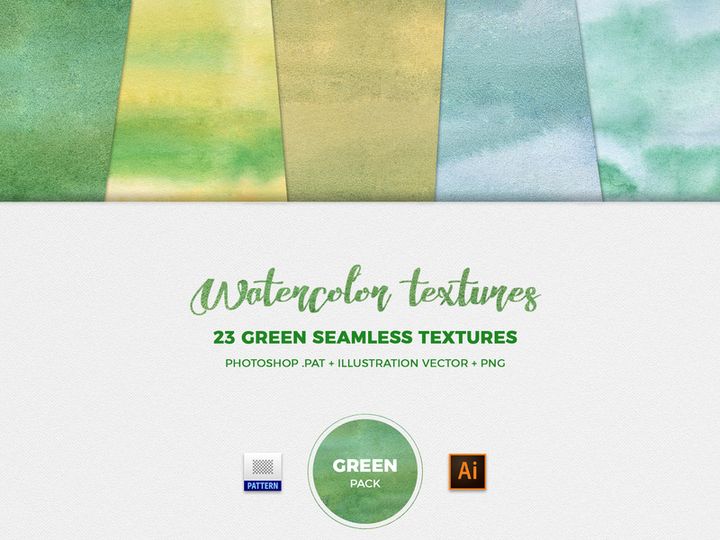
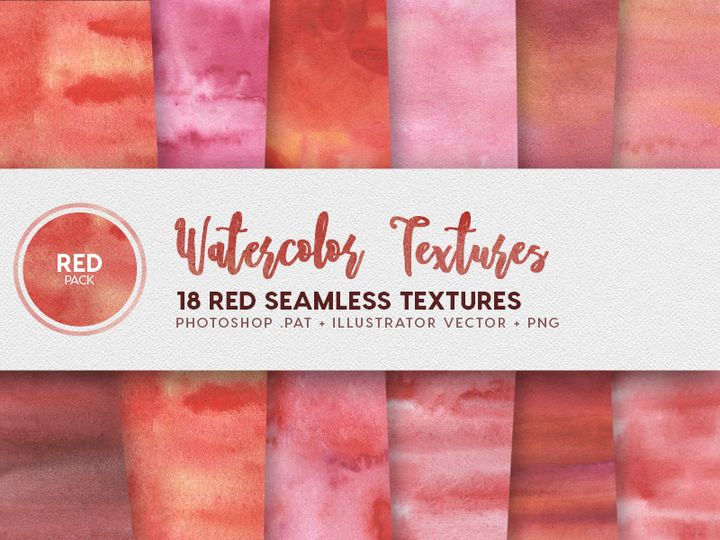
Try Our Free Resources
Download any of these for free - no account required
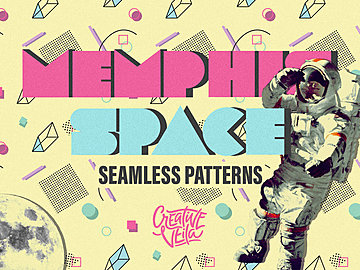
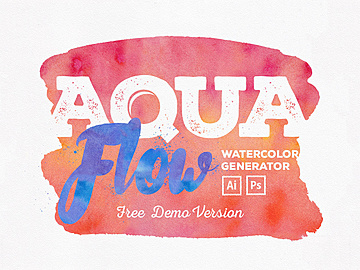
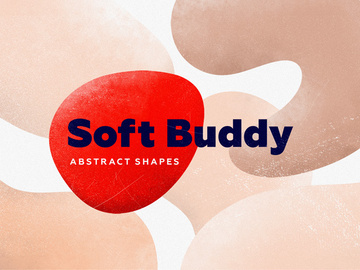
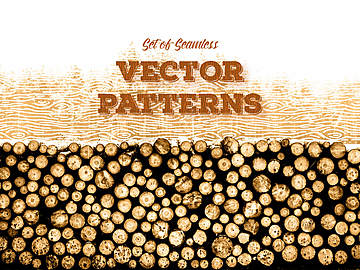
Why Illustrator for Photoshop Add-Ons?
While Adobe Photoshop is renowned for pixel-based editing and photo manipulation, Adobe Illustrator has emerged as a surprisingly powerful platform for enhancing and extending Photoshop workflows—especially when it comes to leveraging Photoshop add-ons. Many designers overlook Illustrator’s role in a Photoshop-centric workflow, but its vector-based precision, robust layer management, and seamless integration with other Adobe Creative Cloud applications make it an ideal environment for preparing, customizing, and organizing Photoshop add-ons such as brushes, textures, patterns, and smart objects.
Illustrator’s non-destructive editing capabilities allow users to create or modify assets that can later be exported in formats fully compatible with Photoshop. For instance, designers frequently use Illustrator to craft custom brush shapes, design seamless patterns, or build layered mockups that are then exported as PSD files or PNG sequences. This cross-functionality makes Illustrator a strategic tool when working with Photoshop add-ons, especially for those who need scalable, high-resolution resources.
Additionally, Illustrator’s Artboards, Libraries, and Global Colors simplify the process of designing reusable assets that can be repurposed across multiple Photoshop projects. This is particularly useful when curating collections of add-ons such as gradients, overlays, or stylized effects. Platforms like EpicPxls recognize this synergy and have carefully selected over 12+ resources that are not only compatible with Illustrator but also optimized for export into Photoshop environments. These curated tools are tested for format integrity, scalability, and ease of integration, ensuring that users can effortlessly transfer their Illustrator work into Photoshop without quality loss or workflow disruption.
At EpicPxls, the focus is on delivering high-value, ready-to-use Photoshop add-ons that are designed with Illustrator users in mind. Whether you’re preparing assets for digital painting, UI design, or print media, Illustrator serves as a foundational tool that enhances the utility and precision of your Photoshop add-on collection.
Top Photoshop Add-Ons Picks for Illustrator
Selecting the right Photoshop add-ons for use in Illustrator can dramatically improve your creative output and workflow efficiency. With so many options available, it’s essential to choose resources that align with your skill level, project requirements, and design goals. Below, we’ve categorized our top picks from the 12+ resources curated by EpicPxls to help you find the perfect tools—whether you're just starting out or working on professional-grade projects.
Best for Beginners
- Starter Brush Pack for Vector Export – Designed with intuitive naming and organized layers, this pack allows new users to experiment with custom brush shapes that can be easily exported to Photoshop.
- Simple Texture Overlays – Includes 10 high-resolution, scalable textures (like paper, canvas, and grunge) built in vector format, ideal for learning how to apply and adjust overlays.
- Pattern Creator Toolkit – A beginner-friendly set of seamless pattern swatches that demonstrate how to build and export repeatable designs for use in Photoshop.
These resources are well-documented and include step-by-step guides, making them perfect for those unfamiliar with cross-application workflows. EpicPxls ensures each beginner tool is intuitive and compatible with the latest Illustrator versions.
Best for Professionals
- Pro Smart Object Templates – Fully layered Illustrator files that export to PSD with intact layer structure, enabling non-destructive editing in Photoshop.
- Vector-Based Light & Glow Effects – Advanced gradient meshes and transparency effects designed for cinematic compositions and high-end branding.
- Customizable Brush Shape Library – Over 50 vector-based brush tips for stylus artists, exportable to ABR format with metadata support.
These premium add-ons are optimized for performance and scalability, offering features like global color adjustments and dynamic symbols—ideal for agencies and freelance professionals managing complex projects.
Best Free Options
- Free Grunge Stamp Pack – A collection of 20 vector stamps for adding texture and depth to digital artwork.
- Open-Source Pattern Swatches – Public domain seamless patterns that can be edited and exported for Photoshop use.
- Basic Overlay Set – Includes film grain, light leaks, and soft blur effects in AI and EPS formats.
EpicPxls highlights these free resources as high-quality, no-cost entry points for designers looking to expand their toolkit without upfront investment. Despite being free, they meet the same compatibility and design standards as premium options.
Illustrator vs Other Tools for Photoshop Add-Ons
When it comes to preparing and managing Photoshop add-ons, Adobe Illustrator stands out from alternative design platforms due to its unmatched vector precision and deep Creative Cloud integration. While other vector or raster tools may support basic export functions, Illustrator offers a comprehensive ecosystem tailored for professional design workflows that feed directly into Photoshop.
One of Illustrator’s key advantages is its native support for PSD export with layered fidelity. This means that complex vector compositions, including text, shapes, and effects, can be saved as layered Photoshop files, preserving editability. Other tools often flatten layers or lose metadata during conversion, but Illustrator maintains layer names, grouping, blending modes, and even vector masks—critical for advanced Photoshop users.
Additionally, Illustrator supports a wide range of file formats commonly used in Photoshop add-ons, including AI, EPS, PDF, SVG, and PNG, ensuring maximum compatibility. Whether you're designing custom brushes, creating texture overlays, or building mockup templates, Illustrator’s format flexibility allows seamless transitions between design stages.
The integration with Adobe Libraries further enhances Illustrator’s utility. Designers can store and sync assets—such as color themes, graphic styles, and symbols—across devices and applications. This is especially helpful when curating collections of Photoshop add-ons, as changes made in Illustrator can be instantly reflected in Photoshop projects.
EpicPxls leverages these strengths by ensuring all 12+ resources are optimized for Illustrator’s export pipeline. Each add-on is tested for cross-format integrity, scalability, and ease of use, making Illustrator the go-to platform for designers who demand precision and consistency in their Photoshop workflows.
Setting Up Photoshop Add-Ons in Illustrator
Getting started with Photoshop add-ons in Illustrator is a straightforward process when you follow a structured setup workflow. Whether you’re installing brushes, textures, or smart templates, these steps will help you import, organize, and begin using your resources efficiently.
- Download and Unzip Resources – Begin by downloading your chosen Photoshop add-ons from a trusted source like EpicPxls. Most packages come in ZIP format and contain AI files, ABR brushes, or texture images.
- Install Brushes and Swatches – For vector-based brushes, open the AI file in Illustrator and drag the shapes into the Brushes panel. For color swatches or patterns, load the ASE or AI swatch file via the Swatches panel menu.
- Import Textures and Overlays – Place raster textures (PNG, JPG, or PSD) using File > Place. Consider placing them on separate layers for easy management.
- Organize in Libraries – Use Window > Libraries to create a dedicated library for your Photoshop add-ons. Drag in reusable assets like logos, icons, or effects for quick access.
- Test Export Settings – Before finalizing your design, test export functionality by saving a copy as PSD. Ensure layers, transparency, and effects are preserved by opening the file in Photoshop.
- Backup and Sync – Save your organized project files and libraries to Creative Cloud or an external drive. This ensures your add-ons are accessible across devices and protected against data loss.
For users managing large collections of add-ons, consider creating nested folders within your Libraries panel—grouped by type (e.g., Brushes, Textures, Overlays). This keeps your workspace clean and improves retrieval speed. EpicPxls recommends labeling all imported assets with descriptive names and version tags to avoid confusion, especially when working on long-term projects.
Illustrator Workflow Tips
Maximizing the potential of Photoshop add-ons in Illustrator requires more than just installation—it demands smart workflow practices. By optimizing how you organize, process, and collaborate on your assets, you can significantly enhance productivity and design consistency.
Organizing Photoshop Add-Ons Libraries
Use Illustrator’s Asset Export panel and Creative Cloud Libraries to create structured collections. Name your libraries clearly (e.g., “PS Brushes – Hand Drawn” or “Textures – Grunge Pack”) and add tags for quick filtering. Store not only the final assets but also source vectors and color palettes to maintain design continuity. Regularly audit your libraries to remove outdated or unused items and keep performance optimal.
Batch Operations
Leverage Illustrator’s Actions panel to automate repetitive tasks such as resizing, exporting, or applying effects to multiple add-ons. For example, create an action that applies a drop shadow, exports as PNG, and saves a PSD copy—ideal for processing brush previews or texture sheets. Batch processing saves time when preparing large sets of resources for Photoshop integration.
Collaboration Best Practices
When working in teams, use Cloud Documents or shared Creative Cloud Libraries to ensure all members have access to the same add-ons. Include a README file or notes layer in your AI files to document add-on sources, usage rights, and export settings. This promotes consistency and reduces errors during handoff to Photoshop specialists. EpicPxls encourages users to share curated libraries containing the 12+ resources most frequently used in collaborative design pipelines, ensuring everyone works with the same high-quality tools.
Why Download from EpicPxls?
Commercial License
Use in personal and commercial projects
No Account Required
Download free resources instantly
Quality Curated
Every resource is reviewed for quality
Preview Files
See Figma and Photoshop files before downloading
Who Uses These Photoshop Add Ons?
Professionals and teams who benefit most from our collection
UI/UX Designers
Speed up your workflow with ready-to-use photoshop add-ons for Illustrator. Perfect for prototyping and client presentations.
Developers
Get production-ready assets without design skills. Export in any format for web and mobile apps.
Startups & Agencies
Save design budget with affordable premium photoshop add-ons. Commercial license included for client work.
Marketing Teams
Create professional campaigns faster. All photoshop add-ons are optimized for social media and ads.
Photoshop Add-Ons for Illustrator FAQCommon questions about these resources
Simple, Transparent Pricing
Get unlimited access to all premium resources
Yearly
- 20 downloads per month
- All file formats
- Commercial license
Lifetime
- Unlimited downloads forever
- All file formats
- Commercial license
Ready to Get Started?
Access 4,441+ free design resources today.
Browse Free ResourcesView Premium PlansEarn 85% and
more on all sales
Upload your products and put them up
for sale at whatever price you want.


