How to Use Mockups in Illustrator: Complete Guide
EpicPxls offers 21+ curated mockups for Illustrator, all with a commercial license and editable source files (Figma, Sketch, PSD). Download your chosen mockups from EpicPxls, then use Illustrator's import function. Most resources include Illustrator-native files for seamless opening.
Last updated February 13, 2026
Everything you need to know about using mockups in Illustrator.
Trusted by designers at leading companies
Top Mockups for Illustrator
Handpicked resources from our curated collection
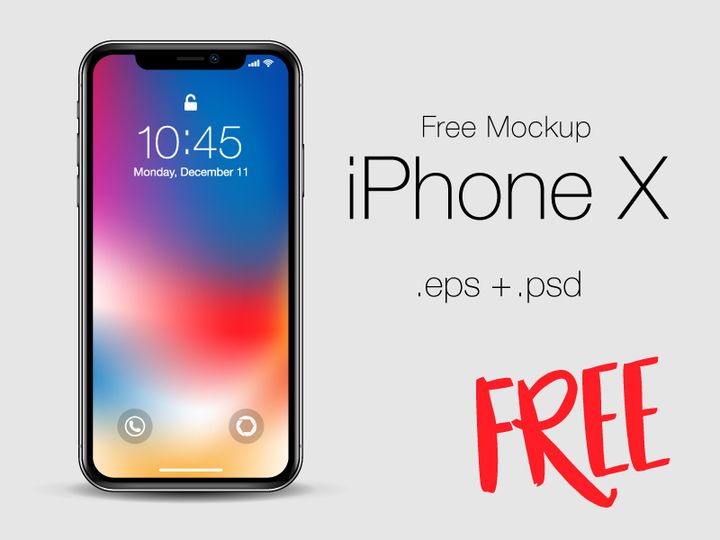
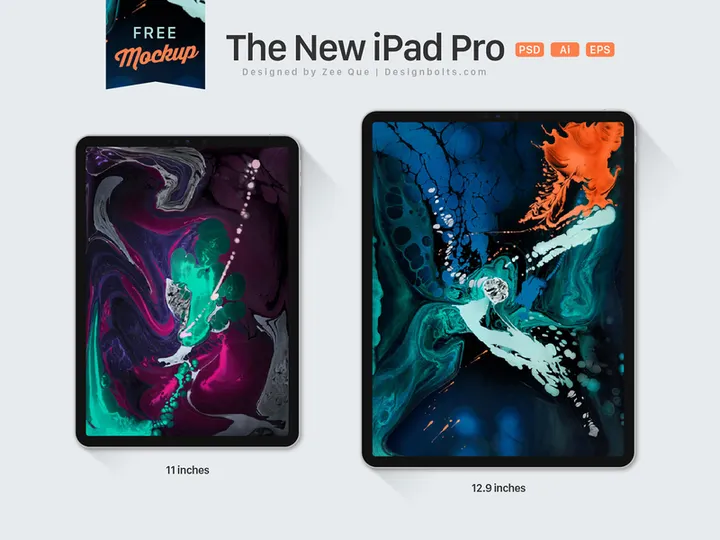
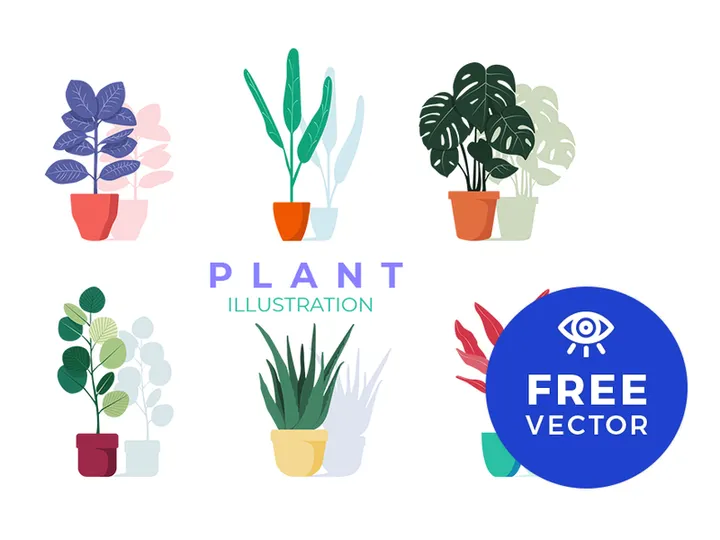
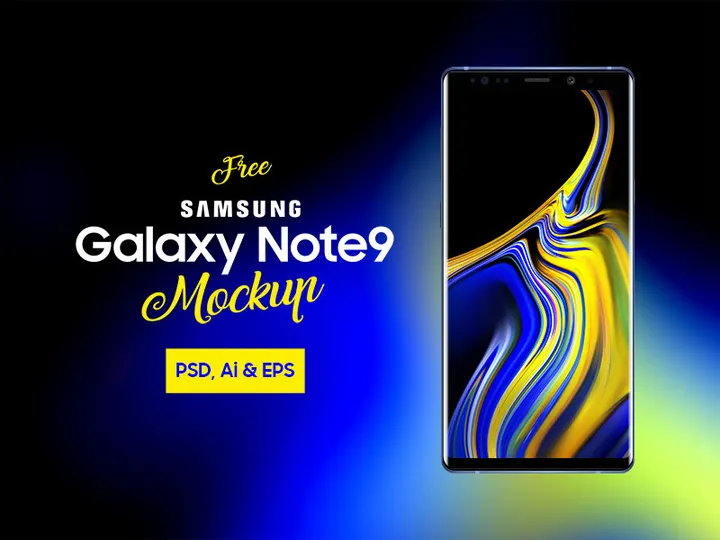
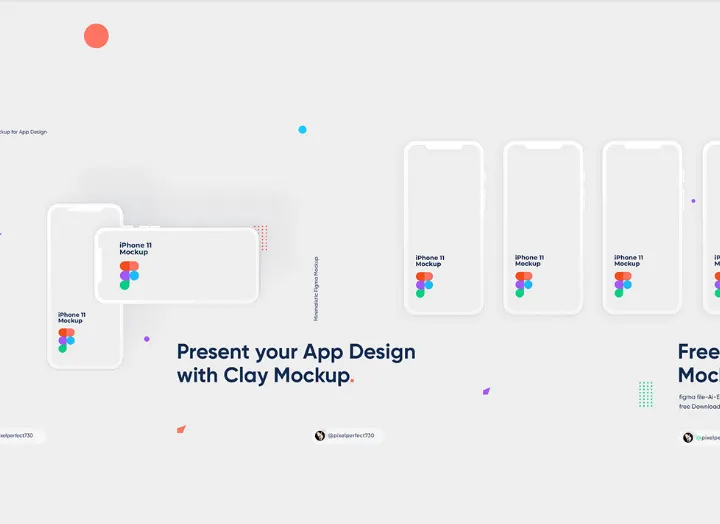
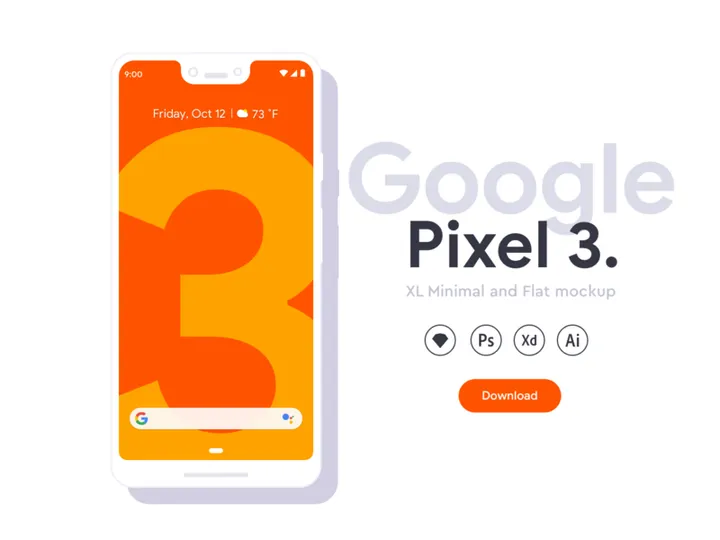
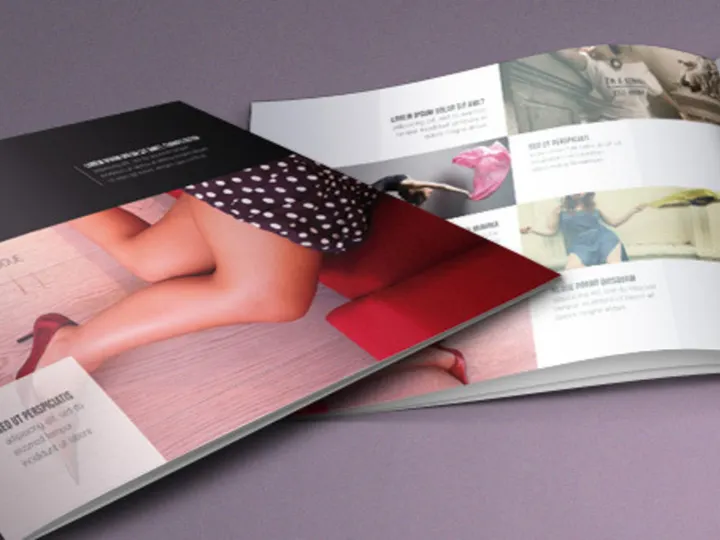
![XXL Mockup Pack [Flat Design / Outline Design] preview picture](https://imgproxy.epicpxls.com/ZIpwkGJw6d4peEy8Ud9aaCsYjUUtOuRfRO8yFvQloCw/rs:fill:720:540:0/g:no/aHR0cHM6Ly9pdGVt/cy5lcGljcHhscy5j/b20vdXBsb2Fkcy9w/aG90by8xMTBhNzM1/ZWIzM2I1NjAwMGQ3/OWE0YzkyOGU5MGZm/ZC5qcGc.jpg)
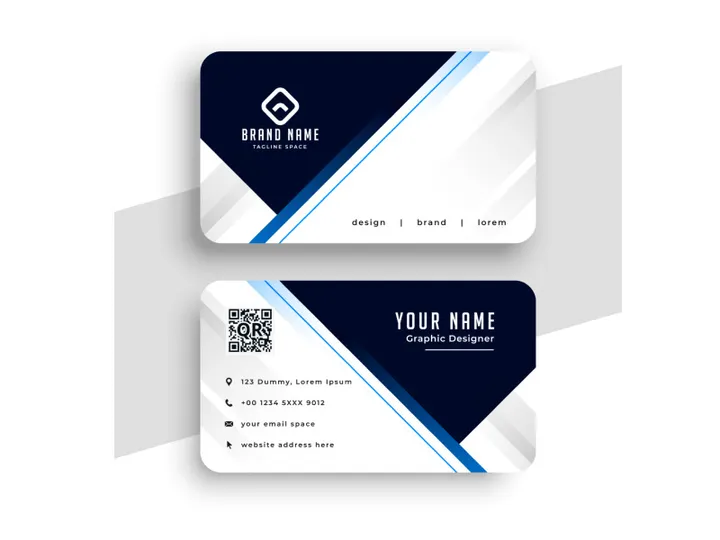


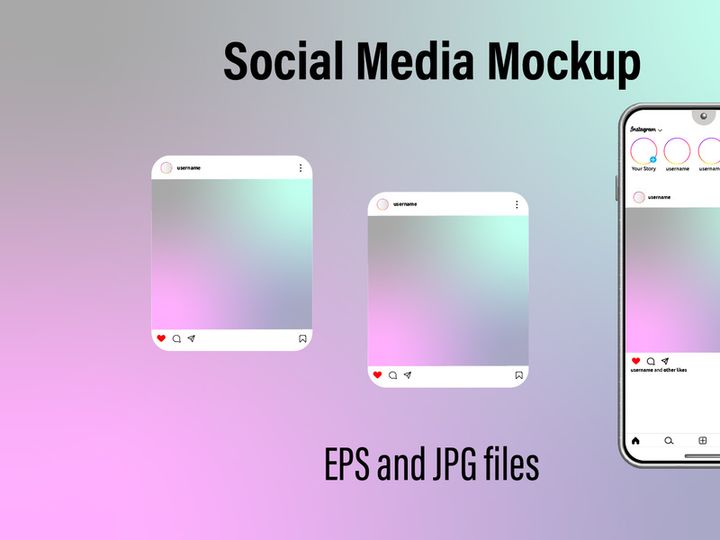
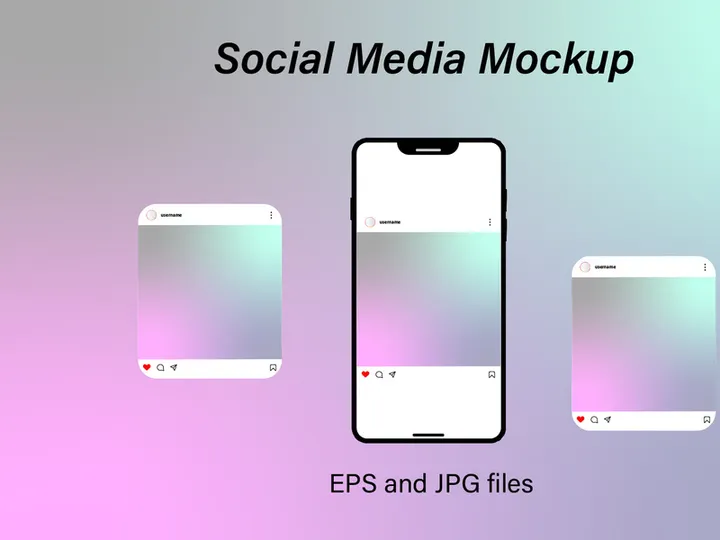
Try Our Free Resources
Download any of these for free - no account required
Getting Started with Mockups in Illustrator
Using mockups in Adobe Illustrator is a powerful way to present your designs in realistic, professional contexts. Whether you're showcasing logos, branding materials, packaging, or digital interfaces, mockups help visualize how your work will appear in the real world. Before diving into the process, it's important to ensure your setup is ready for seamless integration.
To begin, make sure you have the latest version of Adobe Illustrator installed. While older versions can handle basic mockup files, newer releases offer enhanced layer management, better performance with large files, and improved compatibility with modern file formats like SVG and multi-layer PSDs. Ensure your system meets the minimum requirements—particularly sufficient RAM and GPU support—to avoid performance hiccups during intensive design sessions.
Next, source high-quality mockups that are compatible with Illustrator. Look for files labeled as .AI (native Illustrator format), .PSD (Photoshop files with layers), or .SVG (scalable vector graphics). These formats allow you to retain full editability within Illustrator. Many creators offer mockups as part of design kits that include smart objects, organized layers, and customizable components—ideal for quick customization.
One excellent place to find such resources is EpicPxls, which offers a curated collection of over 21+ mockup resources tailored for Illustrator users. From device mockups and apparel templates to stationery and packaging concepts, these downloadable kits are designed with designers in mind—offering flexibility, clean layer structures, and high resolution. By leveraging these 21+ resources, you can jumpstart your workflow without starting from scratch. With the right tools and a properly configured environment, you're now ready to import and customize mockups efficiently in Illustrator.
How to Import Mockups into Illustrator
- Download the correct file format: After selecting a mockup from a trusted source like EpicPxls, ensure you’re downloading a version compatible with Illustrator. Prioritize .AI files for full vector editing. If only a layered .PSD is available, confirm it includes smart objects or flattened layers that import cleanly.
- Extract the downloaded archive: Most mockup packs come in .ZIP or .RAR format. Use an extraction tool to unpack the contents. Look for folders labeled “AI,” “Illustrator,” or “Source Files” to locate the correct version.
- Launch Adobe Illustrator: Open the application and create a new document or proceed directly to import. For best results, match your document settings (color mode, dimensions) to the mockup’s intended use—CMYK for print, RGB for digital.
- Use File > Place to import: Navigate to File > Place, select your mockup file, and click “Place.” For .AI or .EPS files, this embeds the content. For .PSD files, Illustrator will prompt you to choose import options such as layers, resolution, and color space.
- Select import settings carefully: When importing PSDs, choose “Preserve Layers” and “Maximum Editable” options. This ensures you retain access to individual components like shadows, textures, and smart object placeholders. Avoid rasterizing unless necessary.
- Anchor and scale the mockup: Click on the canvas to place the mockup. Hold Shift while scaling to maintain proportions. Once positioned, lock the background or base layers to prevent accidental edits during customization.
While .AI and .PSD files are most common, you may encounter SVG or even Figma-exported mockups. SVGs import easily and remain vector-based, ideal for logos and icons. Figma files require export to PDF, SVG, or PNG before use in Illustrator. Always verify layer integrity post-import—missing elements may indicate format conversion issues. With the mockup successfully imported, you're ready to begin editing and personalizing your design.
Step-by-Step: Working with Mockups in Illustrator
Editing Layers and Components
One of the greatest advantages of using mockups in Illustrator is the ability to edit individual components without affecting the overall structure. After import, open the Layers panel to explore the hierarchy. Well-designed mockups—especially those from EpicPxls—use clearly labeled groups such as “Logo Area,” “Screen Insert,” or “Shadow Layer.” Locate the layer designated for your design element, typically marked as a placeholder or smart object.
To insert your artwork, simply drag and drop your vector graphic or logo into the designated layer. If the mockup uses a clipping mask, paste your design directly above the mask layer and right-click to select “Paste in Front,” then use Object > Clipping Mask > Make. For added realism, match lighting and perspective by adjusting opacity, blending modes, or applying subtle gradients. Use the Appearance panel to tweak strokes, effects, or transparency without altering the base shape.
Customization extends beyond the main design. You can recolor fabrics, change device finishes, or modify background environments using Illustrator’s Recolor Artwork tool or global color swatches. This level of control ensures your mockup aligns perfectly with your brand aesthetic and presentation goals.
Organizing Your Mockups Library
As you collect more mockups—especially from sources offering 21+ resources—organization becomes critical. Create a dedicated folder system on your drive: categorize by type (e.g., “Mobile Devices,” “Apparel,” “Packaging”) and subdivide by project or client. Within Illustrator, consider saving frequently used mockups as templates (.AIT) for quick access.
Use the Libraries panel (Window > Libraries) to store reusable elements like logos, color themes, or custom mockup bases. You can drag entire mockup groups into a library for drag-and-drop reuse across projects. Name each asset clearly—avoid generic labels like “Layer 1”—to maintain clarity during team collaboration or future edits.
Additionally, maintain a master document listing mockup sources, licenses, and usage rights. This helps ensure compliance, especially when sharing files with clients or external teams. A well-structured library saves time and enhances consistency across design deliverables.
Exporting for Production
Once your mockup is customized and finalized, export it in the appropriate format for its intended use. Go to File > Export > Export As and choose from key formats:
- PNG: Ideal for web presentations and social media. Offers transparency and high quality at moderate file sizes. Use 300 PPI for high-resolution needs.
- JPEG: Best for email or web use where file size matters. Choose “High” quality (80-100%) to preserve detail.
- PDF: Preferred for print and client presentations. Preserves vector data, layers (if needed), and supports CMYK color. Enable “Preserve Illustrator Editing Capabilities” if the file will be revised later.
- SVG: Use for web-based mockups or interactive prototypes. Maintains scalability and works well with responsive design.
For presentations, consider exporting multiple views—front, angled, and lifestyle shots—using artboards. This allows you to organize variations within a single file. Always preview exports at 100% zoom to check for pixelation or misalignment. Proper exporting ensures your mockup looks polished across all platforms and mediums.
Troubleshooting Common Illustrator Issues
File Won't Open
If a mockup fails to open in Illustrator, the most likely cause is version incompatibility. Newer .AI files saved in CS6 or later may not open in older versions like CS5. To resolve this, check the file’s version history or download a legacy format if available. Alternatively, ask the provider—such as EpicPxls—if they offer backward-compatible versions. Also, ensure the file isn't corrupted by re-downloading it and verifying the file extension matches the actual format.
Missing Fonts or Assets
When opening a mockup, Illustrator may alert you to missing fonts. This occurs when the original designer used a custom typeface not installed on your system. To fix this, click “Find Font” in the pop-up dialog and substitute with a similar font. For critical branding projects, consider purchasing the original font or asking the client to provide it. Embedded images or linked assets may also be missing if the file relies on external links. Use the Links panel to relink or embed raster images directly.
Performance Problems
Large mockups, especially those with high-res textures or numerous layers, can slow down Illustrator. To improve performance, rasterize non-essential effects (like drop shadows) at 300 PPI, or flatten decorative layers you don’t plan to edit. Disable GPU performance warnings under Preferences > Performance if they interrupt workflow. Also, increase RAM allocation to Illustrator in the application settings—dedicating 70-80% of available memory can significantly boost responsiveness. Working with simplified versions during the design phase and switching to the full mockup only for final exports can also help maintain speed.
Advanced Illustrator Tips for Mockups
Batch Processing
When you need to apply the same design across multiple mockups—such as placing a logo on various t-shirt colors or device models—use Illustrator’s batch processing capabilities. While native batch actions are limited compared to Photoshop, you can create custom scripts or use the Actions panel to record repetitive tasks like placing artwork, applying effects, or exporting. For example, record an action that inserts your logo into a placeholder, adjusts blending mode, and exports as PNG. Then run this action across multiple open mockup files to save hours of manual work.
Plugins and Extensions
Enhance your mockup workflow with Illustrator plugins designed for efficiency. Tools that automate layer naming, export presets, or smart object replacement can drastically cut down production time. Some extensions integrate directly with cloud libraries, allowing you to pull mockups from platforms like EpicPxls without leaving Illustrator. Look for plugins that support batch renaming, template generation, or real-time rendering previews to streamline complex projects.
Collaboration Workflows
For team environments, establish a shared mockups library using cloud storage (e.g., Creative Cloud Libraries or network drives). This ensures all team members use consistent, up-to-date versions. When sharing .AI files, package them using File > Package to include fonts, links, and a summary report—this prevents missing assets on other machines. Set naming conventions and layer standards across the team to maintain clarity. For remote collaboration, consider versioning your mockup files (e.g., “Mockup_Device_v2.ai”) and using comments or PDF markups for feedback. With structured workflows, even large teams can efficiently manage and deploy the 21+ resources available from premium sources, ensuring cohesive and professional design outputs.
Why Download from EpicPxls?
Commercial License
Use in personal and commercial projects
No Account Required
Download free resources instantly
Quality Curated
Every resource is reviewed for quality
Preview Files
See Figma and Photoshop files before downloading
Who Uses These Mockups?
Professionals and teams who benefit most from our collection
UI/UX Designers
Speed up your workflow with ready-to-use mockups for Illustrator. Perfect for prototyping and client presentations.
Developers
Get production-ready assets without design skills. Export in any format for web and mobile apps.
Startups & Agencies
Save design budget with affordable premium mockups. Commercial license included for client work.
Marketing Teams
Create professional campaigns faster. All mockups are optimized for social media and ads.
Mockups for Illustrator FAQCommon questions about these resources
Simple, Transparent Pricing
Get unlimited access to all premium resources
Yearly
- 20 downloads per month
- All file formats
- Commercial license
Lifetime
- Unlimited downloads forever
- All file formats
- Commercial license
Ready to Get Started?
Access 4,441+ free design resources today.
Browse Free ResourcesView Premium PlansEarn 85% and
more on all sales
Upload your products and put them up
for sale at whatever price you want.


