How to Use Animation in After Effects: Complete Guide
EpicPxls offers 12+ curated animation for After Effects, all with a commercial license. Formats vary by item, and each listing shows its files. Download your chosen animation from EpicPxls, then use After Effects's import function. Check each listing for the files it includes.
Last updated January 07, 2022
Everything you need to know about using animation in After Effects.
Trusted by designers at leading companies
Top Animation for After Effects
Handpicked resources from our curated collection

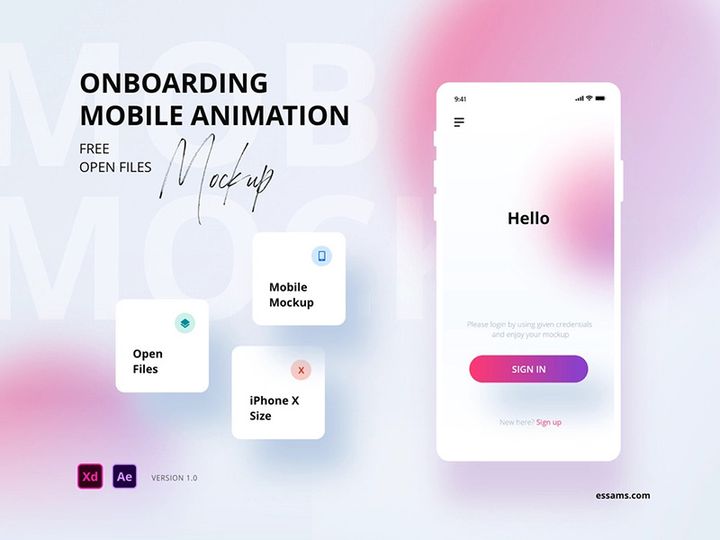

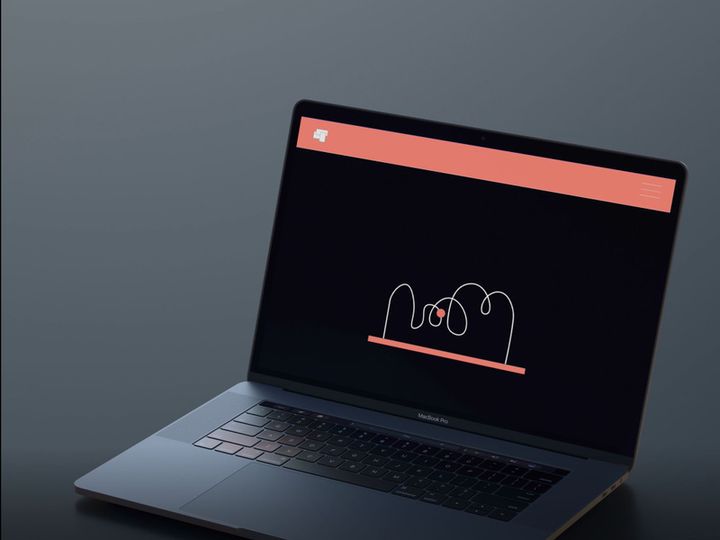
![Doodle [Free AEP file] preview picture](https://imgproxy.epicpxls.com/lPQZ3D1kz49x_B4KUVX88uTuOdVGB9R0rvLS5_Rub4Q/rs:fill:720:540:0/g:no/aHR0cHM6Ly9pdGVt/cy5lcGljcHhscy5j/b20vdXBsb2Fkcy9w/aG90by84NmZkYzNm/NjhjOTk4YzI4M2Ew/NTU5NzE0MjU2OTE3/My5naWY.jpg)



Try Our Free Resources
Download any of these for free - no account required
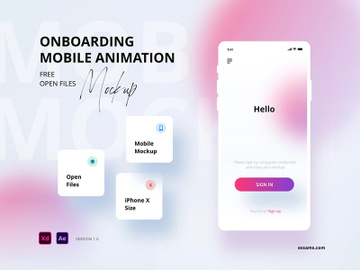

![Doodle [Free AEP file]](https://items.epicpxls.com/uploads/photo/ec9589bd6fe7d08679d7d48835136e30.gif)

Getting Started with Animation in After Effects
Adobe After Effects is one of the most powerful tools for creating professional motion graphics and animations. Whether you're a beginner or an experienced designer, mastering animation in After Effects opens up a world of creative possibilities. Before diving in, ensure you have the latest version of After Effects installed from Adobe Creative Cloud, as newer updates often include performance improvements, essential bug fixes, and support for modern file formats. A stable system with sufficient RAM and a dedicated GPU will significantly enhance your workflow, especially when working with complex animations.
To begin animating, you’ll need suitable assets. Many designers look for pre-built animations to speed up production, and this is where platforms like EpicPxls come in. EpicPxls offers a rich library of professionally designed animations, templates, and motion graphics elements compatible with After Effects. These resources are crafted to streamline your workflow, allowing you to focus on customization and storytelling rather than starting from scratch. The platform hosts over 12+ resources including animated icons, lower thirds, transitions, and full scene templates—all optimized for seamless integration.
These animations are typically delivered as .aep project files or layered source files such as PSD, AI, or SVG, ensuring full editability. Before downloading, verify that the resource specifies After Effects compatibility. Once you’ve selected your desired animations from EpicPxls, you can begin the import process. With the right setup and assets in place, you're ready to bring your creative vision to life. The combination of robust software features and high-quality, ready-to-use content makes After Effects a go-to choice for motion designers across industries.
How to Import Animation into After Effects
- Download the Correct File Format: Always ensure you're downloading an After Effects-compatible file, typically labeled with a .aep extension. Some resources may also include layered Photoshop (.PSD), Illustrator (.AI), or SVG files. Check the product description on EpicPxls or your source platform to confirm format compatibility.
- Unzip the Downloaded File: Most animation packs come in compressed .zip format. Extract the contents to a dedicated project folder on your computer. Keep all related assets—such as images, audio, and fonts—organized in subfolders to avoid missing links later.
- Launch After Effects and Create a New Project: Open After Effects and start a new project. Go to File > New > New Project to clear any default settings. Save your project immediately to your animation folder for easy access.
- Import the Animation File: Navigate to File > Import > File and browse to your extracted .aep or layered file. If importing a PSD or AI file, ensure the "Footage" or "Composition – Retain Layer Sizes" option is selected in the import dialog for optimal results.
- Handle Layered Files Correctly: When importing layered formats like PSD or AI, After Effects will prompt you to choose how to import—either as a composition, footage, or merged layers. Selecting "Composition – Retain Layer Sizes" preserves each layer's position and editability, which is crucial for animation.
- Link Missing Assets (if needed): If fonts, images, or videos are missing, After Effects will flag them in the Project panel. Use the Interpret Footage or Replace Footage options to relink or substitute assets. For text layers, install the required fonts or choose a fallback typeface.
By following these steps, you ensure a smooth import process that maintains animation integrity. With over 12+ resources available on EpicPxls, many of which are pre-organized and well-labeled, you'll find that importing and preparing animations becomes a fast and efficient part of your workflow.
Step-by-Step: Working with Animation in After Effects
Editing Layers and Components
Once your animation is imported, the real creative work begins. After Effects organizes content into layers, each representing a visual or audio element in your composition. To customize an animation, start by exploring the Timeline and Project panels. Select individual layers—such as text, shapes, or images—and adjust their properties using the Transform controls (Position, Scale, Rotation, Opacity, and Anchor Point). You can also modify effects, colors, and animations by expanding the layer’s properties with the triangle icon.
For pre-animated templates from EpicPxls, look for labeled layers and expressions that drive motion. Keyframes define animation timing, and you can reposition them in the timeline to speed up, slow down, or delay movements. To change visual elements, double-click shape layers or replace image placeholders using Replace Footage. Text layers are fully editable—simply select the Type tool and click on the text to update content, font, or size. Always save a backup of the original file before making major changes.
Organizing Your Animation Library
As you accumulate more animations—especially when using multiple resources from a platform like EpicPxls—organization becomes critical. Create a standardized folder structure in your Project panel: separate folders for Footage, Compositions, Audio, and Presets help keep things manageable. Use color labels to mark work-in-progress, approved, or archived items.
For teams or frequent users, consider building a local or network-based animation library. Save frequently used animations as templates by removing project-specific content and preserving key animation rigs. Use consistent naming conventions (e.g., “Transition_Swipe_Left.aep” or “LowerThird_Modern_Blue”) to make searching easier. With over 12+ resources available, a well-structured library ensures you can quickly locate and repurpose animations for new projects.
Exporting for Production
After finalizing your animation, export it for its intended use. Go to Composition > Add to Render Queue to open the export panel. For web and social media, H.264 (MP4) is ideal—set the format to “H.264” and choose a preset like “Match Source – High Bitrate” for quality. Enable “Video Output” and click “Render.”
For mobile apps or websites requiring transparency, use the ProRes 4444 or PNG sequence format with an alpha channel. This preserves transparent backgrounds for use in video editors or development environments. For print or high-end presentations, export as an image sequence (TIFF or PNG) to maintain maximum quality. Always preview your export before final delivery to ensure timing, resolution, and color accuracy meet expectations.
Troubleshooting Common After Effects Issues
File Won't Open
If an After Effects file fails to open, the most common cause is version incompatibility. .aep files created in newer versions of After Effects cannot be opened in older ones. Always check the version requirement listed on the download page—especially for resources from EpicPxls. If you're using an older version, contact the provider to see if a backward-compatible version is available. Alternatively, update your software via Creative Cloud. Corrupted downloads can also prevent opening; re-download the file and verify its integrity by checking file size and re-extracting the archive.
Missing Fonts or Assets
When opening an imported animation, After Effects may display warnings about missing fonts or footage. For fonts, the software will substitute a default typeface, which can disrupt layout. To fix this, install the required fonts—these are often included in the downloaded package or listed in a ReadMe file. If the font isn’t available, manually change the text layer to a similar typeface and adjust tracking or leading as needed. For missing images or videos, use File > Reload Footage or right-click the missing item in the Project panel and choose Replace Footage to locate the correct file.
Performance Problems
Large animations, especially those with high-resolution layers or complex effects, can slow down After Effects. To improve performance, use Proxy Switches—replace high-res footage with lower-resolution versions during editing, then toggle back before export. Enable RAM Preview with a reduced resolution (1/2 or 1/4) for smoother playback. Close unused compositions and clear the cache via Edit > Purge > All Memory & Disk Cache to free up space. Consider increasing RAM allocation in Preferences > Memory & Performance if your system allows it. These steps help maintain a responsive workflow, even with complex projects.
Advanced After Effects Tips for Animation
Batch Processing
When working with multiple animations or variations—such as different text versions for social media—use After Effects’ Batch Rendering feature. Set up all your compositions, add them to the Render Queue, and let After Effects process them sequentially. For more control, integrate Adobe Media Encoder. Drag multiple compositions directly into Media Encoder to export them in different formats or resolutions simultaneously. This is especially useful when delivering content across platforms like Instagram, YouTube, and corporate websites.
Plugins and Extensions
Extend After Effects’ capabilities with plugins that streamline animation tasks. Tools like Duik Bassel for character rigging, Motion 2 for path animation, or RubberHose for limb deformation can drastically reduce manual work. Many EpicPxls animations are designed to work seamlessly with popular plugins, enabling advanced features like auto-lip-sync or dynamic camera movements. Always download plugins from trusted sources and ensure compatibility with your After Effects version. Install them in the correct Scripts or Plug-ins folder, then access via Window menu in After Effects.
Collaboration Workflows
For teams sharing animation projects, establish a clear collaboration workflow. Use consistent file naming, folder structures, and version control (e.g., v01, v02_final). Store shared resources—like brand assets or approved animations—on a centralized drive or cloud service with sync capabilities. When using templates from the 12+ resources on EpicPxls, distribute them with documentation outlining editable layers and restrictions. Consider using Adobe’s Creative Cloud Libraries to sync colors, graphics, and assets across team members. Regular check-ins and feedback loops ensure consistency and reduce rework, making team-based animation production efficient and scalable.
Why Download from EpicPxls?
Commercial License
Use in personal and commercial projects
No Account Required
Download free resources instantly
Quality Curated
Every resource is reviewed for quality
Preview Files
See preview images on each item page before downloading
Who Uses These Animation?
Professionals and teams who benefit most from our collection
UI/UX Designers
Speed up your workflow with ready-to-use animation for After Effects. Perfect for prototyping and client presentations.
Developers
Get production-ready assets without design skills. Export in any format for web and mobile apps.
Startups & Agencies
Save design budget with affordable premium animation. Commercial license included.
Marketing Teams
Create professional campaigns faster. All animation are optimized for social media and ads.
Animation for After Effects FAQCommon questions about these resources
Simple, Transparent Pricing
Get unlimited access to all premium resources
Yearly
- 20 downloads per month
- All file formats
- Commercial license
Lifetime
- Unlimited downloads forever
- All file formats
- Commercial license
Earn 85% and
more on all sales
Upload your products and put them up
for sale at whatever price you want.


