How to Use Themes in Adobe XD: Complete Guide
EpicPxls offers 74+ curated themes for Adobe XD, all with a commercial license and editable source files (Figma, Sketch, PSD). Download your chosen themes from EpicPxls, then use Adobe XD's import function. Most resources include Adobe XD-native files for seamless opening.
Last updated February 13, 2026
Everything you need to know about using themes in Adobe XD.
Trusted by designers at leading companies
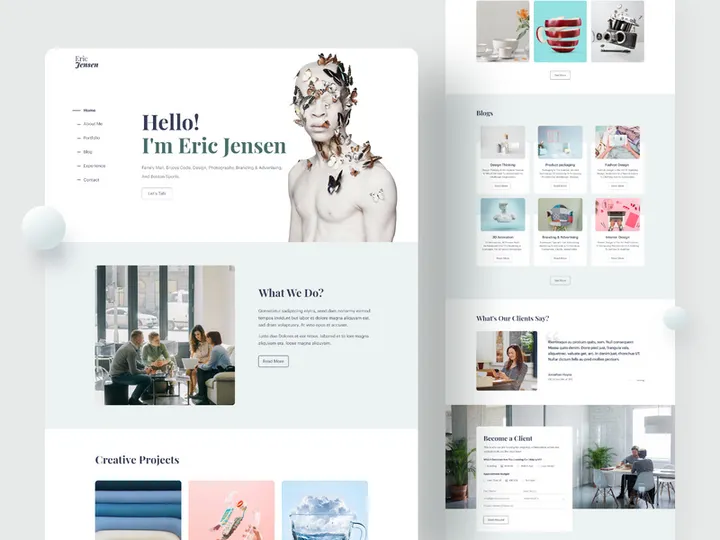
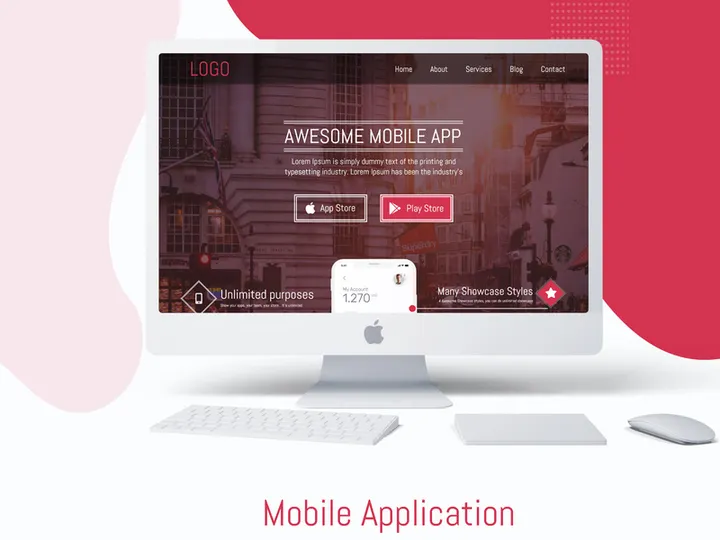
Top Themes for Adobe XD
Handpicked resources from our curated collection
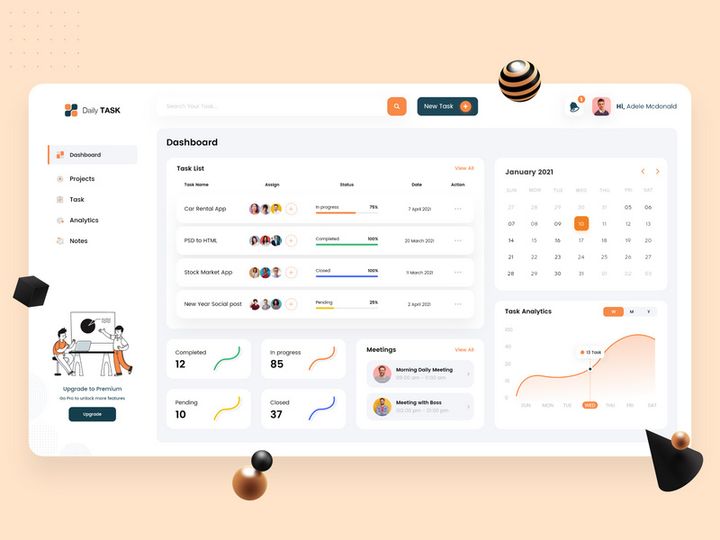

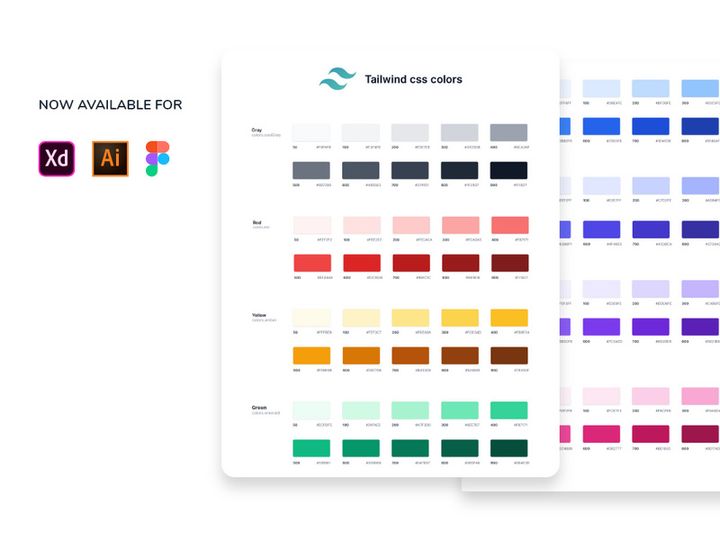
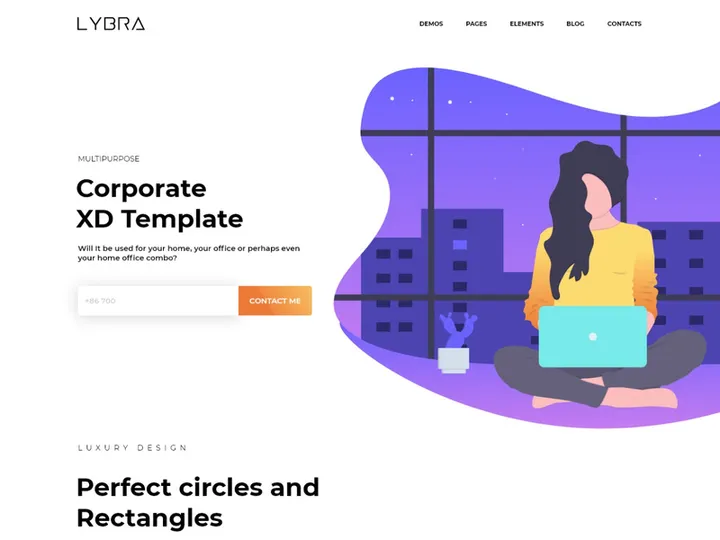
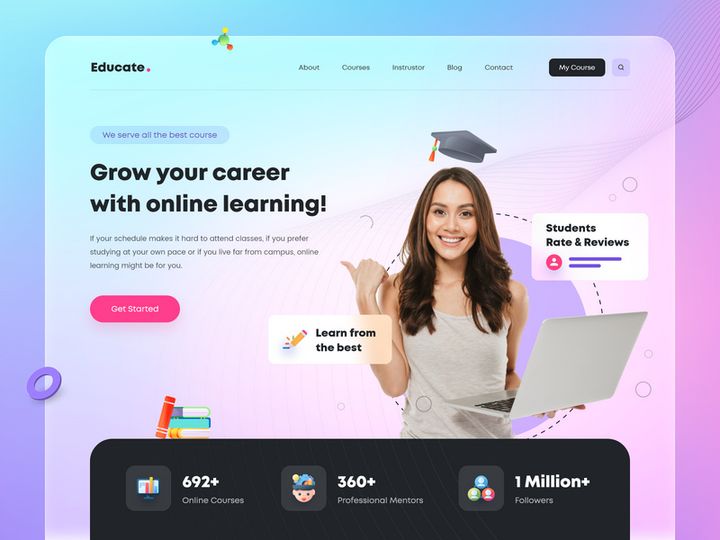
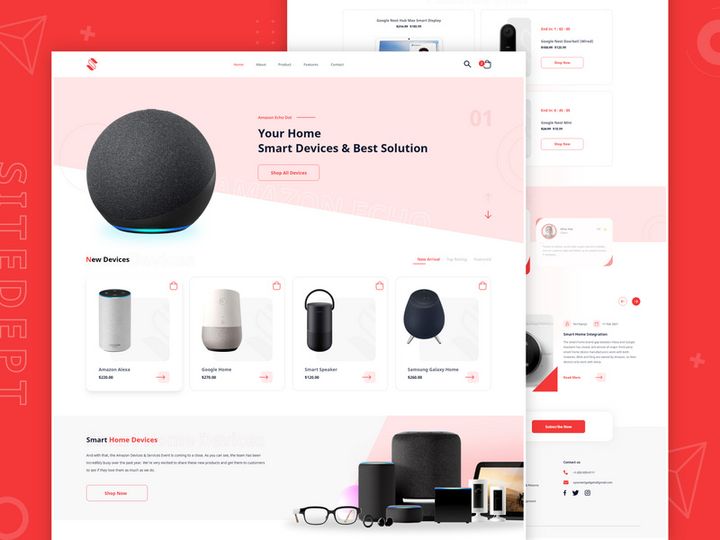
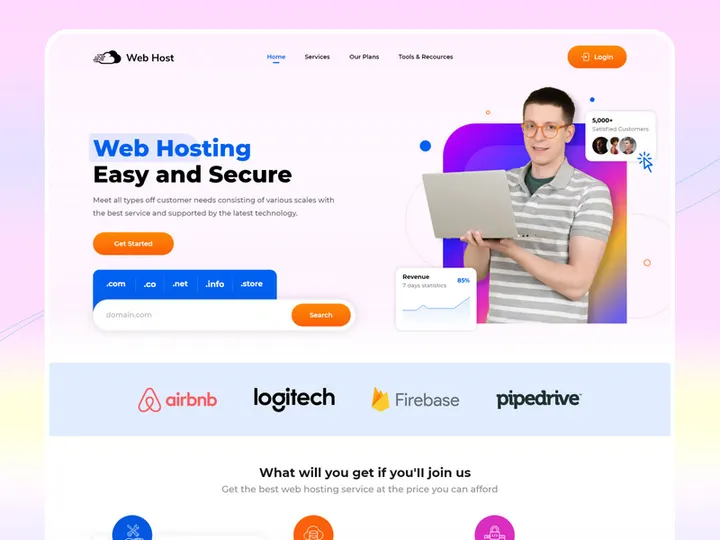

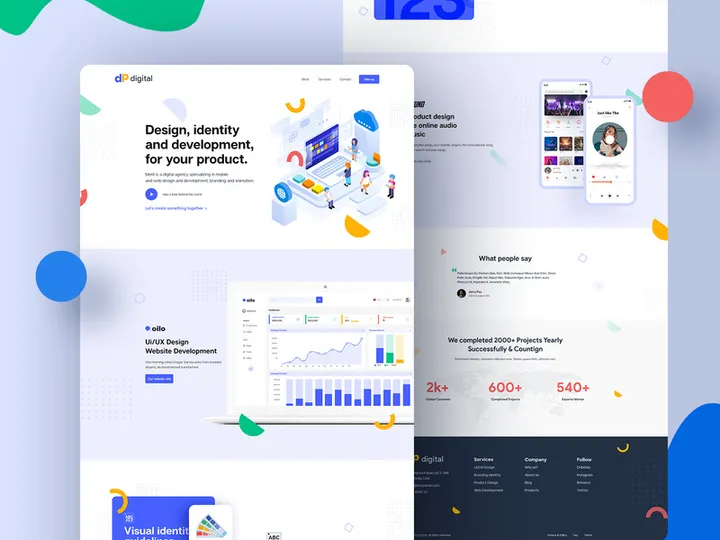
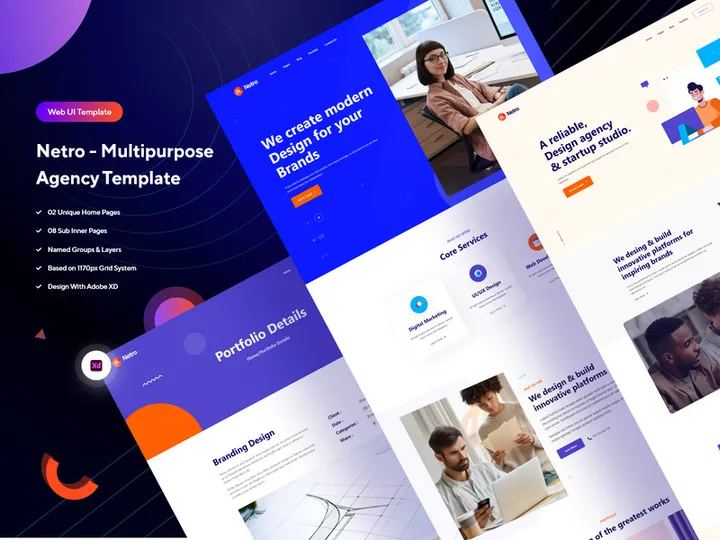
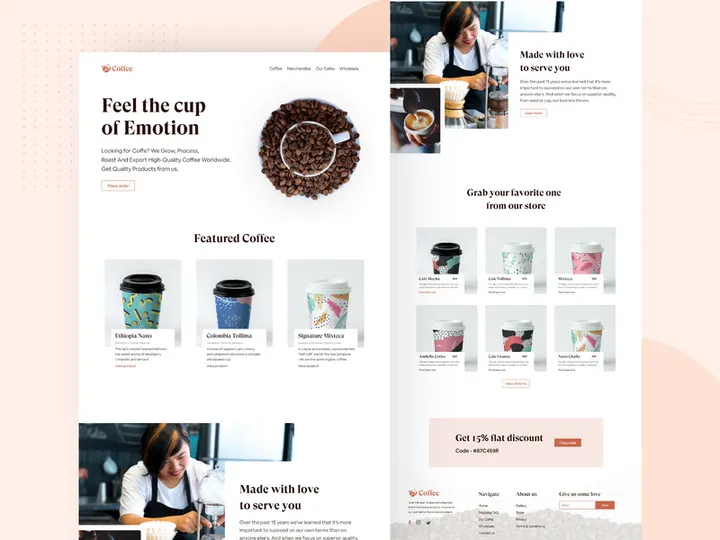
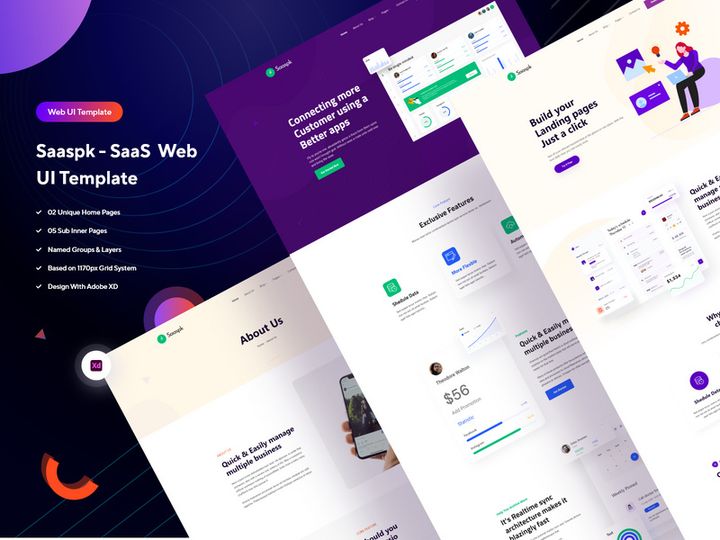
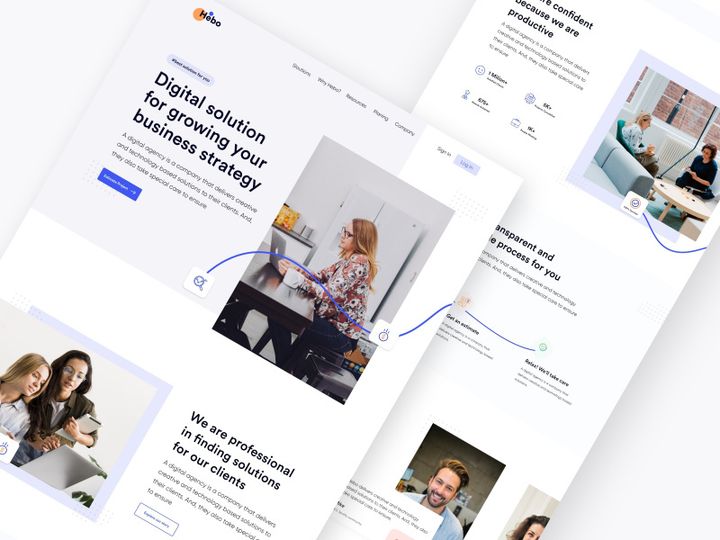

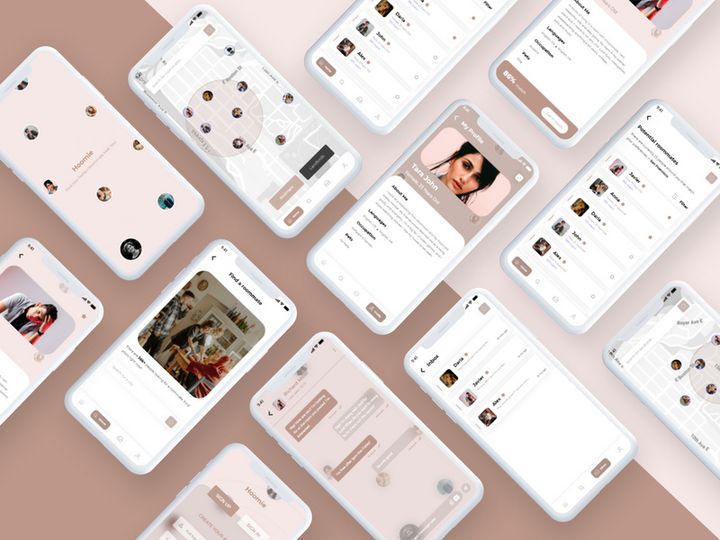

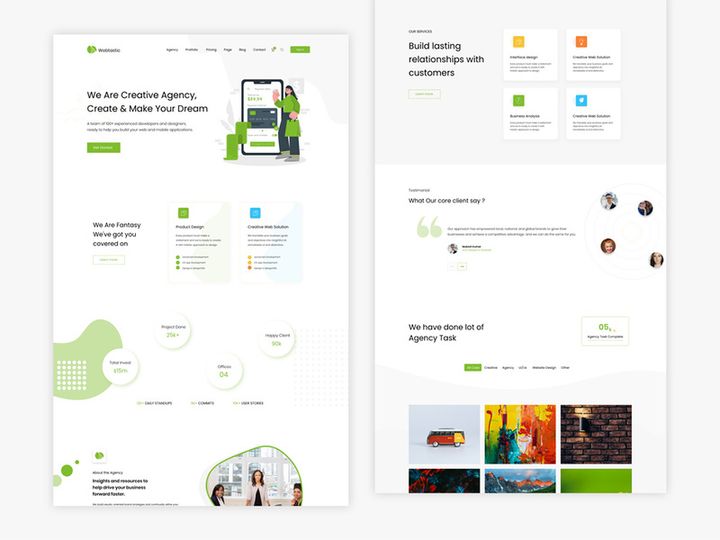
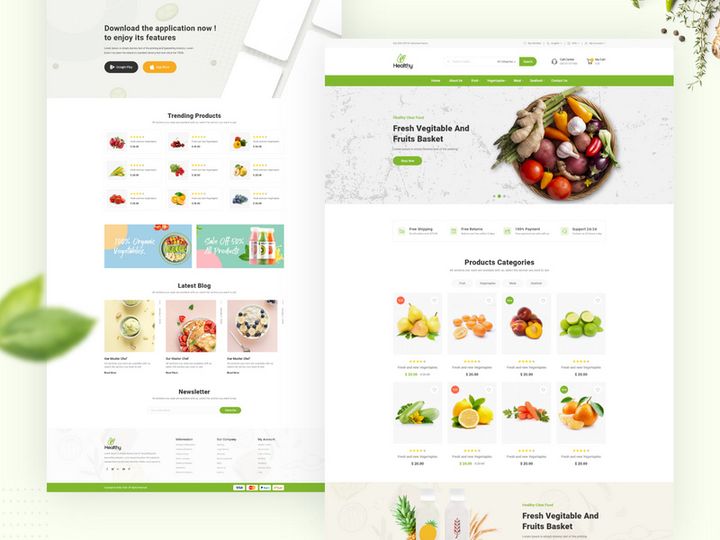
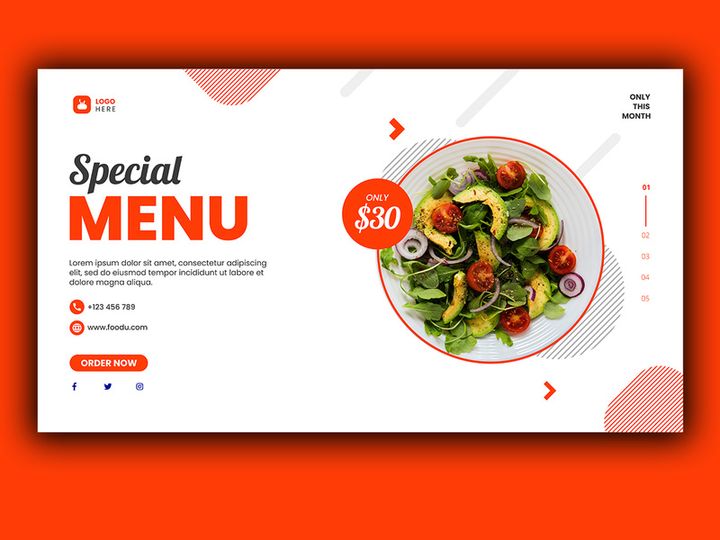

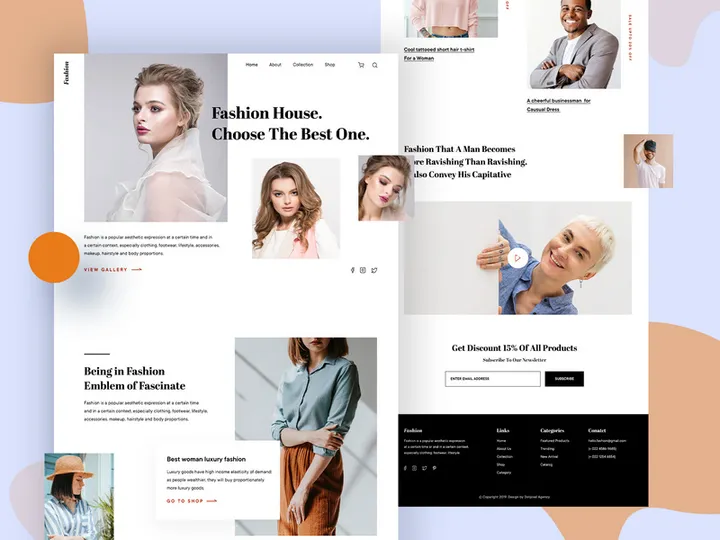

Try Our Free Resources
Download any of these for free - no account required

Getting Started with Themes in Adobe XD
Adobe XD has become a go-to tool for UI/UX designers looking to create stunning, interactive prototypes and high-fidelity designs efficiently. One of the most powerful ways to accelerate your workflow is by leveraging themes—pre-designed design systems that include color palettes, typography, UI components, and layout structures. Themes not only ensure consistency across your projects but also save valuable time during the initial design phase.
Before diving into themes, ensure you have the latest version of Adobe XD installed. The software is available for both macOS and Windows through the Adobe Creative Cloud suite. A stable internet connection is recommended, especially when downloading large theme files or syncing cloud assets. Once installed, sign in with your Adobe ID to access cloud documents, plugins, and syncing features that enhance theme integration.
Themes for Adobe XD can be sourced from various design communities and marketplaces, but one of the most reliable and high-quality options is EpicPxls. This platform offers a growing library of over 74+ resources, including modern UI kits, dark and light mode themes, mobile app templates, and enterprise dashboards—all optimized for seamless use in Adobe XD. These themes are crafted by professional designers and are fully customizable, making them ideal for freelancers, agencies, and product teams alike.
What sets EpicPxls apart is its focus on design system cohesion. Each theme includes reusable components, character styles, and color swatches that align with current design trends such as neumorphism, glassmorphism, and minimalism. Whether you're designing a startup landing page or a complex SaaS dashboard, the 74+ resources available provide a strong foundation to build upon. With intuitive organization and detailed documentation, even beginners can start using these themes effectively right out of the gate.
How to Import Themes into Adobe XD
- Download the Correct File Format: Always ensure the theme file is in a format compatible with Adobe XD. Most themes from trusted sources like EpicPxls come in .xd format by default. If the theme is available in other formats such as PSD, AI, or SVG, check if the provider offers a native XD version or conversion guide.
- Extract the Downloaded Archive: Theme packages are often compressed in .zip or .rar files. Use an extraction tool to unpack the contents. Look for the .xd file inside the extracted folder, along with any accompanying documentation or asset lists.
- Open Adobe XD: Launch Adobe XD and go to File > Open. Navigate to the location where you saved the extracted .xd file and select it to open. If prompted, allow the app to load external content.
- Review the Artboard Structure: Once opened, examine the artboards. High-quality themes typically include multiple screens, component variants, and style guides. Take a moment to explore the layers panel to understand how the theme is structured.
- Handle Non-XD Files (if applicable): If you're working with a PSD or AI file, you'll need to import it via File > Import. Note that vector paths and layers may not convert perfectly, so some cleanup might be needed. For SVG files, drag and drop directly into the canvas or use the import function—SVGs are ideal for icons and illustrations within themes.
- Verify Linked Assets: Some themes include linked fonts or cloud documents. If any assets appear missing, check the documentation or visit the provider’s website. Resources from EpicPxls typically include font references and links to free or premium typefaces used in the design.
By following these steps, you can seamlessly bring any theme into Adobe XD and begin customizing it to match your project’s requirements. Always keep a backup of the original theme file before making edits, so you can revert if needed.
Step-by-Step: Working with Themes in Adobe XD
Editing Layers and Components
Once a theme is imported, the real work begins: customization. Adobe XD’s layer-based editing system allows for deep personalization. Start by exploring the Layers panel on the right side of the interface. Most professionally designed themes, especially those from EpicPxls, use a clean hierarchy with labeled groups, such as “Headers,” “Cards,” “Navigation,” and “Buttons.” This organization makes it easy to locate and modify specific elements.
Components are at the heart of effective theming in Adobe XD. These are reusable design elements—like buttons or input fields—that can be edited globally. To edit a component, simply double-click it to enter “Component Edit Mode.” Any changes made here will automatically update across all instances of that component in your document. For example, if you change the corner radius of a primary button, every instance of that button across all artboards will reflect the update.
Character and color styles are also integral to themes. In the Assets panel, you’ll find predefined text styles (e.g., “Heading 1,” “Body Copy”) and color swatches (e.g., “Primary Blue,” “Error Red”). Modify these styles to align with your brand, and the changes will cascade throughout the theme. This ensures visual consistency and reduces manual adjustments.
Organizing Your Themes Library
As you collect more themes—especially with access to 74+ resources from platforms like EpicPxls—organization becomes crucial. Create a dedicated folder on your local drive or cloud storage (e.g., Google Drive, Dropbox, or Adobe Creative Cloud) labeled “Adobe XD Themes.” Within this folder, use subfolders to categorize themes by project type: “Ecommerce,” “Mobile Apps,” “Admin Panels,” etc.
Within Adobe XD, use Cloud Documents to sync your most frequently used themes across devices. This is particularly useful if you work from multiple machines. Additionally, consider creating a master XD file that imports key components from various themes using the Copy from Document feature. This acts as a centralized design system library for your personal or team use.
For teams, establish naming conventions and version control. Prefix files with version numbers (e.g., “Theme-Dashboard-v1.2.xd”) and include a changelog in the first artboard. This helps avoid confusion and ensures everyone is working with the latest design assets.
Exporting for Production
When your design is finalized, it’s time to export assets for development. Adobe XD offers robust export capabilities tailored to different platforms. Select the elements or artboards you want to export, then go to the Export panel in the right-hand properties bar.
For web development, export assets as PNG or SVG. SVG is ideal for icons and logos due to its scalability. Set the scale to 1x, 2x, and 3x for responsive design support. For mobile apps, use PNG at multiple resolutions (1x, 2x, 3x) and consider exporting in both light and dark mode variants if your theme supports it.
You can also generate CSS, iOS, and Android code snippets directly from XD by selecting an element and using the “Copy as CSS” or “Copy as Swift” options. While not a replacement for hand-coded UI, these snippets help developers understand spacing, colors, and typography.
For print or presentation purposes, export entire artboards as PDF. This preserves vector quality and allows stakeholders to view the design without needing Adobe XD. Always review the exported files to ensure clarity and correct formatting before sharing.
Troubleshooting Common Adobe XD Issues
File Won't Open
If an Adobe XD theme file fails to open, the most common cause is version incompatibility. Older versions of XD may not support features used in newer theme files, such as nested components or auto-animate. Always update to the latest version via the Creative Cloud desktop app. If the file was created in a newer version than yours, contact the provider—many EpicPxls themes include backward compatibility notes or alternative download options.
Also, ensure the file is actually a .xd file and not mislabeled. Occasionally, downloaded archives may contain files in other formats. Re-download the file if corruption is suspected.
Missing Fonts or Assets
When fonts appear as fallbacks (e.g., displayed in red), it means the required typeface isn’t installed on your system. Check the theme’s documentation for font names. Many themes use popular free fonts like Inter, Roboto, or Open Sans, which can be downloaded from Google Fonts. Premium fonts may require a license, but EpicPxls typically provides substitution recommendations to maintain visual fidelity.
For missing images or linked assets, verify that all files were extracted correctly. Some themes use linked images for performance. If the links are broken, re-import the images or embed them directly into XD by copying and pasting.
Performance Problems
Large theme files—especially those with dozens of artboards and high-resolution images—can slow down Adobe XD. To improve performance, close unused artboards or split the theme into smaller modules. Use Repeat Grid sparingly, as it can increase file complexity.
Convert high-res images to lower resolutions if they’re only used for mockups. Also, avoid embedding large video or animation files unless necessary. If performance remains an issue, restart Adobe XD or clear the application cache via Edit > Preferences > Performance.
Advanced Adobe XD Tips for Themes
Batch Processing
When working with multiple themes or updating several components across artboards, use XD’s batch editing capabilities. Select multiple components of the same type (e.g., all primary buttons) and apply global changes such as color, font, or size. This saves time and maintains consistency. You can also use the Find and Replace feature to update text styles or colors across the entire document.
Plugins and Extensions
Enhance your theme workflow with Adobe XD plugins. Visit the Plugins menu to browse tools that automate repetitive tasks. For example, use a plugin to generate design tokens from your theme’s color and typography styles, making it easier to hand off to developers. Others can auto-organize layers, export assets in bulk, or sync design system updates. Many EpicPxls themes are designed with plugin compatibility in mind, especially those involving icon sets or grid systems.
Collaboration Workflows
For teams using shared themes, Adobe XD’s Coediting and Shared Libraries features are invaluable. Upload your customized theme to Creative Cloud Libraries so team members can access colors, components, and text styles across projects. Use Prototype sharing to let stakeholders review theme-based designs in real time via a web link.
Establish a team workflow where one designer manages the master theme file, and others pull updates regularly. Use versioned naming and cloud comments to track changes. With 74+ resources to choose from, teams can create a modular design system by combining elements from different themes—ensuring both flexibility and consistency across products.
Why Download from EpicPxls?
Commercial License
Use in personal and commercial projects
No Account Required
Download free resources instantly
Quality Curated
Every resource is reviewed for quality
Preview Files
See Figma and Photoshop files before downloading
Who Uses These Themes?
Professionals and teams who benefit most from our collection
UI/UX Designers
Speed up your workflow with ready-to-use themes for Adobe XD. Perfect for prototyping and client presentations.
Developers
Get production-ready assets without design skills. Export in any format for web and mobile apps.
Startups & Agencies
Save design budget with affordable premium themes. Commercial license included.
Marketing Teams
Create professional campaigns faster. All themes are optimized for social media and ads.
Themes for Adobe XD FAQCommon questions about these resources
Simple, Transparent Pricing
Get unlimited access to all premium resources
Yearly
- 20 downloads per month
- All file formats
- Commercial license
Lifetime
- Unlimited downloads forever
- All file formats
- Commercial license
Ready to Get Started?
Access 4,442+ free design resources today.
Browse Free ResourcesView Premium PlansEarn 85% and
more on all sales
Upload your products and put them up
for sale at whatever price you want.


