How to Use Illustrations in Sketch: Complete Guide
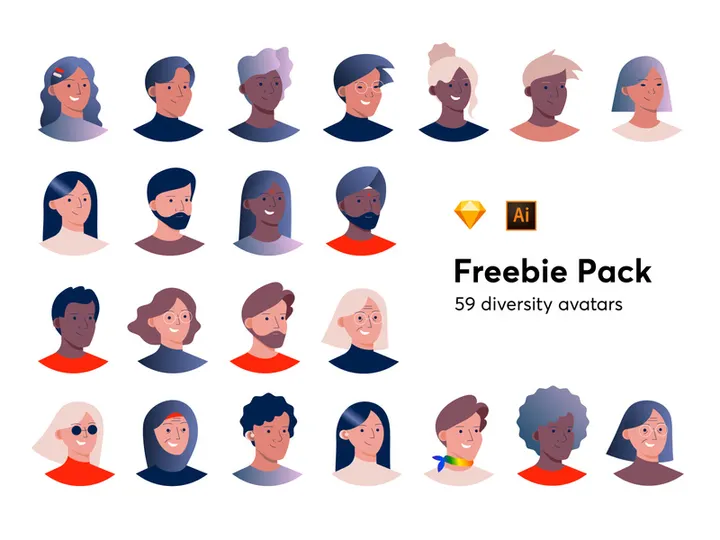
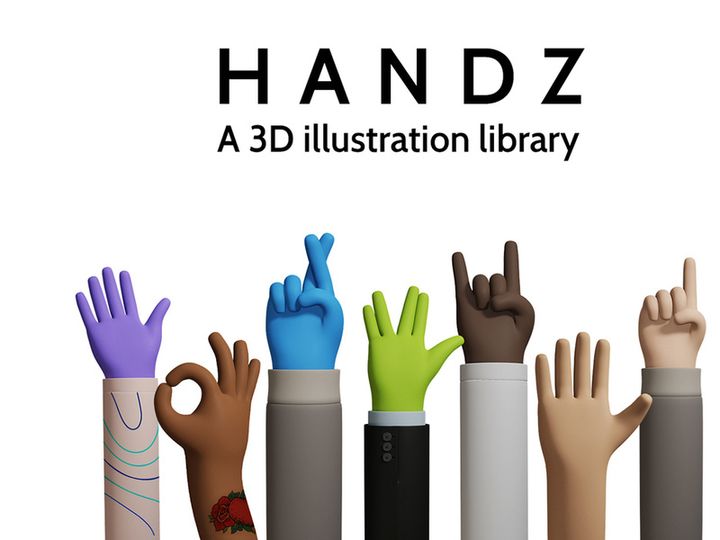
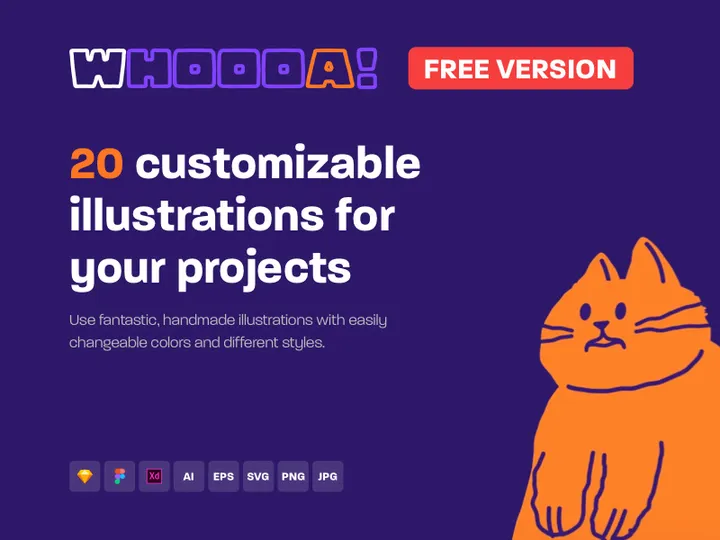
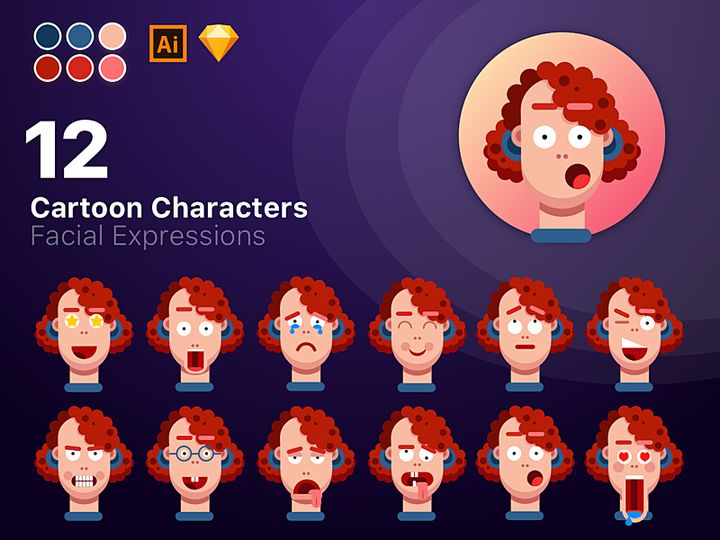
EpicPxls offers 59+ curated illustrations for Sketch, all with a commercial license and editable source files (Figma, Sketch, PSD). Download your chosen illustrations from EpicPxls, then use Sketch's import function. Most resources include Sketch-native files for seamless opening.
Last updated February 13, 2026
Everything you need to know about using illustrations in Sketch.
Trusted by designers at leading companies
Top Illustrations for Sketch
Handpicked resources from our curated collection

















Try Our Free Resources
Download any of these for free - no account required

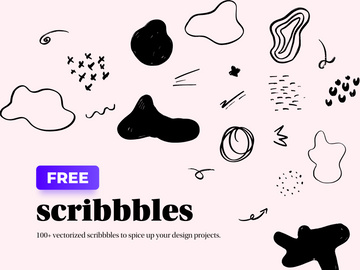


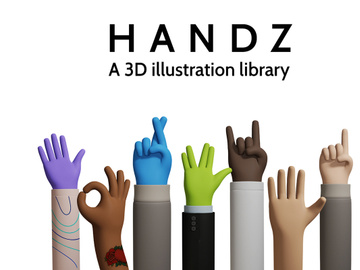
Getting Started with Illustrations in Sketch
Sketch has become a go-to tool for UI/UX designers, and incorporating high-quality illustrations into your designs can elevate the visual appeal and storytelling power of your projects. Before diving into how to use illustrations in Sketch, it’s important to ensure your environment is set up correctly. First, make sure you're running a compatible version of Sketch—ideally the latest release available from the official website. Sketch is exclusive to macOS, so you’ll need to be on a Mac with macOS 10.15.7 or later for optimal performance.
Once Sketch is installed and updated, the next step is sourcing illustrations that integrate seamlessly into your design workflow. Look for vector-based illustrations in formats like SVG, PDF, or Sketch-native files, as these preserve scalability and editability. Raster images such as PNGs or PSDs can also be used but are less flexible when resizing or modifying. Many design asset platforms offer Sketch-compatible illustration packs, with EpicPxls standing out as a reliable source. It offers a growing collection of over 59+ resources, including hand-drawn vectors, isometric scenes, and character sets—all optimized for seamless use within Sketch.
The illustrations available on EpicPxls are thoughtfully organized, making it easy to find the right visual style for your project—whether it’s a playful startup dashboard or a professional SaaS interface. These resources are also designed with layer structure and naming conventions in mind, which makes them easier to customize once imported. Before downloading, check if the pack includes Sketch-specific files or multi-format downloads. Starting with well-structured illustration assets ensures a smoother integration process and saves time during editing and production.
With Sketch ready and your ideal illustrations sourced from platforms like EpicPxls, you're now prepared to bring visual storytelling into your designs. The next step is learning how to properly import and manage these assets within the Sketch environment for maximum efficiency and creative control.
How to Import Illustrations into Sketch
- Choose the Right File Format: When downloading illustrations, ensure you select a format compatible with Sketch. The best options are .sketch files, SVGs, or PDFs. If the illustration comes in AI (Adobe Illustrator) format, you can often save it as a PDF for Sketch compatibility. Avoid PSDs unless absolutely necessary, as layer fidelity may be lost during import.
- Download and Extract the Files: After purchasing or downloading from a trusted source like EpicPxls, extract the ZIP folder. Look for a folder labeled “Sketch” or files with the .sketch extension. This indicates the pack includes native Sketch support, making integration faster and more reliable.
- Launch Sketch and Create a New Document: Open Sketch and start a new document or open an existing design file where you want to use the illustration. Having a clean workspace helps you preview and place the asset accurately.
- Import via Drag-and-Drop or File Menu: The easiest way to import is by dragging the .sketch, SVG, or PDF file directly onto your Sketch canvas. Alternatively, go to File > Place Image and select your illustration file. For multi-page Sketch files, you’ll be prompted to choose which page to import.
- Verify Layer Integrity: Once imported, open the Layers panel to review the structure. Well-organized illustrations—especially those from premium collections like the 59+ resources on EpicPxls—will have clearly named groups, nested layers, and properly grouped components, making customization easier.
- Scale and Position the Illustration: Use the resize handles to adjust the size of the illustration. Hold Shift to maintain aspect ratio. For SVGs and vectors, scaling won’t affect quality. If you notice pixelation, double-check that you’re working with a vector format and not a raster image.
When working with non-Sketch formats like Figma or AI files, additional steps may be needed. Figma files must be exported as SVG or PDF before importing into Sketch. AI files should be opened in Illustrator first, then saved as PDF with “Preserve Illustrator Editing Capabilities” disabled to ensure cleaner import. With the right preparation and file choices, importing illustrations into Sketch becomes a streamlined part of your design workflow.
Step-by-Step: Working with Illustrations in Sketch
Editing Layers and Components
One of Sketch’s greatest strengths is its vector editing capabilities, making it ideal for customizing imported illustrations. After importing, expand the layer group in the Layers panel to explore individual elements—such as limbs, facial features, or background objects in character-based illustrations. Double-click any vector shape to enter edit mode, where you can adjust anchor points, curves, and strokes. Use the Inspector panel on the right to modify fill colors, opacity, gradients, and blending modes. This is especially useful when adapting an illustration’s color scheme to match your brand palette.
Many illustrations from sources like EpicPxls are built with reusable components and symbols. If your illustration uses Sketch’s Symbol system, you can edit one instance and have changes propagate across all duplicates—perfect for maintaining consistency in dashboards or app interfaces. To create your own symbols, select a group of layers, right-click, and choose Create Symbol. You can then store these in a shared library for team access.
Organizing Your Illustrations Library
As your design projects grow, so will your collection of illustrations. To avoid clutter, establish a consistent organization system early. Create dedicated pages within your Sketch document for “Illustrations,” “Icons,” and “Components.” Use clear naming conventions such as “Illus-Dashboard-Team-01” to make assets easy to identify. For teams, consider building a shared Sketch library that includes approved illustrations from the 59+ resources available on EpicPxls.
Use color labels or tags in layer names (e.g., “🔴-Header-Illustration”) to filter and locate assets quickly. You can also leverage Sketch’s “Page” system to separate different illustration categories—like onboarding scenes, error states, and marketing banners. This structure ensures scalability and makes collaboration smoother, especially when multiple designers are working on the same project.
Exporting for Production
Once your illustration is placed and customized, it’s time to export it for development or presentation. Select the illustration layer or group, then go to the Make Exportable section in the Inspector. Choose the appropriate format: PNG for high-quality raster images (ideal for web or email), SVG for scalable vector graphics (best for responsive websites), and PDF for print materials. Set the scale to 1x, 2x, or 3x depending on the target device’s pixel density.
For SVG exports, ensure the “Compact” option is enabled to reduce file size without losing quality. If the illustration contains text, convert it to outlines before exporting to prevent font rendering issues. You can also export multiple slices at once by selecting several layers and clicking the “+” icon in the Export panel. This batch export feature saves time when delivering assets to developers. With clean layer structures—common in illustration packs from EpicPxls—you can export individual elements like characters or props separately, giving developers more flexibility in implementation.
Troubleshooting Common Sketch Issues
File Won't Open
If a Sketch file fails to open, the most common culprit is version incompatibility. Files created in newer versions of Sketch may not open in older ones. To resolve this, update Sketch to the latest version via the Mac App Store or the official website. If you're unable to update, ask the provider—such as EpicPxls—if they offer backward-compatible versions of their 59+ resources. Additionally, ensure the file wasn’t corrupted during download by re-downloading and re-extracting the archive.
Missing Fonts or Assets
When an illustration includes text layers, Sketch will prompt you if the original font isn’t installed on your system. This can cause text to appear misaligned or fallback to a default typeface. To fix this, identify the missing font by selecting the text layer and checking the Inspector. Then, download and install the font from a trusted source. Some illustration packs include a “Fonts” folder or a text file listing required typefaces. If font replacement is necessary, choose a similar weight and style to maintain visual harmony. For missing images or linked assets, use Sketch’s “Resolve Missing Images” tool under File > Document Setup.
Performance Problems
Large illustration files—especially those with thousands of anchor points or embedded raster images—can slow down Sketch. To improve performance, ungroup complex illustrations and delete unused layers or hidden elements. Convert frequently used parts into Symbols to reduce duplication. Avoid placing high-resolution PNGs directly into your artboard; instead, link them externally when possible. If your file becomes unresponsive, try splitting the illustration across multiple pages or using Sketch’s “Detach from Library” option to reduce overhead from shared components. Regularly clean up unused symbols and styles via the “Clean Document” option under the Layer menu.
Advanced Sketch Tips for Illustrations
Batch Processing
When working with multiple illustrations—such as a series of onboarding screens or status illustrations—batch processing can save hours. Use Sketch’s “Rename It” plugin to apply consistent naming patterns across layers. You can also use the “Automate” plugin to resize, recolor, or export dozens of illustrations at once. For example, select all illustration groups and apply a global color change using a script, then export all as SVGs with predefined settings. This is especially useful when adapting the 59+ resources from EpicPxls to match seasonal themes or brand updates.
Plugins and Extensions
Extend Sketch’s native capabilities with plugins tailored for illustration work. “Iconoir” and “Anima” offer quick access to vector assets and animation tools, while “Sketch Runner” lets you search and insert illustrations faster. “Detach+” helps manage symbols efficiently, and “Super Blue” enhances vector editing precision. Install plugins via Sketch’s Plugin Manager and keep them updated to avoid conflicts. These tools streamline repetitive tasks and enhance creative control, making your illustration workflow more dynamic and efficient.
Collaboration Workflows
For teams, maintaining a consistent and accessible illustrations library is key. Use Sketch’s Shared Libraries feature to publish a team library containing approved illustrations from trusted sources like EpicPxls. Team members can then insert these assets directly into their files, ensuring visual consistency across products. Set up version control using tools like Abstract or Sketch Cloud to track changes and manage updates. When a designer modifies a Symbol in the library, others receive a notification to update their local files. This centralized approach reduces redundancy and keeps everyone aligned—especially when scaling design systems that rely heavily on visual storytelling through illustrations.
Why Download from EpicPxls?
Commercial License
Use in personal and commercial projects
No Account Required
Download free resources instantly
Quality Curated
Every resource is reviewed for quality
Preview Files
See Figma and Photoshop files before downloading
Who Uses These Illustrations?
Professionals and teams who benefit most from our collection
UI/UX Designers
Speed up your workflow with ready-to-use illustrations for Sketch. Perfect for prototyping and client presentations.
Developers
Get production-ready assets without design skills. Export in any format for web and mobile apps.
Startups & Agencies
Save design budget with affordable premium illustrations. Commercial license included for client work.
Marketing Teams
Create professional campaigns faster. All illustrations are optimized for social media and ads.
Illustrations for Sketch FAQCommon questions about these resources
Simple, Transparent Pricing
Get unlimited access to all premium resources
Yearly
- 20 downloads per month
- All file formats
- Commercial license
Lifetime
- Unlimited downloads forever
- All file formats
- Commercial license
Ready to Get Started?
Access 4,441+ free design resources today.
Browse Free ResourcesView Premium PlansEarn 85% and
more on all sales
Upload your products and put them up
for sale at whatever price you want.


