How to Use Illustrations in Figma: Complete Guide
EpicPxls offers 83+ curated illustrations for Figma, all with a commercial license and editable source files (Figma, Sketch, PSD). Download your chosen illustrations from EpicPxls, then use Figma's import function. Most resources include Figma-native files for seamless opening.
Last updated February 13, 2026
Everything you need to know about using illustrations in Figma.
Trusted by designers at leading companies
Top Illustrations for Figma
Handpicked resources from our curated collection



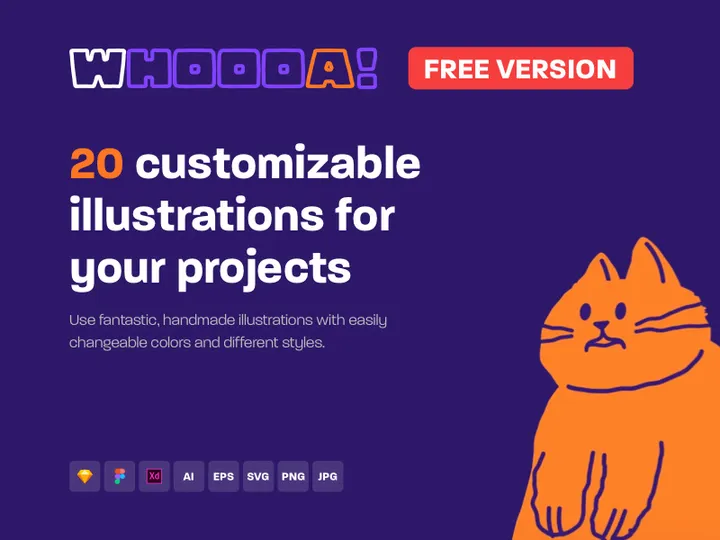

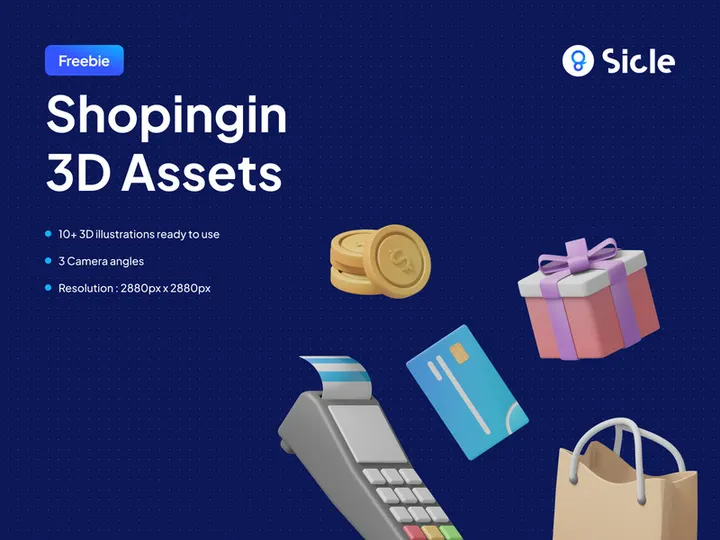

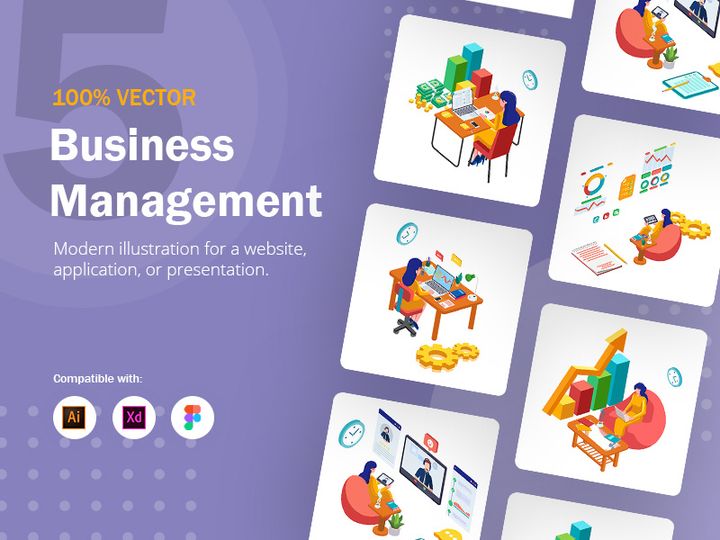


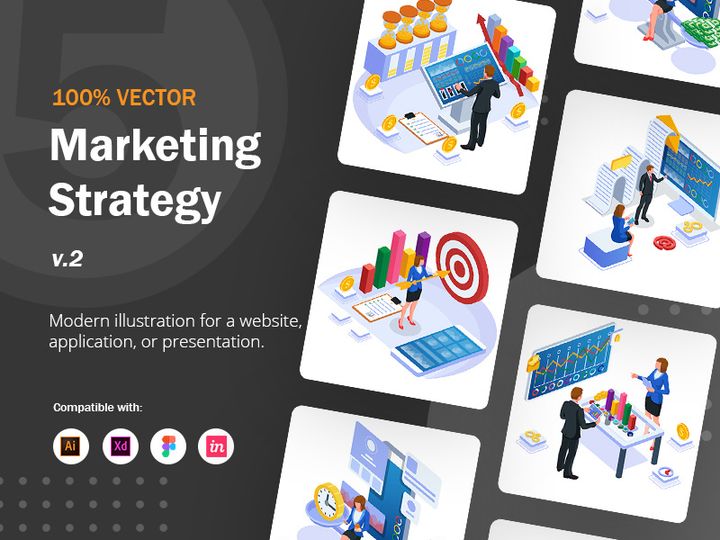
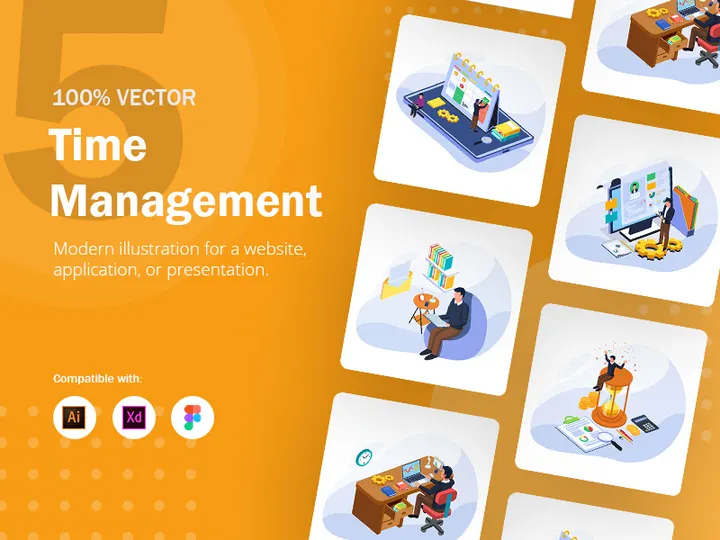


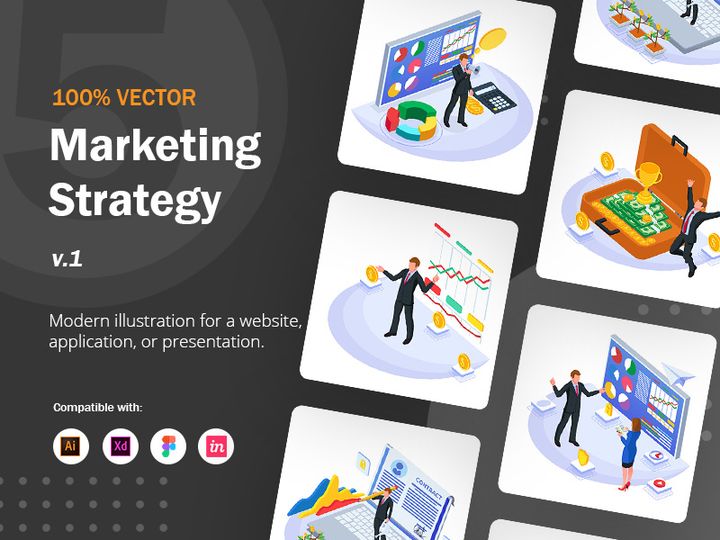
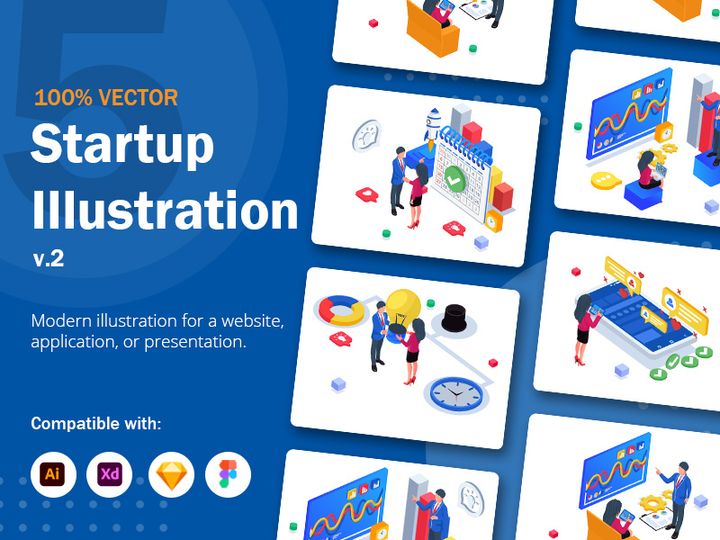
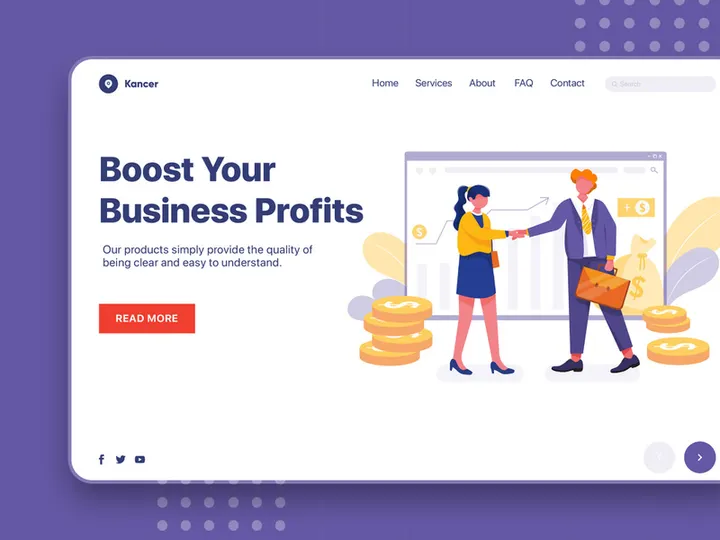


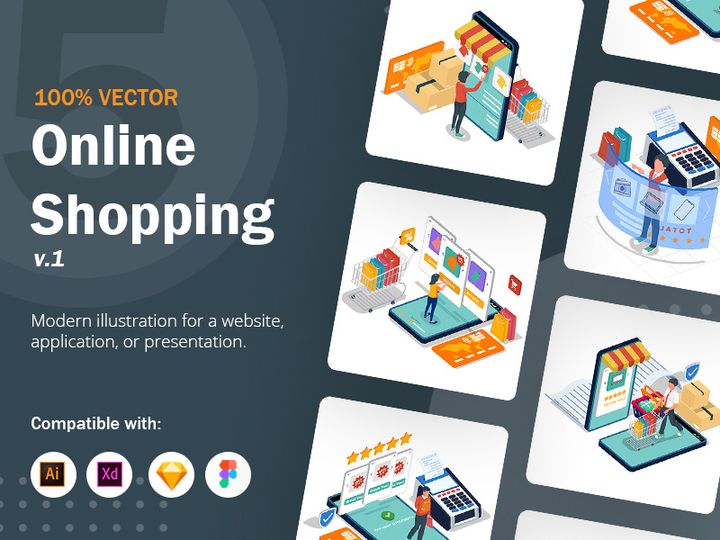
Try Our Free Resources
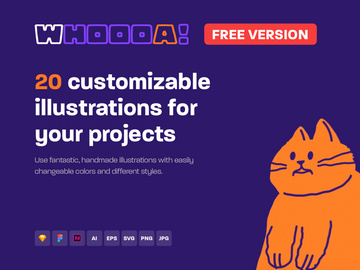
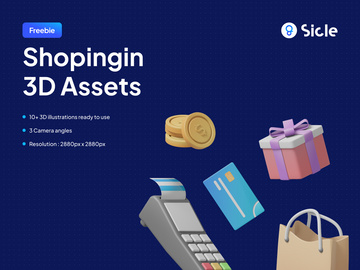
Download any of these for free - no account required



Getting Started with Illustrations in Figma
Using illustrations in Figma enhances the visual appeal and storytelling power of your designs, making them more engaging for users and stakeholders alike. Whether you're designing a mobile app, a website, or a presentation, integrating high-quality illustrations can elevate the overall user experience. Before diving in, ensure you have a Figma account—either personal or team-based—set up and are logged into the web or desktop application. Figma runs seamlessly across platforms, supporting real-time collaboration and responsive design, which makes it ideal for working with rich visual assets like illustrations.
When sourcing illustrations, it's crucial to select ones specifically designed or optimized for Figma. Many illustration libraries offer formats tailored to vector-based tools, ensuring scalability without loss of quality. One of the best places to find Figma-compatible illustrations is EpicPxls, which offers a curated collection of over 83+ resources. These include hand-drawn vector illustrations, isometric scenes, character sets, and UI-integrated graphics—all designed with digital interfaces in mind. The illustrations are often provided in multiple formats, including SVG, Figma files, and sometimes even AI or PSD, giving you flexibility in how you use them.
The 83+ resources available on EpicPxls are not only visually diverse but also come with thoughtful layer structures, making them easy to customize directly in Figma. Most are built with clean vector paths, named layers, and grouped components, allowing for efficient editing. Before importing any asset, check the licensing to ensure it’s suitable for your project—commercial use, personal projects, or client work. With the right setup and access to high-quality illustration packs, you’re ready to seamlessly integrate visuals into your Figma workflows and bring your designs to life.
How to Import Illustrations into Figma
- Choose the Right Format: Download illustrations in a Figma-native format (.fig) when available. If not, SVG is the next best option due to its vector scalability and seamless import into Figma. Files from EpicPxls often include both .fig and SVG versions, ensuring compatibility and ease of use.
- Download the Asset: Visit the resource provider’s site—such as EpicPxls—locate your desired illustration pack, and download the file to your local device. Make sure to unzip the folder if it's compressed, and locate the correct file type for import.
- Open Figma and Create a New File: Launch Figma and open the project where you want to use the illustration. If starting fresh, create a new file from your drafts or team project space.
- Drag and Drop into Canvas: The simplest way to import is to drag the SVG or .fig file directly onto your Figma canvas. Figma will automatically process and place the illustration. For SVG files, Figma converts them into editable vector objects.
- Use the Import Function: Alternatively, click File > Import in the top menu, navigate to your downloaded illustration, and select it. This method is helpful when importing multiple files or when drag-and-drop isn’t working due to system restrictions.
- Verify and Optimize After Import: Once imported, inspect the illustration’s layers in the left-hand panel. Ungroup if necessary, check for missing elements, and rename layers for clarity. If you imported a PSD or AI file via conversion (e.g., through Illustrator), ensure all vectors are intact and text is outlined to prevent font issues.
When working with non-Figma formats like PSD or AI, consider pre-processing them in their native software to export clean SVGs. This ensures maximum compatibility and preserves layer structure. The 83+ resources from EpicPxls are pre-optimized to minimize such hurdles, often requiring no conversion. By following these steps, you ensure your illustrations are correctly embedded and ready for customization in Figma.
Step-by-Step: Working with Illustrations in Figma
Editing Layers and Components
One of Figma’s greatest strengths is its ability to let designers edit illustrations directly within the interface. Once imported, illustrations appear in the layers panel as groups, frames, or individual vector objects. To customize colors, use the fill tool to change hues across paths—ideal for matching brand palettes. You can also ungroup elements (using Ctrl+Shift+G or Cmd+Shift+G) to modify individual components like arms, faces, or background elements.
If the illustration uses components—common in well-structured packs from EpicPxls—you can swap instances across your design system. For example, a character illustration might have interchangeable facial expressions or poses stored as component variants. Double-click any instance to edit the master component, and changes will propagate automatically. This is especially useful for maintaining consistency in large-scale UI projects.
Vector editing tools allow you to reshape paths, adjust anchor points, and combine shapes using Boolean operations. This level of control makes it easy to adapt illustrations for specific contexts, such as simplifying a complex scene for a mobile app or modifying expressions for different user scenarios.
Organizing Your Illustrations Library
As your project grows, managing multiple illustrations becomes critical. Create a dedicated page in your Figma file called “Illustrations Library” or “Design Assets” to centralize all visual resources. Use clear naming conventions—such as “Illus_HeroSection_Character1” or “IconSet_Finance_03”—to make assets easy to find.
Leverage Figma’s section and frame organization: group related illustrations into folders within the layers panel, or use top-level frames to separate categories (e.g., Characters, Backgrounds, Icons). For teams, publish your illustration library as a Component Library so members can import assets directly from the Assets panel.
When using the 83+ resources from EpicPxls, consider organizing them by theme—such as “Isometric Office,” “Abstract Waves,” or “Diverse Avatars”—to speed up selection during design sprints. Tagging or color-coding frames can further enhance discoverability. Regular audits of unused assets help keep the file lightweight and efficient.
Exporting for Production
Exporting illustrations correctly ensures they render crisply across devices and platforms. Select the illustration or frame you want to export, then open the Export section in the right-hand properties panel. Figma supports multiple formats: PNG for raster-based needs (e.g., social media or email), SVG for scalable web graphics, and PDF for print-ready assets.
For web and mobile apps, SVG is ideal due to its resolution independence and small file size. Ensure the “Include” option is set to “Entire Frame” or “Selection” depending on your needs. You can also export at multiple scales (1x, 2x, 3x) for responsive design, particularly useful for PNGs used in mobile interfaces.
Before final export, clean up hidden layers and unused groups to minimize file bloat. If the illustration contains text, convert it to outlines in Figma (by right-clicking and choosing “Convert to Outlines”) to prevent font rendering issues. With the high-quality vectors from EpicPxls, exported assets maintain clarity even at large sizes, making them perfect for both digital and print outputs.
Troubleshooting Common Figma Issues
File Won't Open
If a downloaded illustration file fails to open in Figma, the issue may stem from format incompatibility or outdated software. Ensure you're using the latest version of Figma—updates often include improved file parsing and bug fixes. If the file is in .ai or .psd format, it must first be converted to SVG or .fig. Try opening it in Adobe Illustrator or another vector editor and exporting as SVG. Files from EpicPxls are typically provided in native Figma format, reducing such issues significantly.
Missing Fonts or Assets
Text elements in illustrations may appear with missing fonts if the original designer used non-standard typefaces. In Figma, missing fonts are replaced with system defaults, which can affect layout. To fix this, either install the required font on your device or convert the text to outlines before sharing. If the illustration uses embedded images or linked assets, ensure they were included in the download package. Many of the 83+ resources on EpicPxls avoid external dependencies by using vectors and outlined text, minimizing this risk.
Performance Problems
Large illustrations with hundreds of vector points or embedded bitmaps can slow down Figma, especially on lower-end devices. To improve performance, simplify complex paths using Figma’s vector tools, or rasterize non-critical elements as PNGs. Avoid importing entire illustration packs at once—instead, bring in only the assets you need. Breaking your design into multiple pages or files can also reduce lag. For shared team files, ensure all members are using stable internet connections and updated Figma clients to maintain smooth collaboration.
Advanced Figma Tips for Illustrations
Batch Processing
When working with multiple illustrations—such as an icon set or character variants—use Figma’s batch processing capabilities to apply changes efficiently. With plugins or manual selection, you can recolor, resize, or reframe dozens of illustrations at once. For example, select all illustrations in a frame and change their primary color using the fill override in a component set. This is invaluable when adapting the 83+ resources from EpicPxls to match a new brand theme across a design system.
Plugins and Extensions
Figma’s plugin ecosystem enhances illustration workflows significantly. Use plugins like “Content Reel” to insert illustrations directly from your library, or “Auto Renamer” to standardize layer names across imported assets. “Vector Cleaner” helps reduce redundant points in complex vector illustrations, improving both editability and performance. Plugins like “Iconify” or “Image Palette” can complement your illustration work by enabling fast color extraction or icon integration. Many EpicPxls packs are designed to work seamlessly with such tools, ensuring a smooth design pipeline.
Collaboration Workflows
For team-based projects, establish a shared illustrations library using Figma’s team library features. Upload approved illustrations—such as curated picks from the EpicPxls collection—and publish them as components. This allows all team members to access consistent, up-to-date assets without duplication. Use comments and version history to track changes, and set permissions to prevent unauthorized edits. When onboarding new designers, provide a starter file with links to the illustration library and usage guidelines. This fosters design consistency and accelerates project delivery, especially in agile environments where rapid iteration is key.
Why Download from EpicPxls?
Commercial License
Use in personal and commercial projects
No Account Required
Download free resources instantly
Quality Curated
Every resource is reviewed for quality
Preview Files
See Figma and Photoshop files before downloading
Who Uses These Illustrations?
Professionals and teams who benefit most from our collection
UI/UX Designers
Speed up your workflow with ready-to-use illustrations for Figma. Perfect for prototyping and client presentations.
Developers
Get production-ready assets without design skills. Export in any format for web and mobile apps.
Startups & Agencies
Save design budget with affordable premium illustrations. Commercial license included for client work.
Marketing Teams
Create professional campaigns faster. All illustrations are optimized for social media and ads.
Illustrations for Figma FAQCommon questions about these resources
Simple, Transparent Pricing
Get unlimited access to all premium resources
Yearly
- 20 downloads per month
- All file formats
- Commercial license
Lifetime
- Unlimited downloads forever
- All file formats
- Commercial license
Ready to Get Started?
Access 4,441+ free design resources today.
Browse Free ResourcesView Premium PlansEarn 85% and
more on all sales
Upload your products and put them up
for sale at whatever price you want.


