How to Use Templates in Keynote: Complete Guide
EpicPxls offers 153+ curated templates for Keynote, all with a commercial license and editable source files (Figma, Sketch, PSD). Download your chosen templates from EpicPxls, then use Keynote's import function. Most resources include Keynote-native files for seamless opening.
Last updated February 13, 2026
Everything you need to know about using templates in Keynote.
Trusted by designers at leading companies
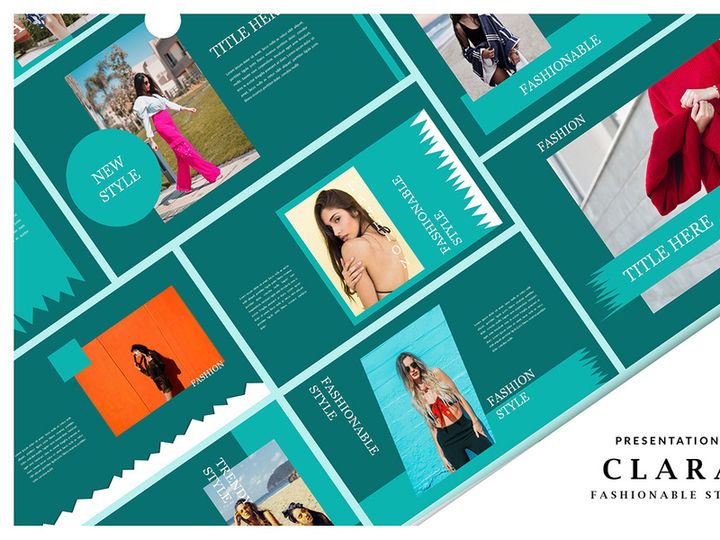
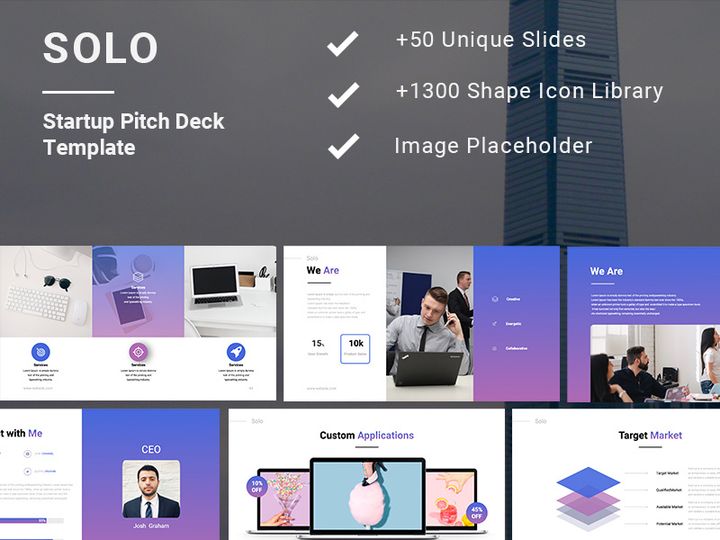
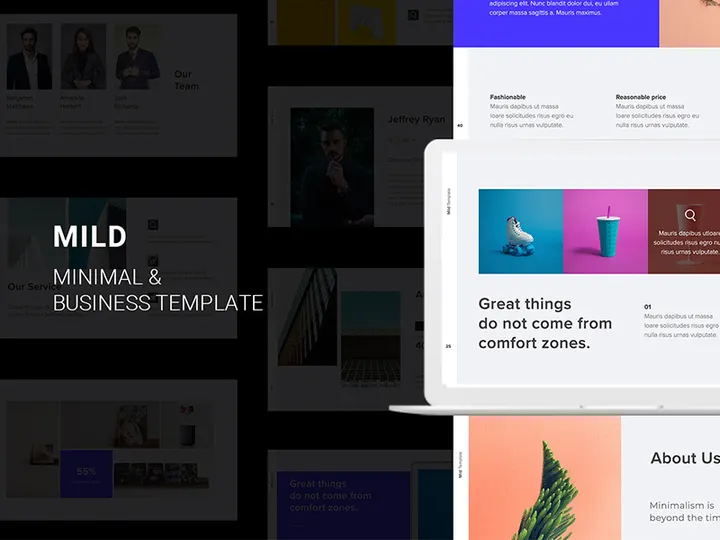
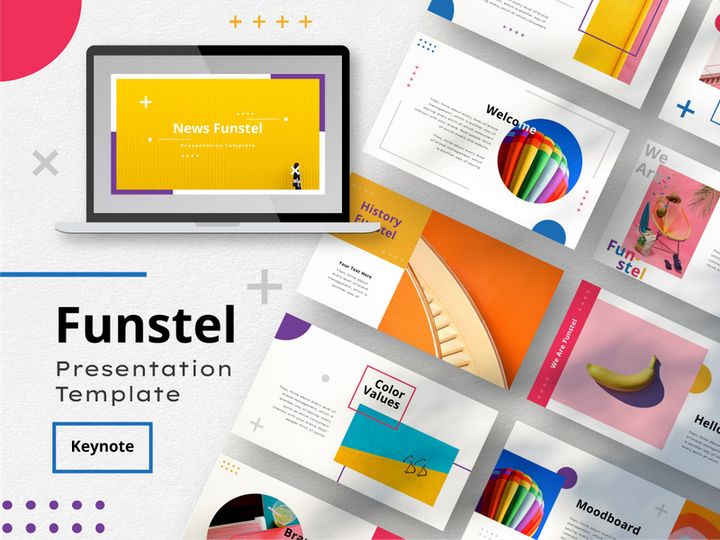
Top Templates for Keynote
Handpicked resources from our curated collection

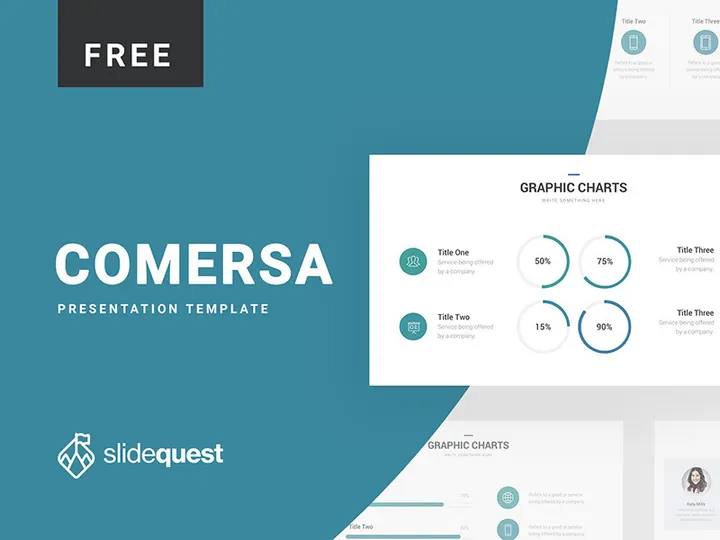
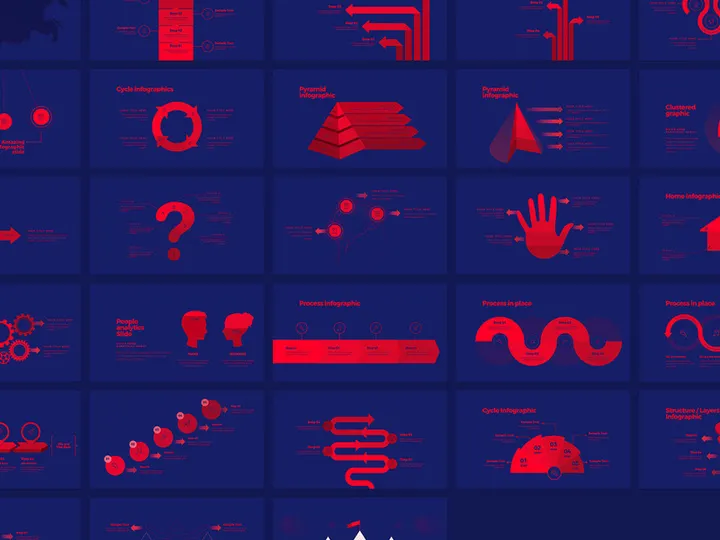
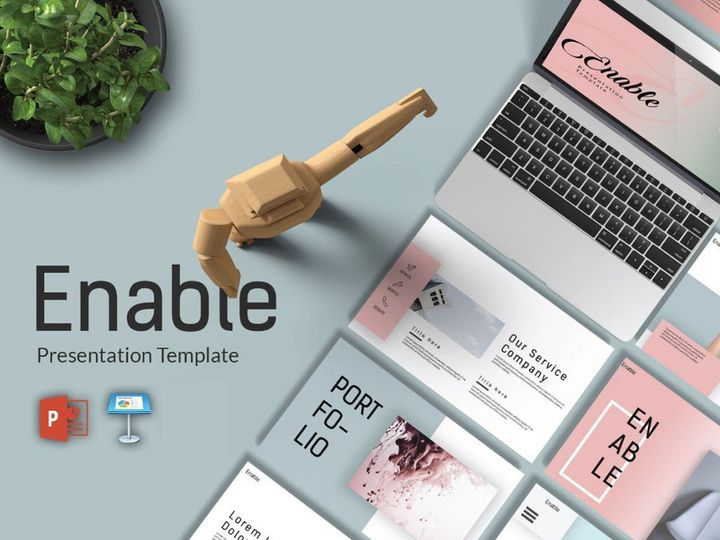
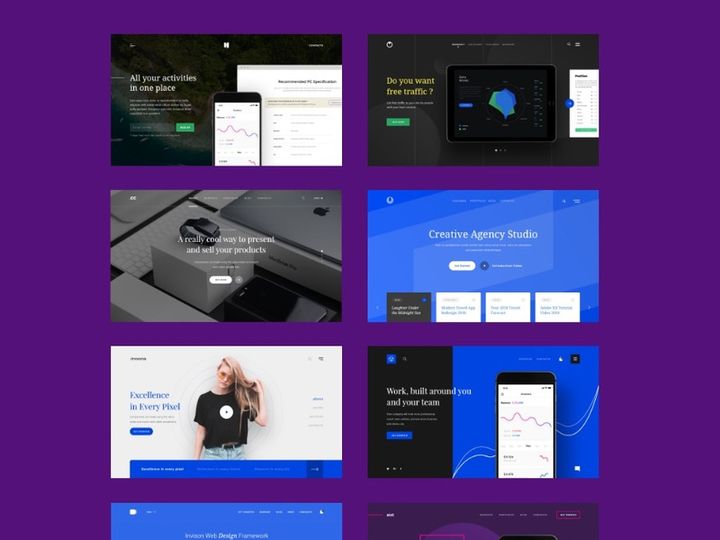

![Linear Infographic Template [Free] preview picture](https://imgproxy.epicpxls.com/pLbPbApgh3RaxZemmAAVKbS5LpmnM62vACT5ZWOegpU/rs:fill:720:540:0/g:no/aHR0cHM6Ly9pdGVt/cy5lcGljcHhscy5j/b20vdXBsb2Fkcy9w/aG90by9mMzFhZmI1/NDU3YmUyMTg4ZjZj/MGI2MTMxOGVhYTBk/Zg.jpg)


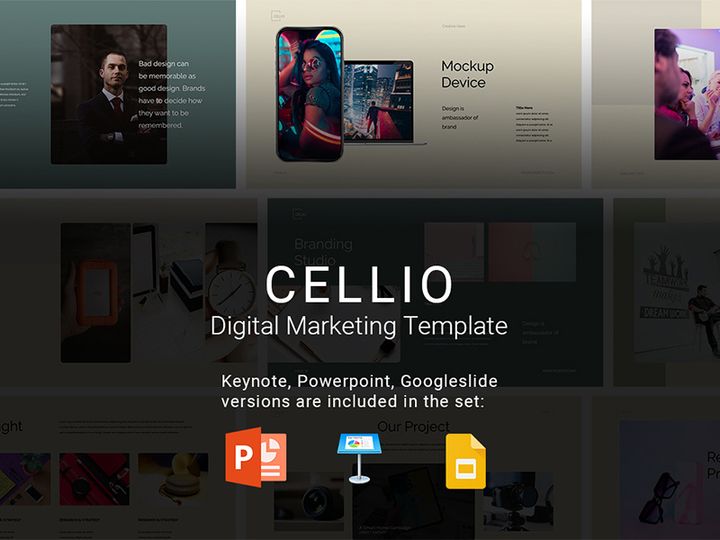
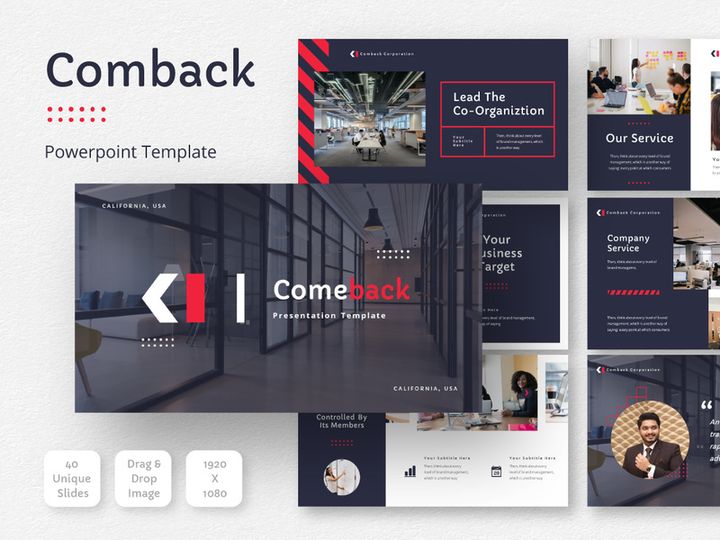

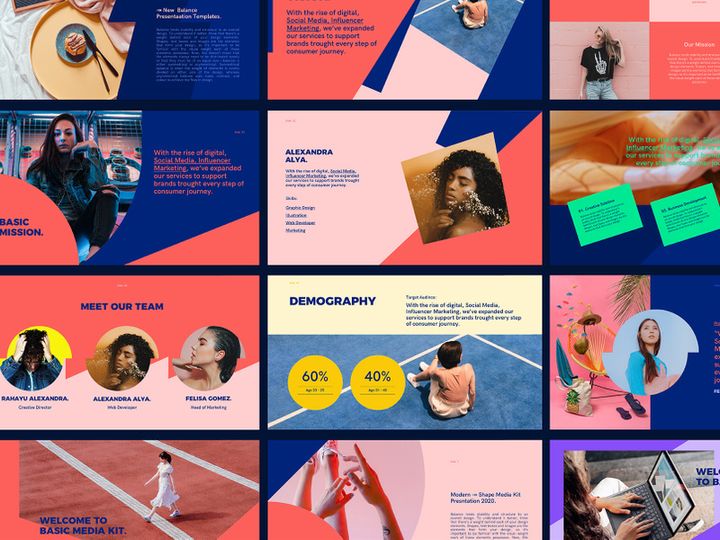
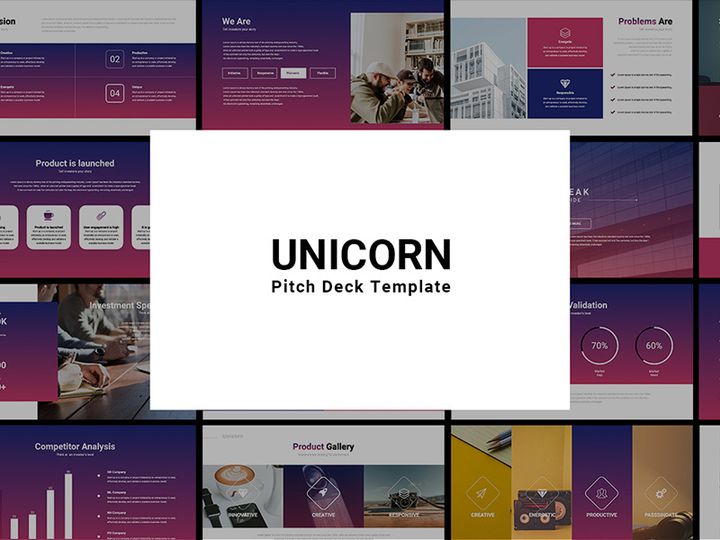

Try Our Free Resources
Download any of these for free - no account required

Getting Started with Templates in Keynote
Keynote is Apple’s powerful presentation software that combines elegant design with intuitive functionality, making it a favorite among educators, professionals, and creatives. One of its most valuable features is the ability to use and customize templates, streamlining the process of creating visually compelling presentations. Before diving into template usage, ensure you have the latest version of macOS or iOS with Keynote installed. You can download Keynote for free from the Mac App Store or the App Store on your iPhone or iPad. Having an up-to-date version ensures compatibility with the newest template formats and features, including real-time collaboration, advanced animations, and high-resolution media support.
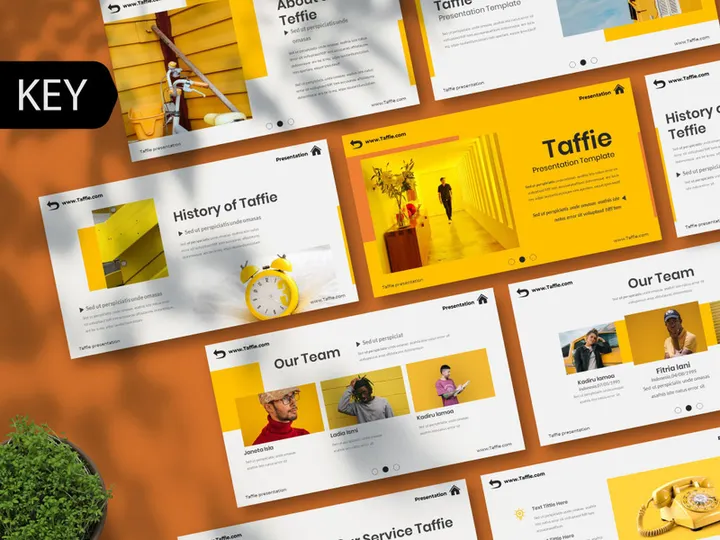
Templates in Keynote come in a variety of styles—from minimalist business decks to vibrant educational slides—and can drastically reduce design time. You can access built-in templates directly within Keynote by selecting "Choose a Template" when creating a new presentation. However, for more diverse and professional designs, external sources are essential. Websites like EpicPxls offer a vast collection of customizable Keynote templates tailored for different industries and use cases. With over 153+ resources available, EpicPxls provides high-quality, modern designs that are fully compatible with Keynote and optimized for seamless editing.
These templates often include pre-designed layouts, color schemes, typography pairings, and vector graphics, all of which can be customized to match your brand or message. Whether you're preparing a pitch deck, a lecture, or a product showcase, leveraging professionally designed templates ensures consistency and visual appeal. The growing library at EpicPxls includes niche-specific themes such as startup presentations, annual reports, and social media content calendars. By starting with a solid template foundation, you can focus more on content and delivery rather than design from scratch.
How to Import Templates into Keynote
- Choose the Right Template Format: Ensure the template you download is in the .key format, which is Keynote's native file type. Most reputable sources, including EpicPxls, provide templates directly in this format for instant use. Avoid downloading templates in non-native formats like PowerPoint (.pptx) unless absolutely necessary, as they may lose formatting during conversion.
- Download from a Trusted Source: Visit a curated platform like EpicPxls and browse through the 153+ resources to find a template that fits your needs. Click the download button and save the .key file to your preferred location—typically the Downloads folder or a dedicated design assets folder.
- Locate the Downloaded File: Navigate to the folder where you saved the template. Double-click the .key file to open it. Keynote will launch automatically if it isn’t already open.
- Review the Template Structure: Once opened, take a moment to explore the slide master, layouts, and placeholder content. This helps you understand how the template is organized and where customization is needed.
- Handle Non-Keynote File Types (if applicable): If you’ve downloaded a design in PSD, AI, SVG, or Figma format, direct import into Keynote isn’t supported. You’ll need to export individual elements as PNG or PDF from those applications and manually insert them into a new or existing Keynote slide. While this requires extra effort, it allows for greater control over image quality and placement.
- Save a Working Copy: Before making edits, go to File > Save As and rename the template to distinguish your version from the original. This preserves the untouched template for future reuse and avoids accidental overwrites.
By following these steps, you ensure a smooth import process and maintain the integrity of your chosen design. With hundreds of professionally crafted options available—from timelines to infographics—leveraging the 153+ resources on EpicPxls gives you instant access to polished, ready-to-use visuals that elevate your presentations with minimal effort.
Step-by-Step: Working with Templates in Keynote
Editing Layers and Components
One of the greatest strengths of Keynote templates is their flexibility. Once imported, you can fully customize every element to align with your brand or message. Begin by selecting individual objects on a slide—whether text boxes, images, shapes, or charts—and modifying them using the Format sidebar. Double-clicking text allows you to change content, while the Fonts panel lets you adjust typefaces, size, color, and alignment. If the template uses brand-specific fonts, you may need to substitute them with system fonts or download and install the originals.
For graphical elements, Keynote supports layer-based editing. Use the Arrange menu to send objects backward, bring them forward, or group related items. This is especially useful when working with complex infographics or multi-layer illustrations commonly found in the 153+ resources from EpicPxls. You can also ungroup vector shapes to edit individual components, though some elements may be locked or flattened depending on how the template was exported.
Animations and transitions are another powerful aspect of customization. Apply build-ins, wipe effects, or object animations through the Build In tab in the Animate panel. These dynamic features help emphasize key points and maintain audience engagement. Many premium templates include pre-set animations that can be fine-tuned or duplicated across slides for consistency.
Organizing Your Templates Library
As you collect more templates—especially from a rich source like EpicPxls—effective organization becomes critical. Create a dedicated folder on your Mac or iCloud Drive labeled “Keynote Templates” and subdivide it by category (e.g., Business, Education, Marketing). This makes it easier to locate the right template quickly. Within Keynote, you can also pin frequently used templates to the “Recent” section by opening them regularly.
Consider creating a master presentation file that includes sample slides from various templates. This acts as a design library where you can copy and paste layouts into new projects. Additionally, use descriptive file names when saving customized versions (e.g., “Brand_PitchDeck_v2.key”) to avoid confusion. If you're working across devices, enable iCloud syncing so your entire library is accessible on Mac, iPad, and iPhone.
For teams, consider setting up a shared cloud folder (via iCloud or another secure service) where approved templates are stored. This ensures consistency in branding and messaging across departments or presenters.
Exporting for Production
Once your presentation is complete, exporting it correctly ensures optimal performance across platforms. Go to File > Export To and choose your desired format. For sharing with others who may not use Keynote, select PPTX to create a PowerPoint-compatible file. This preserves most formatting, though complex animations may not transfer perfectly.
To share online or embed in websites, export as a PDF. This format maintains visual fidelity and is universally viewable. For digital presentations or social media snippets, choose Movie (MP4), which converts your slides and animations into a video. Set the resolution to 1080p for HD quality and adjust playback speed per slide if needed.
If you're printing handouts, use the Print function and select layout options like “2 slides per page” or “with notes.” Always preview the output to ensure fonts and images render correctly. When using templates from EpicPxls, rest assured that most are print-ready with CMYK-safe colors and high-resolution assets, making them suitable for both digital and physical distribution.
Troubleshooting Common Keynote Issues
File Won't Open
If a downloaded Keynote template fails to open, the most common cause is version incompatibility. Older versions of Keynote may not support files created in newer macOS updates. To fix this, ensure your system is updated to the latest version via the App Store. Alternatively, the file may not be a true .key file—sometimes sellers mislabel ZIP archives or include instructions inside the folder. Always extract downloaded files completely and look for the actual .key document inside.
Another issue arises when downloading templates intended for other platforms. Files labeled as “Keynote compatible” but delivered in PPTX format may lose advanced features like masking or custom animations. Whenever possible, opt for templates natively built in Keynote, such as those from EpicPxls, to avoid conversion errors.
Missing Fonts or Assets
When a template uses custom fonts not installed on your system, Keynote will substitute them with default alternatives, potentially altering the design. To resolve this, check the template’s documentation or download page for font names and sources. Many EpicPxls templates include links to free or premium fonts used in the design. Download and install these via Font Book (on Mac) to restore the intended appearance.
If images appear broken or placeholder text remains, it could mean the template relies on external media. Reputable providers embed all assets directly into the .key file, but some may reference linked files. In such cases, contact the source for a fully embedded version or replace missing images manually using Keynote’s Image placeholder tools.
Performance Problems
Large or highly detailed templates—especially those with embedded videos, high-res photos, or complex vector art—can slow down Keynote, particularly on older devices. To improve performance, reduce image resolution before inserting, limit the number of animated elements per slide, and avoid stacking too many build effects.
Break large presentations into smaller sections if experiencing lag. You can also disable real-time previews in Preferences > General to speed up navigation. When working with resource-heavy templates from the 153+ collection at EpicPxls, consider duplicating only the slides you need into a new file rather than editing the entire deck at once.
Advanced Keynote Tips for Templates
Batch Processing
When managing multiple presentations using similar branding, batch processing saves significant time. Create a master template with your logo, color palette, and standard layouts. Then, duplicate this file for each new project and replace content accordingly. Use Keynote’s Replace Fonts and Find and Replace features to update text globally across slides. For recurring data (like quarterly metrics), link charts to Numbers spreadsheets so updates propagate automatically across all presentations using that template.
Plugins and Extensions
While Keynote doesn’t support third-party plugins as extensively as some design tools, there are still ways to extend functionality. Use Automator on macOS to create custom workflows—such as resizing multiple images or exporting slides in bulk. Third-party tools like Keynote Remote (available on iOS) allow you to control presentations from your iPhone or Apple Watch, enhancing delivery flexibility. Additionally, some designers integrate Keynote with scripting tools like JavaScript for Automation (JXA) to manipulate templates programmatically, though this requires technical knowledge.
Collaboration Workflows
Keynote excels in collaborative environments, especially when paired with iCloud. Share a template-based presentation via Share > Invite People to allow team members to edit in real time. Each collaborator appears with a colored cursor, and changes are saved automatically. This is ideal for marketing teams updating campaign decks or educators co-developing lesson materials.
To maintain consistency, establish a shared template library in a centralized iCloud folder. Team leads can approve and distribute standardized versions from EpicPxls or internal designs, ensuring everyone uses up-to-date branding. Use comments (Insert > Comment) to provide feedback directly on slides, and resolve comments once addressed. For external reviewers who don’t need editing access, share a view-only or PDF version to prevent unintended changes.
By integrating these advanced strategies, you transform Keynote from a simple presentation tool into a scalable design and collaboration platform—especially when leveraging the depth and quality of the 153+ resources available at EpicPxls.
Why Download from EpicPxls?
Commercial License
Use in personal and commercial projects
No Account Required
Download free resources instantly
Quality Curated
Every resource is reviewed for quality
Preview Files
See Figma and Photoshop files before downloading
Who Uses These Templates?
Professionals and teams who benefit most from our collection
UI/UX Designers
Speed up your workflow with ready-to-use templates for Keynote. Perfect for prototyping and client presentations.
Developers
Get production-ready assets without design skills. Export in any format for web and mobile apps.
Startups & Agencies
Save design budget with affordable premium templates. Commercial license included for client work.
Marketing Teams
Create professional campaigns faster. All templates are optimized for social media and ads.
Templates for Keynote FAQCommon questions about these resources
Simple, Transparent Pricing
Get unlimited access to all premium resources
Yearly
- 20 downloads per month
- All file formats
- Commercial license
Lifetime
- Unlimited downloads forever
- All file formats
- Commercial license
Ready to Get Started?
Access 4,441+ free design resources today.
Browse Free ResourcesView Premium PlansEarn 85% and
more on all sales
Upload your products and put them up
for sale at whatever price you want.


