How to Use Illustrations in Adobe XD: Complete Guide
EpicPxls offers 95+ curated illustrations for Adobe XD, all with a commercial license and editable source files (Figma, Sketch, PSD). Download your chosen illustrations from EpicPxls, then use Adobe XD's import function. Most resources include Adobe XD-native files for seamless opening.
Last updated February 13, 2026
Everything you need to know about using illustrations in Adobe XD.
Trusted by designers at leading companies
Top Illustrations for Adobe XD
Handpicked resources from our curated collection
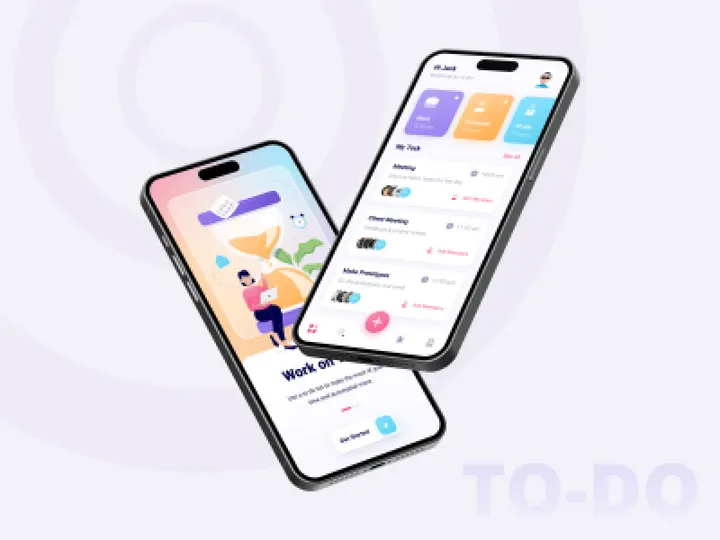


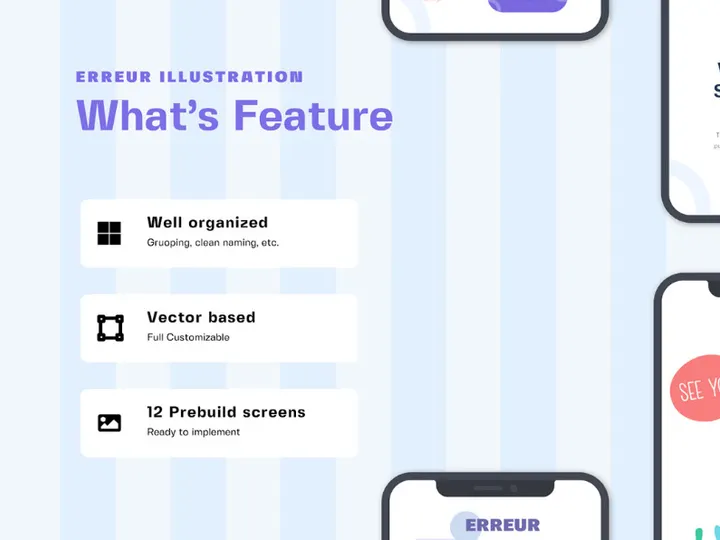

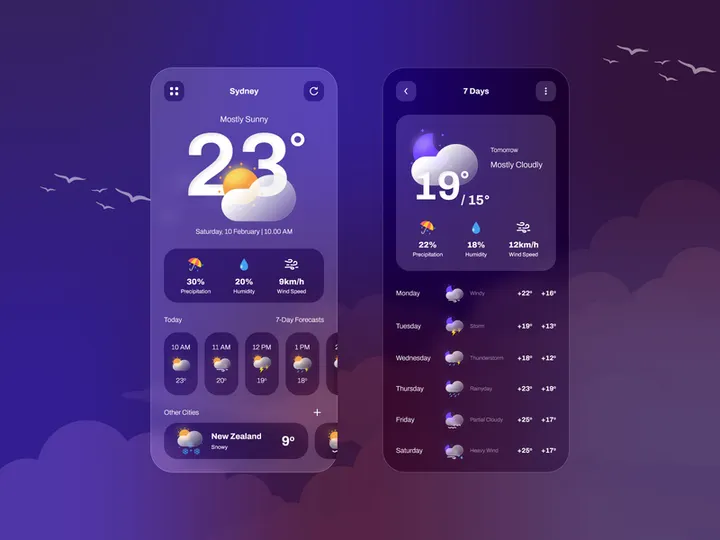


![[Vol. 15] Online Learning - Landing Page Illustration preview picture](https://imgproxy.epicpxls.com/vOnNsF15fmIima0E4mjSmydZcb09KQ_j8vsJcXDWVnM/rs:fill:720:540:0/g:no/aHR0cHM6Ly9pdGVt/cy5lcGljcHhscy5j/b20vdXBsb2Fkcy9w/aG90by9jYWZlNzM4/NTBkOWEzMzEzN2E5/ODk0NDgyYWFhN2Ew/Mw.jpg)









Try Our Free Resources
Download any of these for free - no account required

Getting Started with Illustrations in Adobe XD
Adobe XD has become a go-to design tool for UI/UX professionals, offering powerful capabilities for creating interactive prototypes and high-fidelity designs. One of the key elements that elevate the visual appeal of any project is the thoughtful use of illustrations. Whether you're designing a mobile app, a web dashboard, or a marketing landing page, incorporating custom illustrations can significantly enhance user experience and brand identity.
Before diving into using illustrations, ensure you have the latest version of Adobe XD installed. This ensures access to the most recent features, performance improvements, and compatibility with modern file formats. Adobe XD is available through Adobe Creative Cloud, and a free starter plan is also offered for individuals just getting started.
To begin working with illustrations, you’ll need high-quality, vector-based artwork that integrates seamlessly into your workflow. Look for resources designed specifically for digital interfaces—scalable, well-organized, and compatible with Adobe XD’s layer and component system. Many designers turn to curated libraries that offer clean, customizable illustrations ready for immediate use.
One such trusted source is EpicPxls, which offers over 95+ expertly crafted illustration sets designed with UI/UX in mind. These resources are optimized for Adobe XD, ensuring fast import, easy editing, and consistent visual quality. From onboarding scenes and empty states to animated character sets, EpicPxls provides diverse illustration packs that cater to various themes and industries. Their resources are frequently updated and come with organized layers and groups, making them ideal for both beginners and advanced users.
With Adobe XD set up and access to a rich library of illustrations such as the 95+ resources on EpicPxls, you're ready to start integrating visual storytelling into your designs. The next step is learning how to properly import and manage these assets within your projects.
How to Import Illustrations into Adobe XD
- Download the correct file format: When sourcing illustrations from platforms like EpicPxls, always check if an Adobe XD (.xd) file is available. This format ensures full compatibility with layers, groups, and components. If only SVG, AI, or PSD formats are offered, confirm they are vector-based and well-structured for easier import.
- Extract and locate the downloaded file: After downloading, unzip the folder if necessary and locate the illustration file. Keep your assets organized in a dedicated project folder to streamline access and version control.
- Launch Adobe XD and create or open a project: Start a new design file or open an existing one where you plan to use the illustration. Make sure your artboard size matches the intended output (e.g., mobile, desktop).
- Import via drag-and-drop or File menu: The easiest method is to drag the illustration file (especially SVG or XD files) directly into your Adobe XD canvas. Alternatively, go to File > Import and select your file from the browser window.
- Handle file conversion for non-XD formats: If importing a PSD or AI file, Adobe XD will convert it into vectors and preserve layers where possible. Be aware that complex effects or embedded fonts may not transfer perfectly, so always review the imported content.
- Verify layer integrity and scalability: After import, open the Layers panel to ensure all elements are properly grouped and labeled. Test scalability by resizing the illustration—vector-based artwork should remain sharp at any size, which is essential for responsive design.
For optimal results, prioritize resources that are native to or officially supported by Adobe XD. The 95+ illustration packs on EpicPxls are pre-optimized for this workflow, reducing the need for post-import cleanup. Additionally, SVG files are widely supported and retain editability—ideal for flat, vector-based illustrations. Figma files, while not native, can sometimes be converted using third-party tools or exported as SVG first. Always keep a backup of the original file to avoid data loss during conversion.
Step-by-Step: Working with Illustrations in Adobe XD
Editing Layers and Components
Once an illustration is imported into Adobe XD, the real customization begins. Open the Layers panel to explore the structure of the artwork. Well-designed illustration packs—like those from EpicPxls—come with clearly named layers, grouped by object or character part (e.g., "Arm," "Face," "Background"). This organization allows for easy editing and animation.
To modify colors, select individual vector shapes and use the color picker in the Properties panel. This is especially useful for aligning illustrations with your brand palette. You can also apply gradients, strokes, or opacity adjustments to create depth and visual interest. For character-based illustrations, consider using Repeat Grid to create variations or animated sequences across multiple artboards.
Components are another powerful feature. Convert frequently used illustration elements—like icons or avatars—into reusable components. This ensures consistency across your design system and simplifies updates. If you change the master component, all instances update automatically, saving time during revisions.
Organizing Your Illustrations Library
As your projects grow, managing multiple illustrations becomes crucial. Create a dedicated XD file as your Illustration Library where you store all imported assets. Use artboards to categorize illustrations by type: onboarding scenes, error states, dashboard graphics, etc. Label artboards clearly (e.g., "Illustration - Empty State 01") for quick navigation.
Consider using color tags or notes in the comments panel to indicate usage rights, version dates, or brand alignment. For team environments, store this library in a shared cloud folder (via Creative Cloud or third-party integrations) so all designers have access to the same approved assets. This practice ensures brand consistency and reduces redundant downloads.
The 95+ resources available on EpicPxls are ideal for building such a library. With diverse themes and consistent styling across packs, you can mix and match illustrations while maintaining a cohesive aesthetic. Regularly audit your library to remove outdated or unused assets and keep performance optimal.
Exporting for Production
When your design is ready for development, exporting illustrations correctly is essential. Adobe XD supports multiple export formats, including PNG, JPEG, SVG, and PDF. Choose the format based on usage:
- SVG: Best for web-based illustrations that need to scale responsively. Preserves vector quality and is lightweight.
- PNG: Ideal for complex illustrations with transparency, especially for mobile apps. Use 2x or 3x scaling for retina displays.
- PDF: Suitable for print deliverables or design handoff documents requiring high resolution.
To export, select the illustration or artboard, then go to the Export section in the right-hand panel. You can export individual layers or groups by selecting them directly. Use the Batch Export feature to export multiple artboards at once with consistent settings. Name your assets clearly (e.g., "empty-state-onboarding.svg") to help developers integrate them smoothly.
For animated illustrations, consider exporting as a video or using XD’s prototype mode to demonstrate interactions. While XD doesn’t export Lottie files directly, you can use third-party tools to convert exported assets into animation formats if needed.
Troubleshooting Common Adobe XD Issues
File Won't Open
If an illustration file fails to open in Adobe XD, the most common cause is version incompatibility. Older XD files may not open in outdated software versions. Always ensure you’re running the latest release of Adobe XD through Creative Cloud. If the file was created in another design tool (like Figma or Sketch), it may require conversion to a compatible format such as SVG before import. Additionally, corrupted downloads can prevent opening—re-download the file from the original source, such as EpicPxls, to ensure integrity.
Missing Fonts or Assets
When importing layered files like PSD or AI, text layers may appear with missing fonts if they aren’t installed on your system. Adobe XD will prompt you to substitute them, but this can affect layout and design accuracy. To avoid this, use illustration packs that convert text to outlines or avoid embedded typography altogether. Vector-based illustrations from EpicPxls typically use outlined text or avoid it entirely, ensuring trouble-free import. If fonts are essential, maintain a shared team font library and document usage in your design system.
Performance Problems
Large or highly detailed illustrations—especially those with hundreds of nested layers—can slow down Adobe XD. To improve performance, simplify complex groups, flatten unnecessary layers, or break large illustrations into smaller components across multiple artboards. Use the Performance Monitor (available in Preferences > Performance) to identify lag sources. For smoother operation, close unused tabs and avoid placing too many high-res images on a single artboard. If working with the 95+ resources from EpicPxls, consider importing only the assets you need rather than entire packs at once.
Advanced Adobe XD Tips for Illustrations
Batch Processing
When working with multiple illustrations—such as a series of onboarding screens—use Adobe XD’s Repeat Grid and Auto-Animate features to create variations efficiently. You can also leverage batch export to generate all necessary image sizes (1x, 2x, 3x) in a single action. For teams managing large illustration libraries, consider scripting with Adobe’s XD API to automate repetitive tasks like renaming, resizing, or applying color themes across multiple artboards.
Plugins and Extensions
Extend Adobe XD’s functionality with plugins that streamline illustration workflows. Search the Plugins menu for tools that help with color theming, icon integration, or asset organization. Plugins like "Content Generator" or "Image Manager" can auto-populate illustrations into templates, speeding up prototyping. While XD doesn’t support all third-party add-ons, the ecosystem continues to grow, especially for UI-focused assets like those in the 95+ EpicPxls collection.
Collaboration Workflows
For teams, maintaining a shared illustration library ensures consistency and reduces duplication. Use Adobe Creative Cloud Libraries to sync colors, components, and assets across team members. You can import illustrations from XD files into your Creative Cloud Library and tag them for easy discovery. When working remotely, set up a shared project folder where updated illustration packs—such as new releases from EpicPxls—are stored and communicated through design handoff tools. Enable Design Specs in XD to allow developers to inspect illustration properties, download assets, and view export settings directly in the browser.
Why Download from EpicPxls?
Commercial License
Use in personal and commercial projects
No Account Required
Download free resources instantly
Quality Curated
Every resource is reviewed for quality
Preview Files
See Figma and Photoshop files before downloading
Who Uses These Illustrations?
Professionals and teams who benefit most from our collection
UI/UX Designers
Speed up your workflow with ready-to-use illustrations for Adobe XD. Perfect for prototyping and client presentations.
Developers
Get production-ready assets without design skills. Export in any format for web and mobile apps.
Startups & Agencies
Save design budget with affordable premium illustrations. Commercial license included for client work.
Marketing Teams
Create professional campaigns faster. All illustrations are optimized for social media and ads.
Illustrations for Adobe XD FAQCommon questions about these resources
Simple, Transparent Pricing
Get unlimited access to all premium resources
Yearly
- 20 downloads per month
- All file formats
- Commercial license
Lifetime
- Unlimited downloads forever
- All file formats
- Commercial license
Ready to Get Started?
Access 4,441+ free design resources today.
Browse Free ResourcesView Premium PlansEarn 85% and
more on all sales
Upload your products and put them up
for sale at whatever price you want.


