How to Use Templates in Powerpoint: Complete Guide
EpicPxls offers 200+ curated templates for Powerpoint, all with a commercial license and editable source files (Figma, Sketch, PSD). Download your chosen templates from EpicPxls, then use Powerpoint's import function. Most resources include Powerpoint-native files for seamless opening.
Last updated February 13, 2026
Everything you need to know about using templates in Powerpoint.
Trusted by designers at leading companies
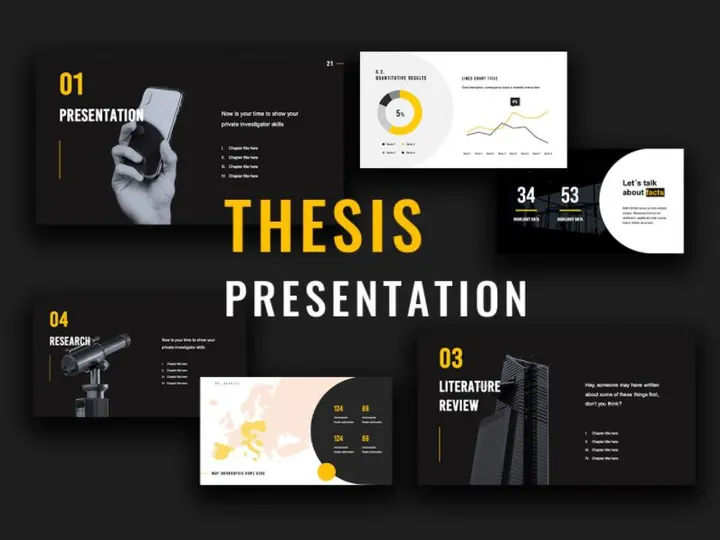
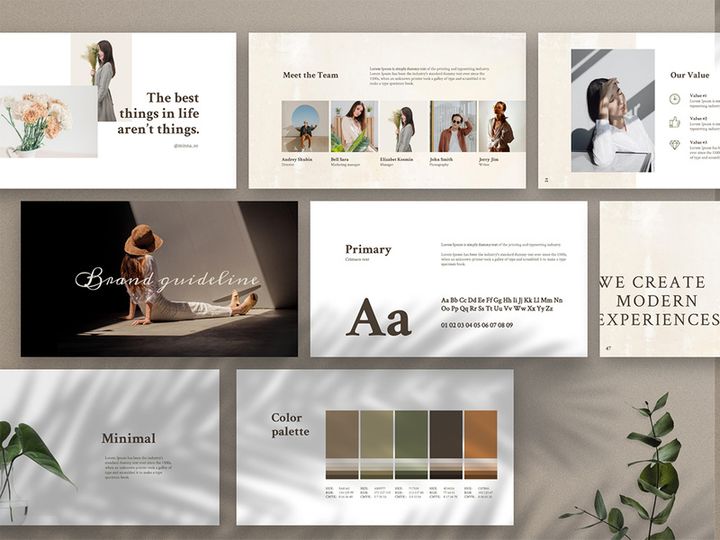
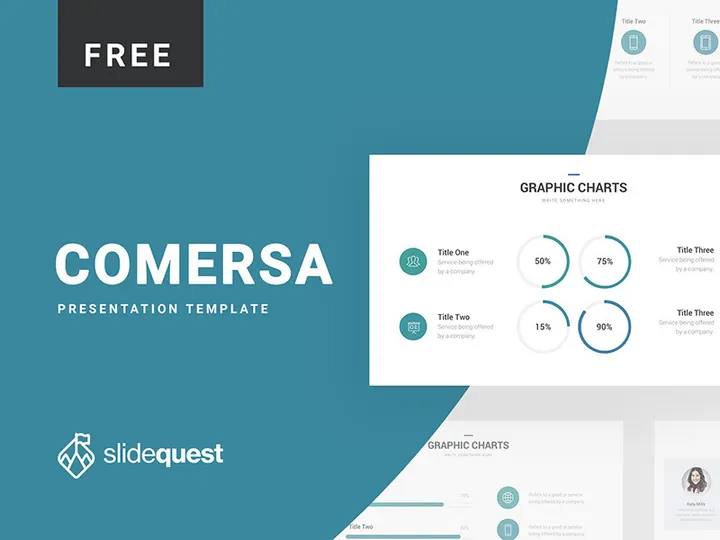
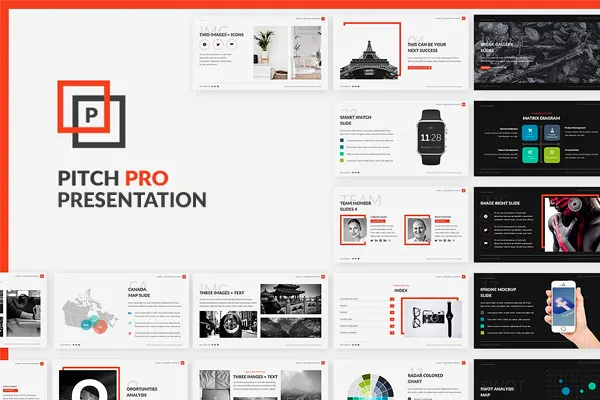
Top Templates for Powerpoint
Handpicked resources from our curated collection



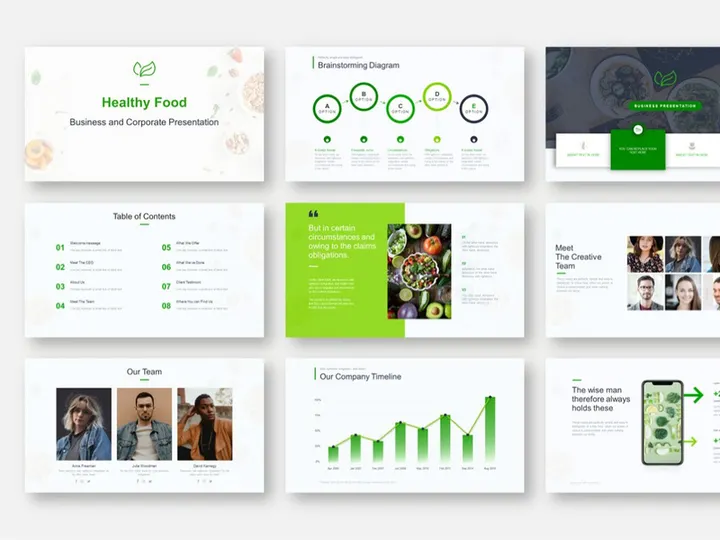
![[Free Sample] Massive Animated Powerpoint Bundle preview picture](https://imgproxy.epicpxls.com/qEl9PrVyLPfEYcQlNtdmHVZsLlgVfqB1ytjOSHlxDGU/rs:fill:720:540:0/g:no/aHR0cHM6Ly9pdGVt/cy5lcGljcHhscy5j/b20vdXBsb2Fkcy9w/aG90by82MDI2MGYx/NDc2NjFiZThhZmQw/MjVkZTA5MGI0NThm/MA.jpg)







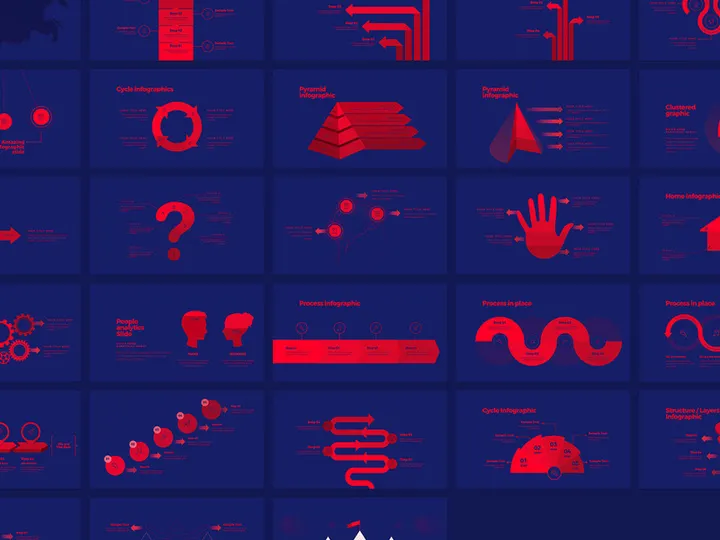
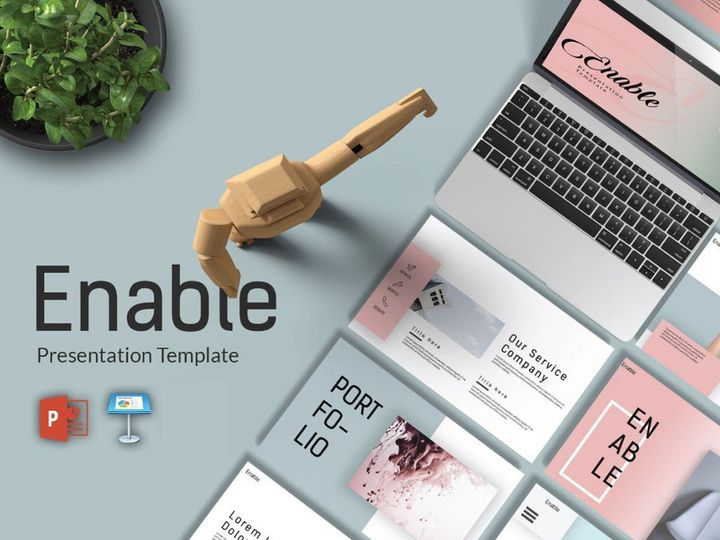


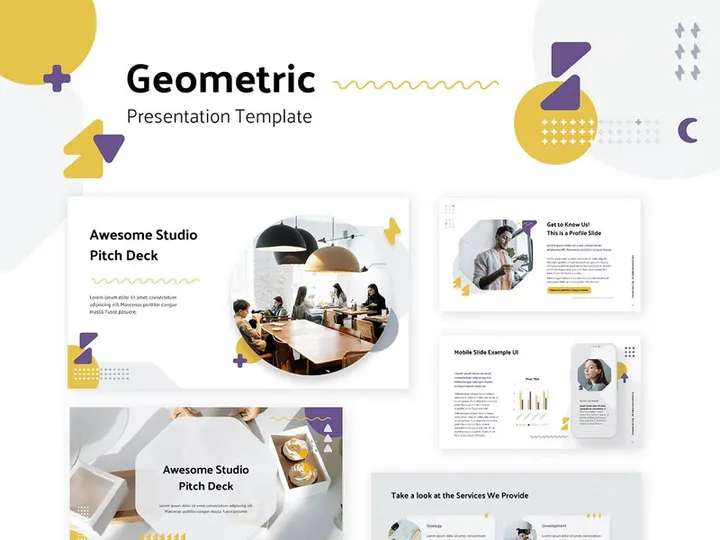

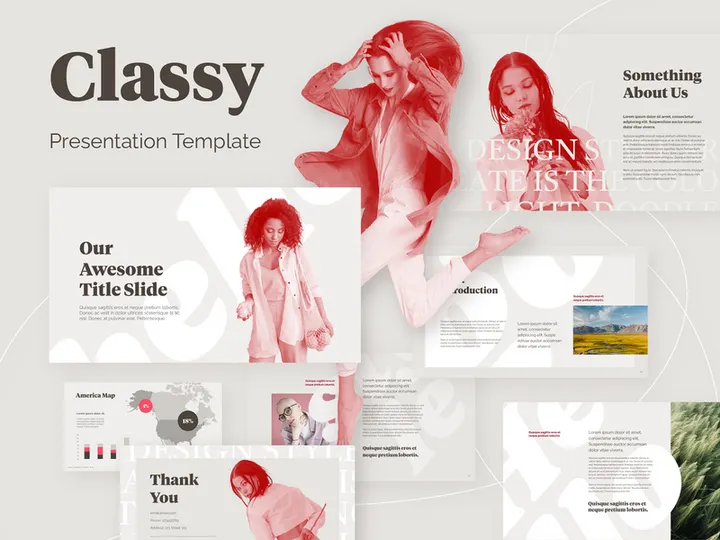

Try Our Free Resources
Download any of these for free - no account required
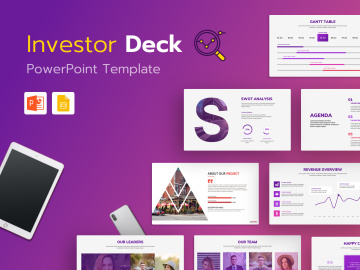


![[Free Sample] Massive Animated Powerpoint Bundle](https://items.epicpxls.com/uploads/photo/20ae326b39be585362ab04f0c5714928)


Getting Started with Templates in Powerpoint
Before diving into the creative potential of Powerpoint templates, it’s essential to ensure you have the right setup. Microsoft Powerpoint is part of the Microsoft 365 suite and is available on Windows, macOS, and as a web-based application via Powerpoint for the web. To use templates effectively, make sure your version of Powerpoint is up to date. This ensures compatibility with modern file formats, access to the latest design tools, and smooth integration with cloud-based collaboration features.
Templates can dramatically streamline your workflow, whether you're creating professional presentations, marketing materials, or educational content. The first step is knowing where to find high-quality, customizable templates. While Microsoft offers built-in template options, third-party platforms like EpicPxls provide a far broader and more visually compelling selection. With over 200+ resources available, including slide decks, infographics, business reports, and pitch templates, EpicPxls caters to a wide range of industries and design needs. These templates are crafted by professional designers and are optimized for quick implementation in Powerpoint.
When selecting a template, consider your project’s purpose—corporate, academic, or creative—and ensure the design aligns with your brand’s tone and visual identity. Most templates from EpicPxls come in multiple layouts, color schemes, and aspect ratios (4:3 or 16:9), making them adaptable to various presentation settings. Before downloading, verify that the template supports your version of Powerpoint and includes essential assets such as icons, charts, and editable text boxes. With the right foundation and access to a curated library of designs, you're ready to import and customize templates with confidence.
How to Import Templates into Powerpoint
- Choose the Right Template Format: When downloading from platforms like EpicPxls, ensure the file is in a Powerpoint-compatible format such as .PPTX. While some design resources may come in PSD, AI, or SVG formats, these require conversion or manual recreation in Powerpoint. Stick to .PPTX files for seamless integration.
- Download the Template: Click the download button on the resource page and save the file to a known location on your computer—preferably a dedicated folder for presentation assets. Avoid saving directly to temporary directories to prevent accidental deletion.
- Launch Powerpoint: Open Microsoft Powerpoint on your device. If you're using the desktop app, go to File > Open. For Powerpoint for the web, log into your Microsoft account and navigate to the online interface.
- Navigate to the Downloaded File: In the Open dialog, browse to the folder where you saved the template. Select the .PPTX file and click Open. Powerpoint will load the template, preserving all design elements, layouts, and embedded media.
- Convert Non-Powerpoint Files (if needed): If the template comes in a non-native format like Figma, PSD, or AI, you’ll need to export individual slides or elements as images or SVGs and manually insert them into a new Powerpoint presentation. Use tools like Adobe Illustrator or Figma’s export function to save assets in PNG or SVG format before importing.
- Verify Template Integrity: After importing, review all slides to confirm that fonts, colors, and graphics appear correctly. If any elements are missing or misaligned, refer to the template’s documentation or asset list—especially important when working with the 200+ resources from EpicPxls that include layered, multi-slide designs.
By following these steps, you ensure a smooth import process and maintain the template’s original quality. Always keep a backup of the original file before making edits, allowing you to revert if needed.
Step-by-Step: Working with Templates in Powerpoint
Editing Layers and Components
One of the major advantages of using professionally designed templates is the ability to customize them without starting from scratch. Once imported, you can edit individual layers, text placeholders, images, and vector graphics directly in Powerpoint. Start by selecting any element on a slide—clicking on text boxes allows you to replace content instantly. Use the Format tab to modify font styles, colors, and alignment to match your brand guidelines.
For graphics such as icons, charts, and illustrations, right-click the object and choose Edit Points or Group > Ungroup to access individual components. This is especially useful when customizing infographics or diagrams from the 200+ resources available on EpicPxls. You can recolor shapes, resize elements proportionally, or replace stock images with your own visuals via Insert > Pictures.
Master slides are a powerful feature that lets you make global changes. Access them by going to View > Slide Master. Here, you can update background themes, default fonts, and logo placements across all slides at once. This ensures consistency throughout your presentation and saves significant editing time.
Organizing Your Templates Library
As you collect more templates—especially from a rich source like EpicPxls—it becomes important to maintain an organized system. Create a dedicated folder on your computer or cloud storage (e.g., OneDrive or SharePoint) labeled “Powerpoint Templates.” Within this, use subfolders to categorize by purpose: Business Proposals, Academic Presentations, Marketing Campaigns, etc.
Additionally, rename downloaded files with descriptive titles, such as “EpicPxls_Brand_Pitch_Template_v2.pptx,” to make them easier to identify later. Consider maintaining a simple spreadsheet or document that logs each template’s source, license type, and key features. This is particularly helpful when managing team-wide access or reusing templates across projects.
For teams, consider using Powerpoint’s Shared Workspace or Co-Authoring features to store templates in a central location. This promotes consistency and reduces duplication of effort. With over 200+ resources to choose from, a well-structured library ensures you can quickly find the right template for any scenario.
Exporting for Production
Once your presentation is complete, the final step is exporting it in the appropriate format for your intended audience. Go to File > Export to access various output options. For digital sharing, choose Create a Video to generate a narrated, timed presentation in MP4 format—ideal for social media or email distribution.
If you need a static version, export as a PDF via Create PDF/XPS Document. This preserves layout integrity and is perfect for handouts, client reviews, or print. Select Standard (online publishing) for web use or Minimum size (publishing online) to reduce file size.
For on-screen presentations, save a copy as a Powerpoint Show (.PPSX) file. This launches directly into slideshow mode, ideal for kiosks or conference displays. Always test your exported file on the target device to ensure fonts, transitions, and media play correctly. When using templates from EpicPxls, verify that your license permits commercial distribution, especially for client-facing or public materials.
Troubleshooting Common Powerpoint Issues
File Won't Open
If a downloaded template fails to open, the most common cause is version incompatibility. Older versions of Powerpoint may not support features used in modern .PPTX files, such as advanced animations or 3D models. To resolve this, update to the latest version of Microsoft 365 or use Powerpoint for the web, which automatically supports current file standards. If the file was converted from another format (e.g., Figma to PPTX), some structural errors may occur. In such cases, try opening the file on a different device or request a native .PPTX version from the provider—many EpicPxls templates offer multiple format downloads to prevent this issue.
Missing Fonts or Assets
When a template uses custom fonts not installed on your system, Powerpoint will substitute them with default alternatives, potentially disrupting the design. To fix this, check the template’s documentation or asset list (commonly included with EpicPxls resources) for required fonts. Download and install them manually from trusted sources. Alternatively, use Powerpoint’s Replace Fonts tool under the Home tab to swap missing fonts with available ones. For missing images or icons, ensure all linked assets were downloaded with the template. If the template uses embedded SVGs or PNGs, verify they weren’t blocked by your antivirus or extraction tool during download.
Performance Problems
Large templates with high-resolution images, embedded videos, or complex animations can slow down Powerpoint, especially on older hardware. To improve performance, compress images using Pictures > Compress Pictures and remove unused slides or hidden elements. Avoid excessive use of transitions on every slide—stick to subtle effects for better responsiveness. If working with a particularly large file from the 200+ resources collection, consider splitting the presentation into smaller sections or using Linked Slides to reference external files. Saving frequently and using the AutoRecover feature can also prevent data loss during performance hiccups.
Advanced Powerpoint Tips for Templates
Batch Processing
When managing multiple presentations based on the same template, save time with batch processing techniques. Use the Slide Master to apply universal changes—like updating a logo or color scheme—across several presentations. You can also create a custom template (.POTX) file by saving your edited version as a template. This allows you to reuse it across projects without altering the original. For teams handling large-scale campaigns, consider using third-party tools or VBA scripts to automate text replacement, image insertion, or slide reordering across multiple .PPTX files.
Plugins and Extensions
Enhance your Powerpoint experience with add-ins that expand template functionality. Microsoft AppSource offers tools for diagramming, data visualization, and branding consistency. For example, add-ins can help sync your presentation with brand color palettes or automate the creation of charts from Excel data. When using templates from EpicPxls, certain plugins can assist in maintaining design standards—especially when working with the 200+ resources that include complex layouts and data-driven visuals.
Collaboration Workflows
Powerpoint supports real-time collaboration, making it ideal for team-based template usage. Store your master templates in a shared cloud folder (e.g., OneDrive or SharePoint) and grant appropriate access levels. Team members can then open, edit, and comment on presentations simultaneously. Use Comments and Change Tracking to manage feedback and revisions efficiently. Establish naming conventions and version control practices—for example, “ProjectX_Presentation_v1_Final_JaneReview”—to avoid confusion. When using premium templates from EpicPxls, ensure your team adheres to licensing terms, especially for external distribution or client work.
Why Download from EpicPxls?
Commercial License
Use in personal and commercial projects
No Account Required
Download free resources instantly
Quality Curated
Every resource is reviewed for quality
Preview Files
See Figma and Photoshop files before downloading
Who Uses These Templates?
Professionals and teams who benefit most from our collection
UI/UX Designers
Speed up your workflow with ready-to-use templates for Powerpoint. Perfect for prototyping and client presentations.
Developers
Get production-ready assets without design skills. Export in any format for web and mobile apps.
Startups & Agencies
Save design budget with affordable premium templates. Commercial license included for client work.
Marketing Teams
Create professional campaigns faster. All templates are optimized for social media and ads.
Templates for Powerpoint FAQCommon questions about these resources
Simple, Transparent Pricing
Get unlimited access to all premium resources
Yearly
- 20 downloads per month
- All file formats
- Commercial license
Lifetime
- Unlimited downloads forever
- All file formats
- Commercial license
Ready to Get Started?
Access 4,441+ free design resources today.
Browse Free ResourcesView Premium PlansEarn 85% and
more on all sales
Upload your products and put them up
for sale at whatever price you want.


