How to Use Templates in Adobe InDesign: Complete Guide
EpicPxls offers 11+ curated templates for Adobe InDesign, all with a commercial license and editable source files (Figma, Sketch, PSD). Download your chosen templates from EpicPxls, then use Adobe InDesign's import function. Most resources include Adobe InDesign-native files for seamless opening.
Last updated February 13, 2026
Everything you need to know about using templates in Adobe InDesign.
Trusted by designers at leading companies
Top Templates for Adobe InDesign
Handpicked resources from our curated collection



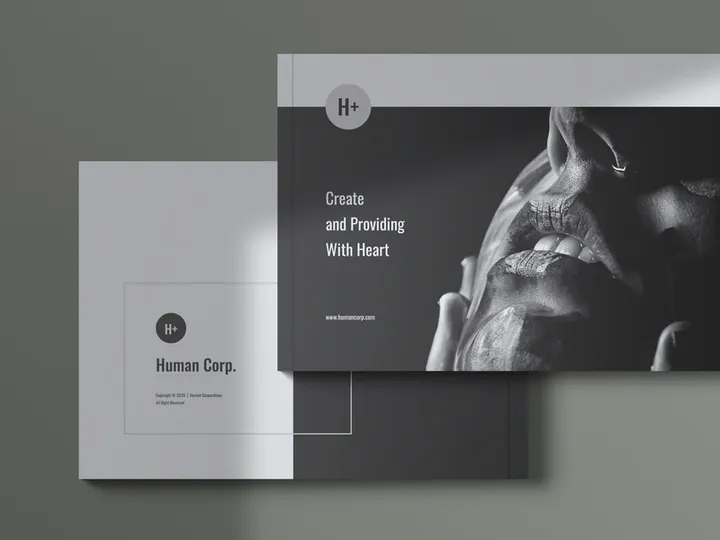
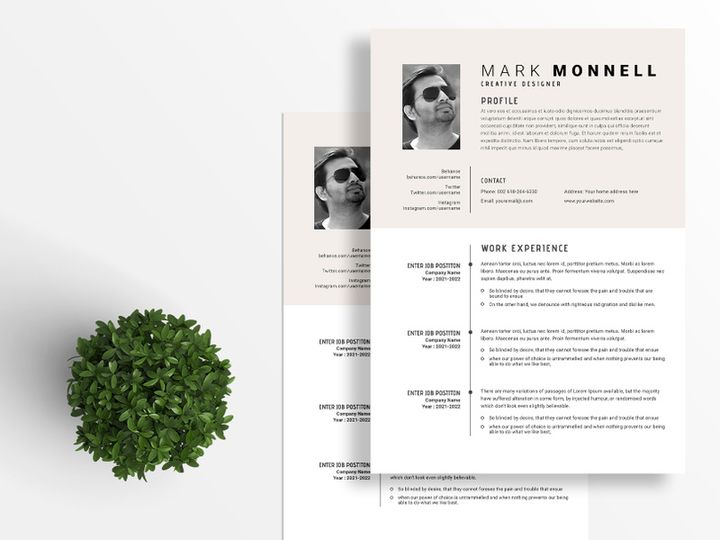


Try Our Free Resources
Download any of these for free - no account required


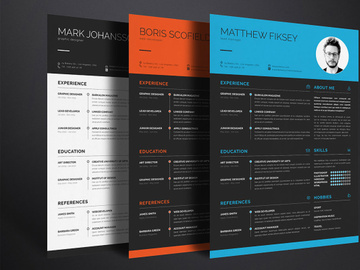
Getting Started with Templates in Adobe InDesign
Adobe InDesign is a powerful design and layout tool widely used by professionals in publishing, marketing, and graphic design. Whether you're creating brochures, magazines, eBooks, or social media graphics, using templates can dramatically streamline your workflow and maintain design consistency across projects. Before diving into using templates, ensure you have Adobe InDesign properly installed on your system. The software is available through Adobe Creative Cloud and supports both Windows and macOS platforms. Make sure your version is up to date to take full advantage of the latest features and template compatibility.
Templates in Adobe InDesign serve as pre-designed frameworks that include layout grids, color schemes, typography, and placeholders for images and text. They allow users to focus on content rather than starting from scratch. You can access templates directly through Adobe’s built-in template library or download professionally crafted designs from trusted sources online. One such resource is EpicPxls, which offers a diverse collection of customizable, high-quality InDesign templates tailored for various design needs.
With 11+ resources available on EpicPxls, users gain access to industry-specific templates for business cards, flyers, reports, newsletters, and more. These resources are meticulously designed to align with modern design standards and are fully compatible with Adobe InDesign. Each template is layered logically, making it easy to modify elements without disrupting the overall structure. Additionally, the site provides detailed previews and user guides to help both beginners and experienced designers get started quickly.
Before using any template, verify that it matches your InDesign version and project requirements. Most templates come in .INDD format—the native file type for InDesign—ensuring seamless integration. Some may also include linked assets such as images, fonts, or color swatches, so it’s important to review the documentation provided. With the right preparation and access to reliable resources like EpicPxls, you can maximize efficiency and elevate the quality of your design output from the very first step.
How to Import Templates into Adobe InDesign
- Download the Correct File Format: Begin by downloading a template compatible with Adobe InDesign. Look for files ending in .INDD, as this is the native format. If the template comes in a compressed folder (e.g., .ZIP), extract it first. Resources from EpicPxls typically include both the .INDD file and supporting assets like images or fonts.
- Launch Adobe InDesign: Open the application and go to File > Open. Navigate to the location where you saved the downloaded template file and select it. Click “Open” to load the document into the workspace.
- Review Linked Assets: Upon opening, InDesign may prompt you about missing links (images or graphics). Use the Links panel (Window > Links) to relink any missing assets if they were included in the download package.
- Handle Non-INDD Files (Optional): If you’re working with templates in other formats—such as PSD (Photoshop), AI (Illustrator), or SVG—you can import them into an existing InDesign document. Use File > Place to insert these files onto your page. While they won’t be fully editable like native InDesign templates, they retain high quality and can be scaled without loss.
- Integrate Figma or Other Design Tool Outputs: If your template originates from Figma or a similar platform, export individual assets as PDF, PNG, or SVG, then use Place to insert them into your InDesign layout. Consider recreating complex layouts manually in InDesign for better control over typography and alignment.
- Save a Working Copy: After successfully importing, immediately save the file under a new name using File > Save As. This preserves the original template for future reuse and prevents accidental overwrites.
By following these steps, you ensure that your template imports smoothly and remains fully functional within Adobe InDesign. Always verify that fonts, images, and colors are correctly embedded or linked. The 11+ resources available through platforms like EpicPxls are optimized for easy import and editing, helping you jumpstart your design process with minimal setup time.
Step-by-Step: Working with Templates in Adobe InDesign
Editing Layers and Components
Once your template is loaded, the next step is customization. Adobe InDesign uses layers to organize design elements, making it easy to edit specific components without affecting others. Access the Layers panel via Window > Layers to view and manage all layers in your document. Each layer may contain text frames, image placeholders, shapes, or guides. Lock layers you don’t intend to modify to avoid accidental changes.
Editing text is straightforward—simply select a text frame with the Type Tool (T) and begin typing. Be mindful of font styles and paragraph settings to maintain visual harmony. Replace placeholder images by selecting the frame and choosing File > Place, then navigating to your desired image. Use the Content Conveyor or Frame Fitting Options to adjust how images fit within frames.
Colors and swatches can be updated globally using the Swatches panel. If the template uses paragraph or character styles, modify them in the Paragraph Styles or Character Styles panel to automatically update all associated text. This ensures consistency across large documents and saves time during revisions.
Organizing Your Templates Library
As you accumulate more templates—especially from sources like EpicPxls—it’s essential to maintain an organized system. Create a dedicated folder on your computer labeled “InDesign Templates” and subdivide it by category (e.g., Print, Digital, Marketing, Editorial). Name files clearly with descriptive titles and version numbers when applicable.
Consider using Adobe Bridge or a digital asset management tool to preview and tag templates for quick retrieval. You can also create a master document that links to commonly used templates via hyperlinks or bookmarks. For teams, store templates on a shared network drive or cloud storage with appropriate access controls to ensure everyone uses the most up-to-date versions.
Regularly audit your library to remove outdated or redundant files. Keep documentation such as license agreements and font usage notes alongside each template to avoid legal or technical issues down the line. A well-structured templates library enhances productivity and supports scalable design workflows.
Exporting for Production
After finalizing your design, export it in the appropriate format based on its intended use. For print materials like brochures or posters, go to File > Export and choose PDF (Print) as the format. In the export dialog, select a preset like “Press Quality” or “High Quality Print” to ensure resolution, color profiles (CMYK), and bleed settings meet professional standards.
For digital use—such as email newsletters or online publications—export as an interactive PDF or SWF (though SWF support is limited in newer versions). Alternatively, use the Package feature (File > Package) to collect all fonts, images, and links into a single folder, which is ideal for sending to printers or collaborators.
If your project includes clickable elements like buttons or links, enable interactive features in the export settings. For web-based content, consider exporting individual pages or assets as PNG or JPEG at 72 dpi. Always preview the exported file before distribution to confirm layout integrity and functionality.
Troubleshooting Common Adobe InDesign Issues
File Won't Open
One of the most frequent issues users encounter is an InDesign file that refuses to open. This often stems from version incompatibility—older templates may not work in newer versions of InDesign, and vice versa. Always check the version compatibility noted in the template description, especially when downloading from online repositories like EpicPxls. If you’re using an outdated version of InDesign, consider updating through Adobe Creative Cloud. Alternatively, the template provider may offer multiple version downloads to accommodate different users.
Missing Fonts or Assets
When opening a template, InDesign may display warnings about missing fonts or linked images. Missing fonts can alter text appearance and layout. Resolve this by installing the required fonts—many templates include a font list or link to download them. If the original font isn’t available, substitute it using the Find Font dialog (Type > Find Font). For missing images, use the Links panel to relink files to their correct locations on your computer. To prevent this issue, always use the Package command when sharing templates with others.
Performance Problems
Large templates with high-resolution images or numerous layers can slow down InDesign’s performance. To improve responsiveness, close unused documents and disable unnecessary panels. Use Preferences > Display Performance to switch from “High Quality” to “Typical” or “Fast” display mode while working. Replace placeholder images with lower-resolution versions during the editing phase and swap them back before export. Additionally, avoid embedding large assets directly; instead, link them externally. Regularly save and restart InDesign to clear memory and maintain stability.
Advanced Adobe InDesign Tips for Templates
Batch Processing
For users managing multiple documents based on the same template—such as product catalogs or event flyers—batch processing can save significant time. Use InDesign’s Data Merge feature to automatically populate a template with data from a CSV or Excel file. This is ideal for generating personalized invitations, labels, or reports at scale. Alternatively, automate repetitive tasks using scripts written in JavaScript, which can be run through File > Scripts. Many of the 11+ resources on EpicPxls are optimized for data-driven customization, making them perfect for batch workflows.
Plugins and Extensions
Extend InDesign’s capabilities with plugins that enhance template functionality. Tools like Em Software or EasyCatalog enable dynamic content updates, while others streamline PDF creation, color management, or accessibility compliance. Adobe Exchange hosts a wide range of vetted extensions that integrate directly into the InDesign interface. These plugins can automate layout adjustments, enforce brand standards, or simplify exporting across multiple formats—making them invaluable for teams relying on consistent template usage.
Collaboration Workflows
When working in teams, maintaining a centralized and standardized templates library is crucial. Use shared cloud storage with version control to ensure all team members access the latest templates. Implement naming conventions and folder structures that reflect project types and departments. Adobe InDesign supports CC Libraries, allowing teams to store and share swatches, graphics, and text styles across documents. Pair this with clear documentation on how to modify templates without breaking design integrity. Platforms like EpicPxls support collaborative environments by offering templates with modular components and clear layer hierarchies, enabling smooth handoffs between designers, editors, and stakeholders.
Why Download from EpicPxls?
Commercial License
Use in personal and commercial projects
No Account Required
Download free resources instantly
Quality Curated
Every resource is reviewed for quality
Preview Files
See Figma and Photoshop files before downloading
Who Uses These Templates?
Professionals and teams who benefit most from our collection
UI/UX Designers
Speed up your workflow with ready-to-use templates for Adobe InDesign. Perfect for prototyping and client presentations.
Developers
Get production-ready assets without design skills. Export in any format for web and mobile apps.
Startups & Agencies
Save design budget with affordable premium templates. Commercial license included for client work.
Marketing Teams
Create professional campaigns faster. All templates are optimized for social media and ads.
Templates for Adobe InDesign FAQCommon questions about these resources
Simple, Transparent Pricing
Get unlimited access to all premium resources
Yearly
- 20 downloads per month
- All file formats
- Commercial license
Lifetime
- Unlimited downloads forever
- All file formats
- Commercial license
Ready to Get Started?
Access 4,441+ free design resources today.
Browse Free ResourcesView Premium PlansEarn 85% and
more on all sales
Upload your products and put them up
for sale at whatever price you want.


