Icons for Figma: 94+ Resources
EpicPxls offers 94+ curated icons for Figma, all with a commercial license and editable source files (Figma, Sketch, PSD). We have 94+ icons compatible with Figma, tested and verified for seamless integration.
Last updated February 12, 2026
Discover 94+ handpicked icons for Figma.
Trusted by designers at leading companies
Top Icons for Figma
Handpicked resources from our curated collection
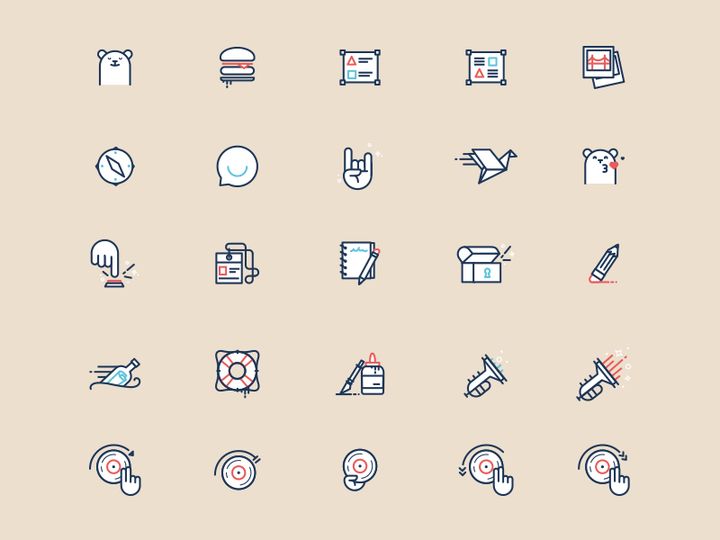

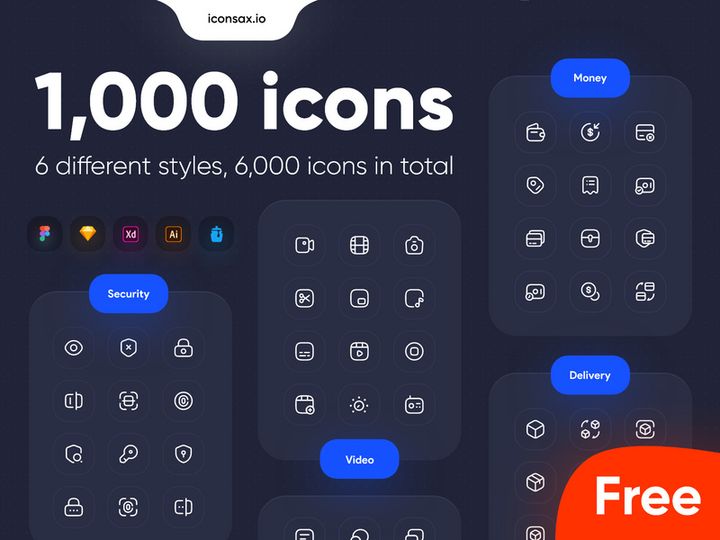
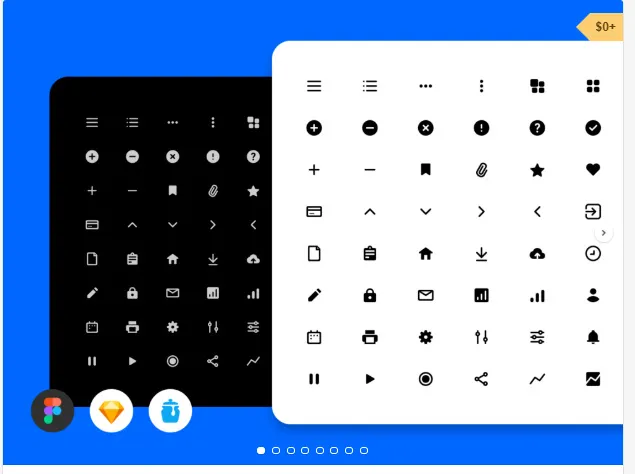
![Free 6000+ Icons [Figma] preview picture](https://imgproxy.epicpxls.com/uUauXZtLPZN2gyuKVtsZYdkCDcjSdp5MDFoNQBy3Q30/rs:fill:720:540:0/g:no/aHR0cHM6Ly9pdGVt/cy5lcGljcHhscy5j/b20vdXBsb2Fkcy9w/aG90by9kNmFhZjJm/MzQzMzk2OWI5MDFk/OWNjZjA1MGYwMDA5/Yw.jpg)
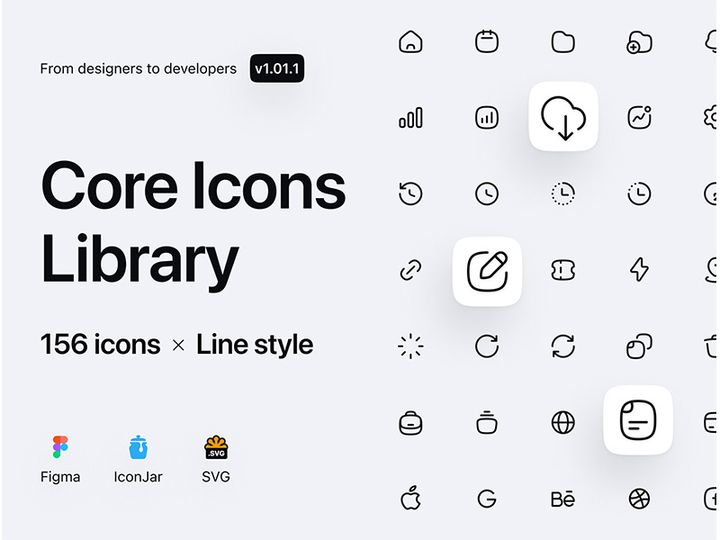
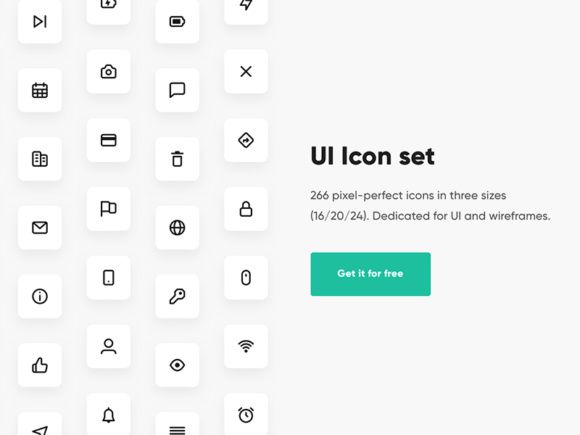
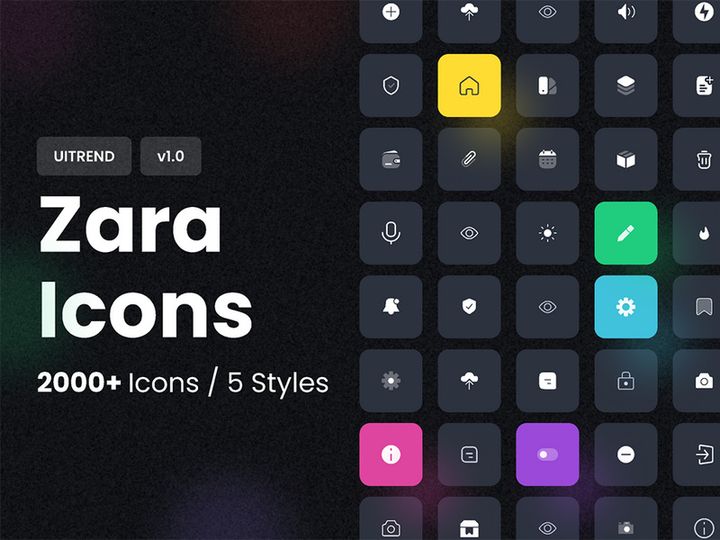
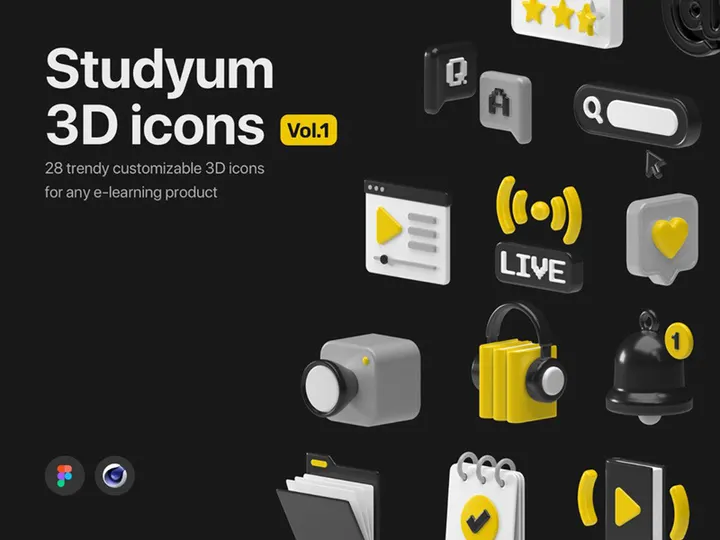
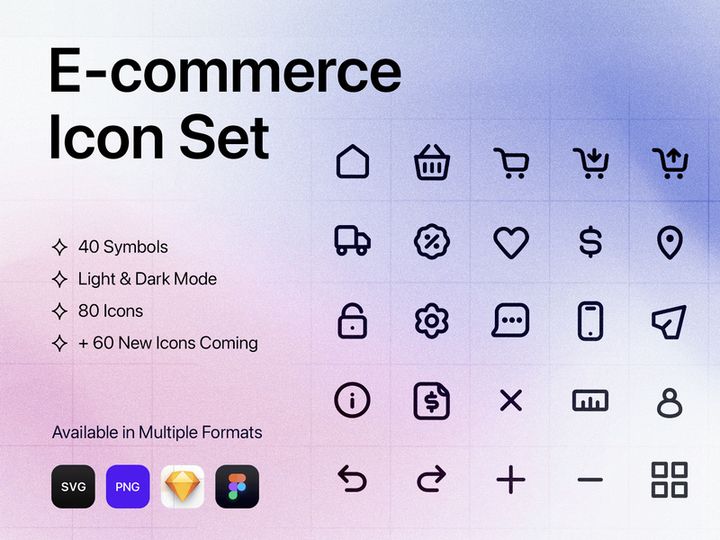
![Photoshop Icon Pack [Free SVG,PNG] preview picture](https://imgproxy.epicpxls.com/J-z-x9Sjo5KH35FFUojQEsF0BqZjGvGgFkaTfPN_7b8/rs:fill:720:540:0/g:no/aHR0cHM6Ly9pdGVt/cy5lcGljcHhscy5j/b20vdXBsb2Fkcy9w/aG90by8yYzI0ZWM3/ZjNhYjhhYWJiNzU3/YzAxM2Y2NWI1MmQ1/ZA.jpg)
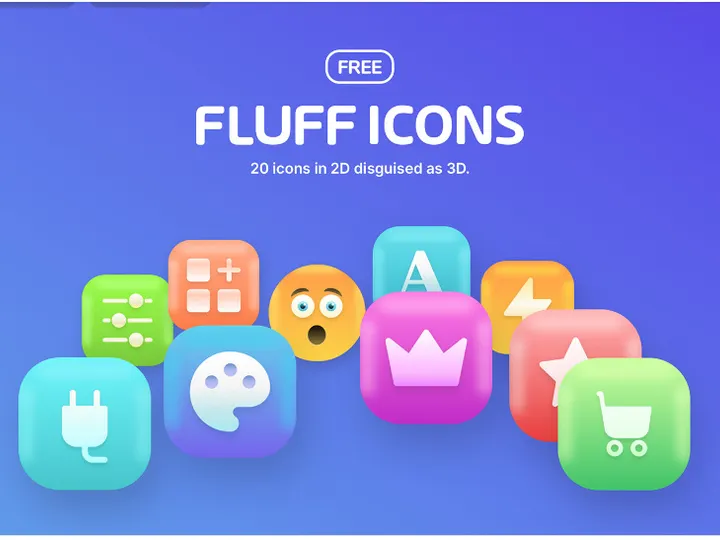
![SWM Icon Pack [300 Figma icons] preview picture](https://imgproxy.epicpxls.com/CBFePP2DUXApBwckrwS5nD00uA_ZoHyeAEhKY08IP20/rs:fill:720:540:0/g:no/aHR0cHM6Ly9pdGVt/cy5lcGljcHhscy5j/b20vdXBsb2Fkcy9w/aG90by82ZWRkNjRl/OWNiMTcwMzU0N2Y3/ZWVmOGNmZWNhNzBk/Zg.jpg)


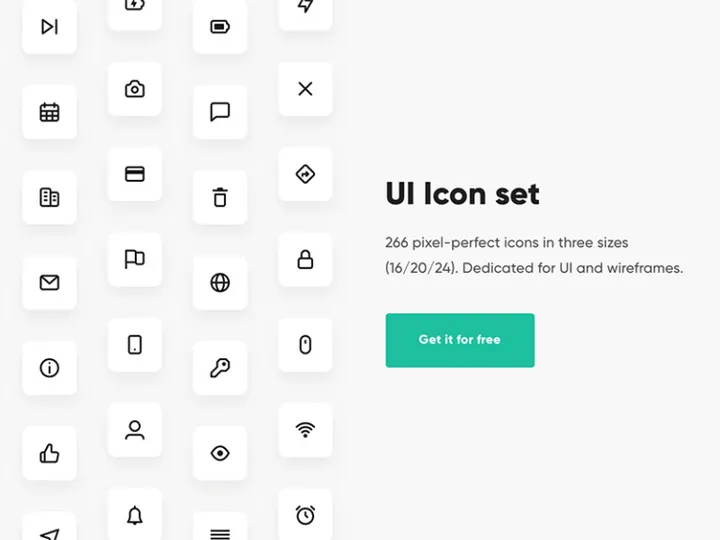

Try Our Free Resources
Download any of these for free - no account required
![Free 6000+ Icons [Figma]](https://items.epicpxls.com/uploads/photo/d2c7f9b69f8c8d574b151b4227b4eb25)
Why Figma for Icons?
Figma has rapidly become a go-to design tool for UI/UX professionals, especially when it comes to creating, managing, and implementing icons. Its vector-based interface provides pixel-perfect precision, essential for crafting scalable icons that maintain clarity across devices and screen sizes. Unlike traditional design software that operates on a desktop-only model, Figma is browser-based and fully collaborative, enabling real-time teamwork—a game-changer for design systems that rely on consistent iconography.
One of Figma’s standout features for icon design is its component system. Icons can be turned into reusable components with variants, allowing designers to switch between sizes, states, or styles—like filled versus outlined—without duplicating assets. This dramatically reduces file clutter and ensures consistency across projects. Additionally, Figma’s auto-layout functionality enhances icon placement within buttons or navigation bars, making responsive design more intuitive.
Another advantage is Figma’s robust plugin ecosystem. Designers can automate repetitive tasks like renaming, exporting, or generating icon grids, streamlining workflows and reducing manual errors. With built-in version history and cloud storage, teams can track changes to icon libraries over time without worrying about losing previous iterations. This level of transparency and control is unmatched in many legacy design environments.
At EpicPxls, we recognize the growing demand for well-structured, Figma-ready icon resources. That’s why our platform curates over 94+ resources specifically optimized for Figma, ensuring each collection supports modern design practices. From open-source projects to premium design systems, our selection focuses on usability, scalability, and compatibility. Whether you're building a mobile app, a SaaS dashboard, or a design system, Figma’s capabilities—combined with high-quality assets from EpicPxls—empower designers to work faster and smarter.
Top Icons Picks for Figma
With so many icon resources available, choosing the right one for your Figma project can be overwhelming. To simplify the process, we've highlighted top categories based on skill level and budget. From beginner-friendly sets to professional-grade libraries, the 94+ resources curated by EpicPxls include options tailored to every design need. Below are our top picks to help you get started quickly and efficiently.
Best for Beginners
If you're new to Figma or UI design, starting with intuitive, well-documented icon sets is crucial. Look for resources that include clearly labeled layers, organized pages, and usage guidelines. Many beginner-friendly libraries come with a single-click import feature and offer a limited but versatile set of common UI icons—such as home, settings, search, and user profiles. These icons often use simple strokes and consistent stroke weights, making them easy to customize. Collections tagged as “starter kits” or “UI essentials” are ideal for learning Figma’s component and styling tools without being overwhelmed by complexity.
Best for Professionals
For experienced designers and design teams, advanced icon libraries offer granular control and deep integration with design systems. These resources typically include hundreds of icons organized into categories like finance, healthcare, or e-commerce, with multiple variants (light, regular, bold) and sizes (16px, 24px, 32px). Many professional sets support Figma’s variant feature, enabling seamless toggling between icon styles directly in the design canvas. Some even integrate with design tokens and naming conventions that align with enterprise-level systems. These libraries are perfect for maintaining brand consistency and scaling icon usage across large applications.
Best Free Options
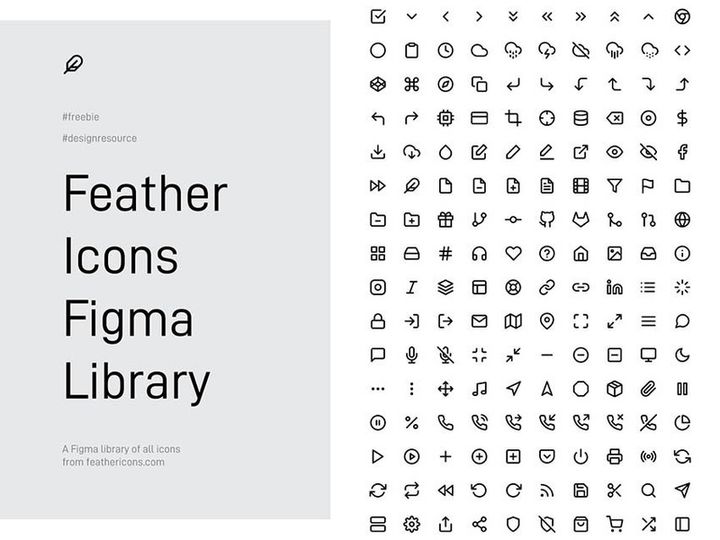
High-quality free icons are abundant in the Figma ecosystem, and EpicPxls makes it easy to discover them. Our curated list includes open-source projects like Feather Icons, Tabler Icons, and Heroicons—all available as Figma files with permissive licenses. These sets are meticulously crafted, fully vector-based, and often updated by active developer communities. Free resources are ideal for startups, students, and side projects where budget is a constraint but quality cannot be compromised. While some free icons may lack advanced Figma features like variants, they’re still excellent for prototyping and MVP development.
Figma vs Other Tools for Icons
When it comes to designing and managing icons, Figma stands out from traditional vector tools due to its collaborative, cloud-native architecture. Unlike desktop-based applications that require file sharing and version tracking via external tools, Figma keeps everyone on the same page—literally. Multiple team members can access, edit, and comment on icon libraries simultaneously, reducing bottlenecks in the design process. This is particularly valuable for cross-functional teams that include designers, developers, and product managers.
Figma’s real-time syncing ensures that icon updates are immediately reflected across all linked files and projects. When a team uses shared libraries, any change to an icon—such as a stroke adjustment or color update—automatically propagates to every instance in connected designs. This eliminates the risk of outdated icons slipping into production, a common issue in static workflows.
Another advantage is Figma’s native support for SVG and vector networks, making it easy to import and export icons without losing editability. While other tools may require conversion or suffer from formatting issues, Figma preserves layer structure, paths, and constraints. This compatibility extends to plugins and third-party integrations, enabling smooth handoffs to development teams. Thanks to these features, Figma has become the preferred environment for modern icon workflows—especially when paired with the 94+ resources available through EpicPxls.
Setting Up Icons in Figma
Integrating icon resources into your Figma workflow is straightforward when you follow a systematic approach. Whether you're importing a single icon or an entire library, these steps will help you set up your assets efficiently and maintain long-term usability.
- Download or access the icon resource: Visit EpicPxls and choose a Figma-compatible icon set from the 94+ curated options. Click “Open in Figma” or download the .fig file directly.
- Import into your workspace: Open Figma, create a new file or open an existing project, then go to File > Open & Import > Import. Upload the .fig file or duplicate the Figma community file into your team or personal project.
- Organize by category or use case: Rename pages to reflect icon types—such as “Navigation,” “Social,” or “E-commerce.” Use folders within pages to group icons by size, style, or function for easier navigation.
- Convert icons into components: Select each icon (or group of icons) and turn them into main components using the “Create Component” button. This allows for reuse and consistency across designs.
- Set up variants (optional): For advanced control, create variants that toggle between filled and outlined versions, different colors, or sizes. Use component properties to make these changes accessible directly from the property panel.
- Publish to a team library: If working with a team, publish your organized icon set as a shared library. This enables all team members to access and use the icons in their own files with automatic updates when changes are made.
For large icon collections, consider enabling pagination or using searchable component names. This ensures your team can quickly locate the right icon without scrolling through dozens of pages. With proper setup, your Figma icon library becomes a scalable, future-proof asset.
Figma Workflow Tips
Maximizing efficiency in Figma goes beyond just importing icons—it’s about building smart, sustainable workflows. As your design system grows, maintaining clarity and consistency becomes critical. These best practices will help you manage icon libraries effectively and collaborate seamlessly with your team.
Organizing Icons Libraries
A well-structured library is the foundation of a scalable design system. Use Figma’s page and frame hierarchy to group icons by purpose—such as “Action Icons,” “Status Indicators,” or “Brand Logos.” Within each page, arrange icons in a grid with consistent spacing and labeling. Apply a uniform naming convention, like “Icon/Name/Size/Style” (e.g., “Icon/Heart/24/Filled”), to make them searchable and intuitive. Consider using Figma’s section and container features to create collapsible groups, keeping your canvas clean and navigable. At EpicPxls, we recommend starting with a minimal set and expanding only as needed to avoid clutter.
Batch Operations
When managing hundreds of icons, manual edits are impractical. Leverage Figma plugins to perform batch operations like renaming, recoloring, or resizing multiple icons at once. Plugins such as “Rename It” or “Mass Replace Colors” can save hours of repetitive work. You can also use scripts to auto-generate components or export assets in bulk. For example, run a script to convert all top-level frames into components with a single click. These automation tools turn tedious tasks into one-time setup steps, freeing designers to focus on higher-level creative decisions.
Collaboration Best Practices
Collaboration is one of Figma’s greatest strengths, but it requires clear guidelines. Establish team rules for who can edit the master icon library—typically limited to lead designers or system maintainers. Use version comments and change logs to document updates, such as “Updated Alert Icon to match new brand guidelines.” Encourage team members to use library components instead of copying and pasting instances, which can break the link to updates. When working with developers, share the Figma file with inspect mode enabled so they can extract SVG code or copy properties directly. This transparency reduces miscommunication and accelerates handoff.
Why Download from EpicPxls?
Commercial License
Use in personal and commercial projects
No Account Required
Download free resources instantly
Quality Curated
Every resource is reviewed for quality
Preview Files
See Figma and Photoshop files before downloading
Who Uses These Icons?
Professionals and teams who benefit most from our collection
UI/UX Designers
Speed up your workflow with ready-to-use icons for Figma. Perfect for prototyping and client presentations.
Developers
Get production-ready assets without design skills. Export in any format for web and mobile apps.
Startups & Agencies
Save design budget with affordable premium icons. Commercial license included for client work.
Marketing Teams
Create professional campaigns faster. All icons are optimized for social media and ads.
Icons for Figma FAQCommon questions about these resources
Simple, Transparent Pricing
Get unlimited access to all premium resources
Yearly
- 20 downloads per month
- All file formats
- Commercial license
Lifetime
- Unlimited downloads forever
- All file formats
- Commercial license
Ready to Get Started?
Access 4,441+ free design resources today.
Browse Free ResourcesView Premium PlansEarn 85% and
more on all sales
Upload your products and put them up
for sale at whatever price you want.


