How to Use Themes in Illustrator: Complete Guide
EpicPxls bietet 25+ kuratierte designs für Illustrator, alle mit einer gewerblichen Lizenz und bearbeitbaren Quelldateien (Figma, Sketch, PSD). Download your chosen themes from EpicPxls, then use Illustrator's import function. Most resources include Illustrator-native files for seamless opening.
Zuletzt aktualisiert 13. Februar 2026
Everything you need to know about using themes in Illustrator.
Vertraut von Designern in führenden Unternehmen
Top Designs für Illustrator
Handverlesene Ressourcen aus unserer kuratierten Sammlung
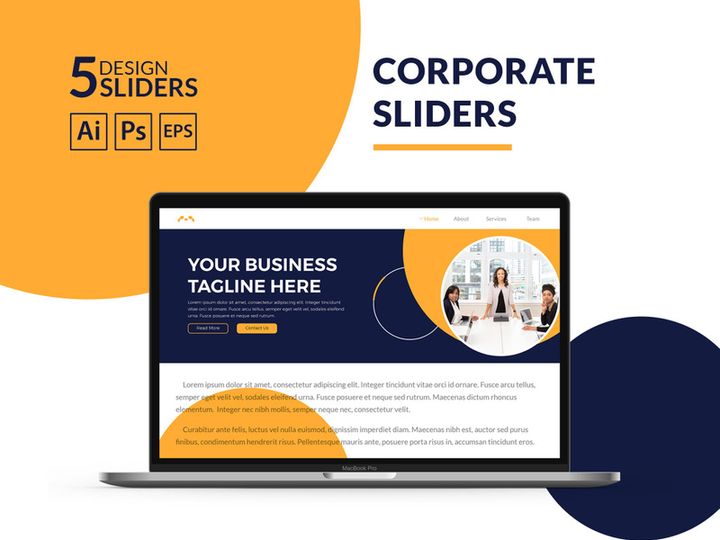
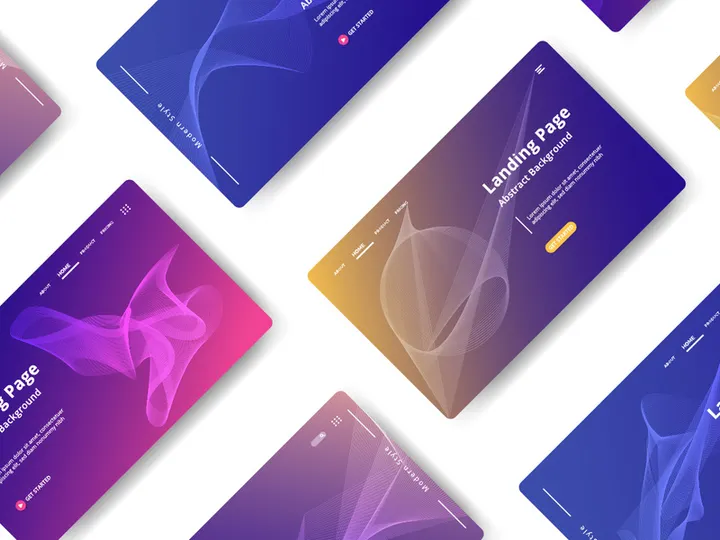
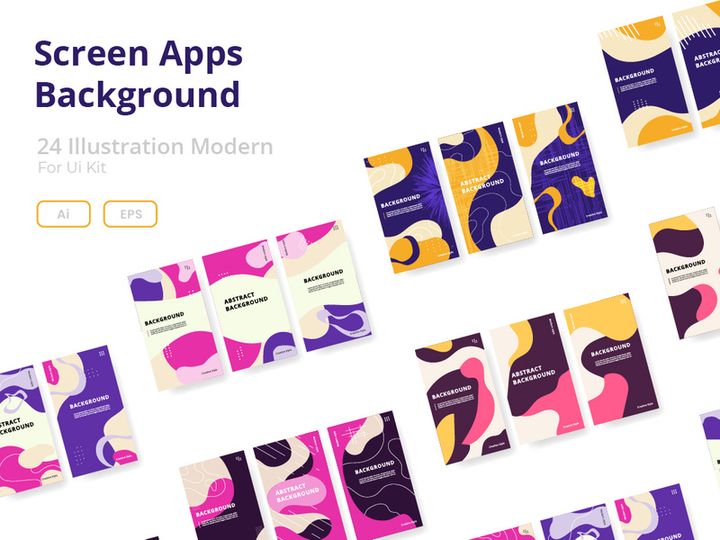
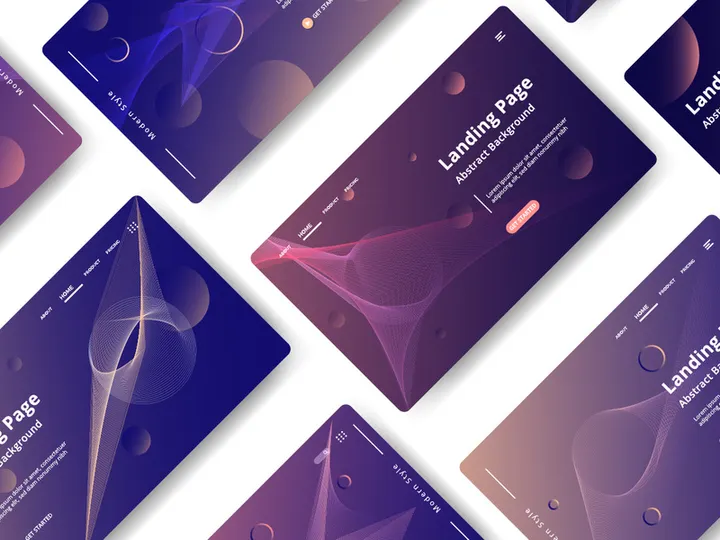

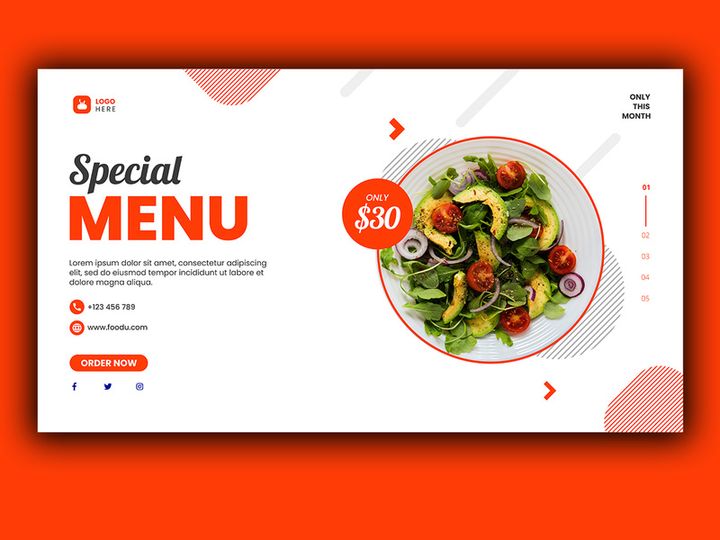
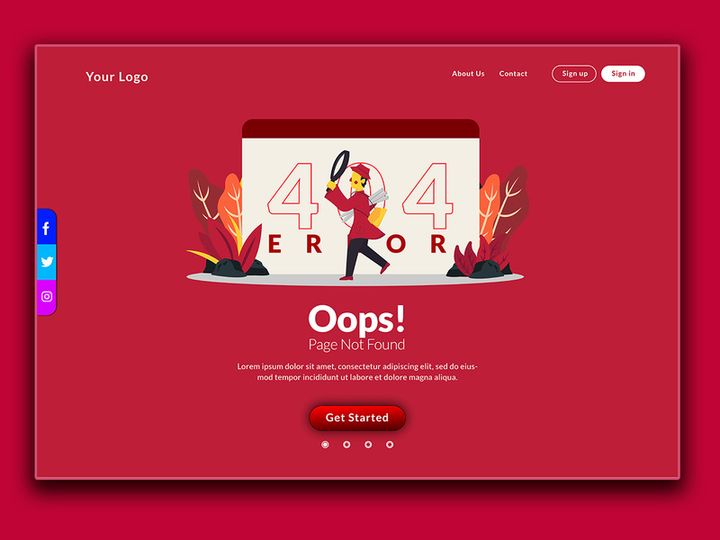
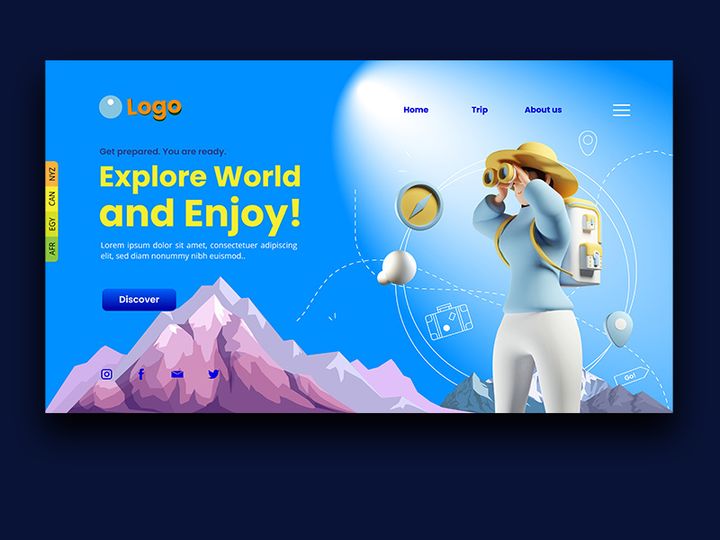
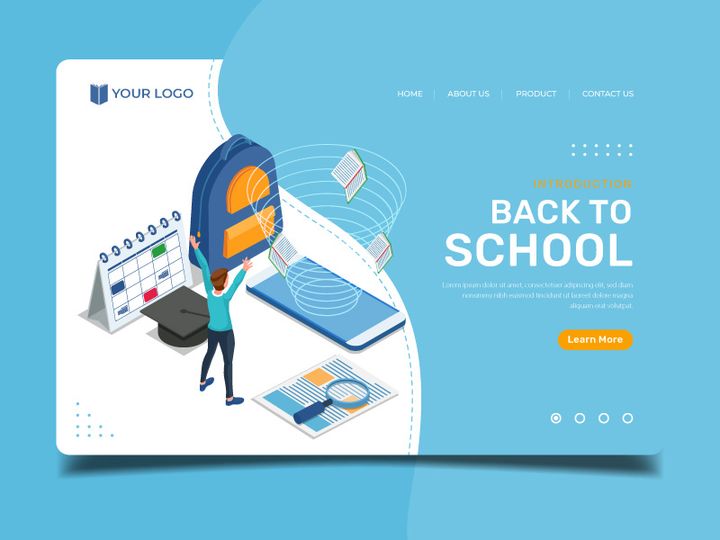
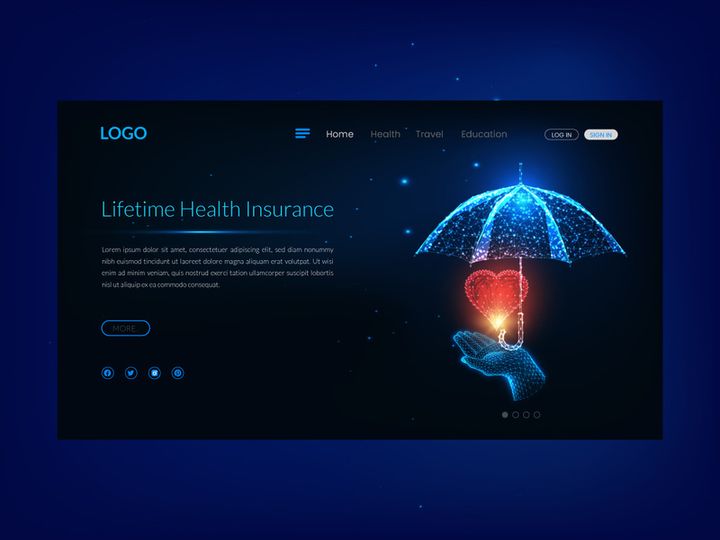
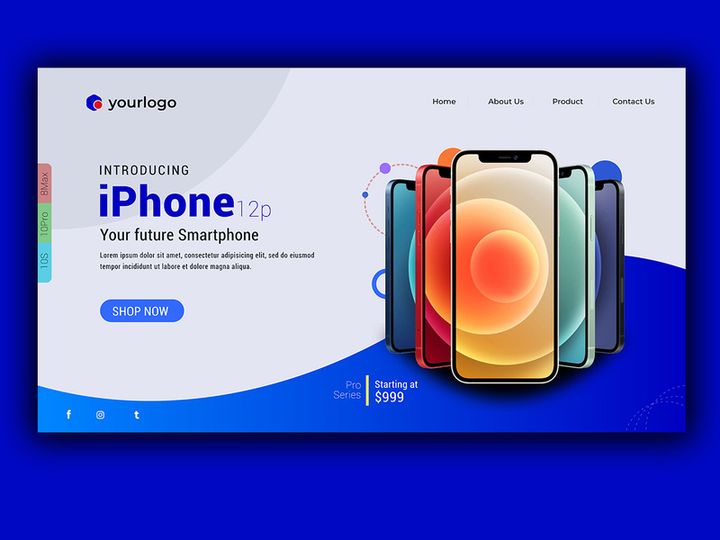
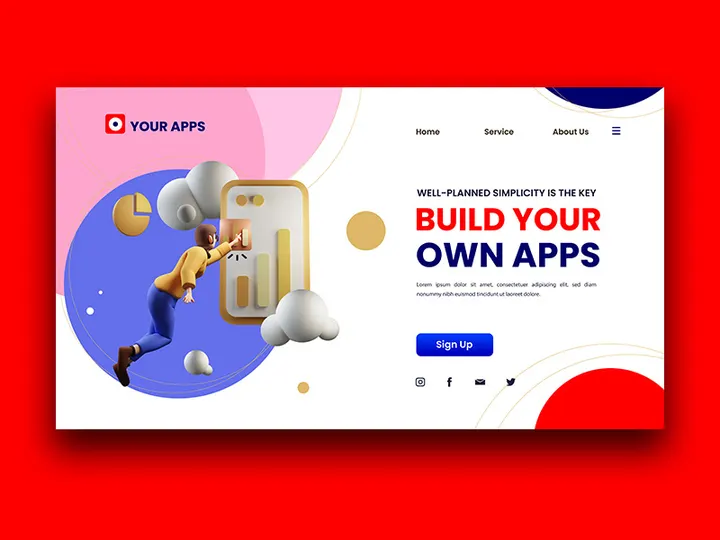
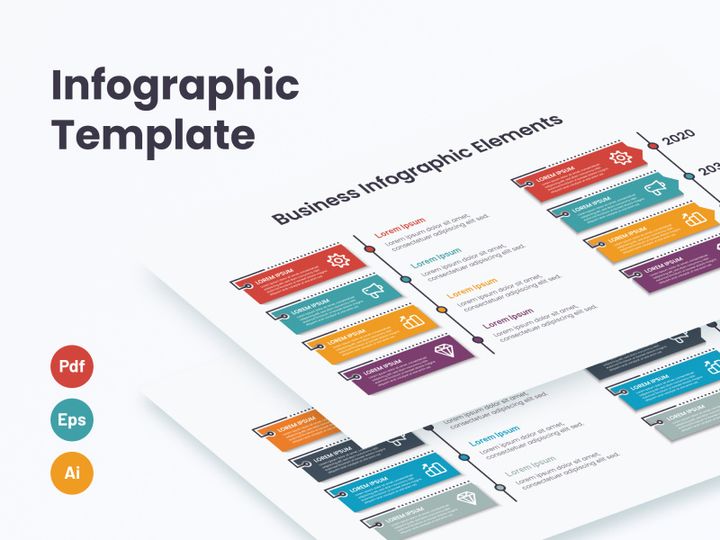
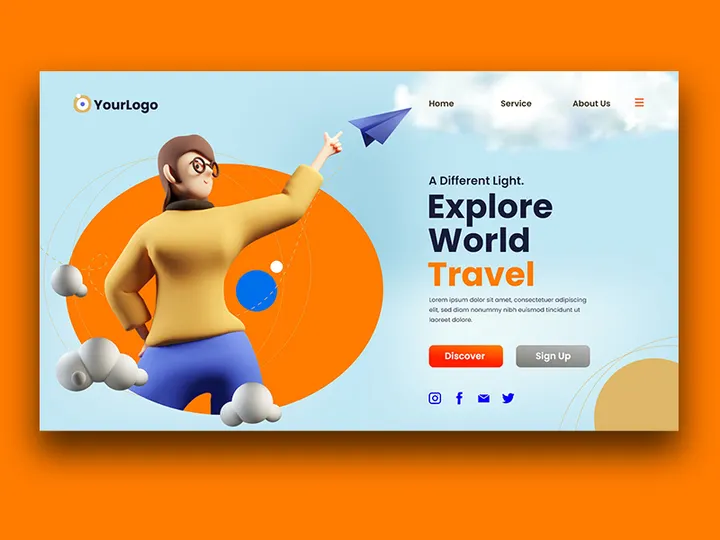
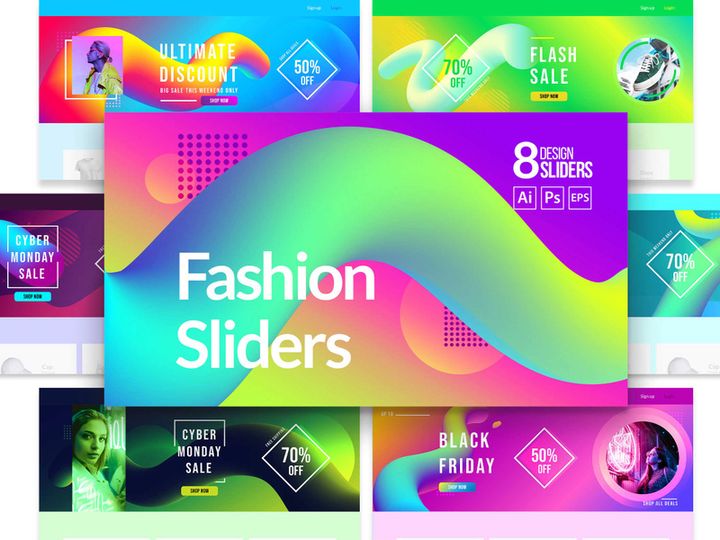
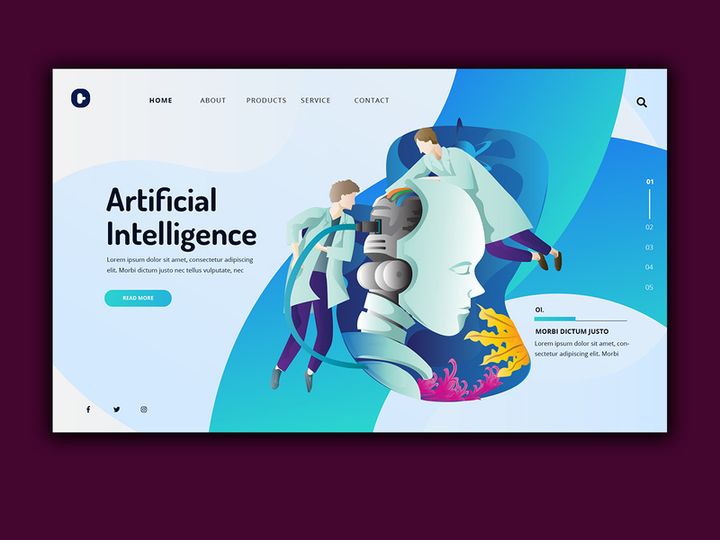
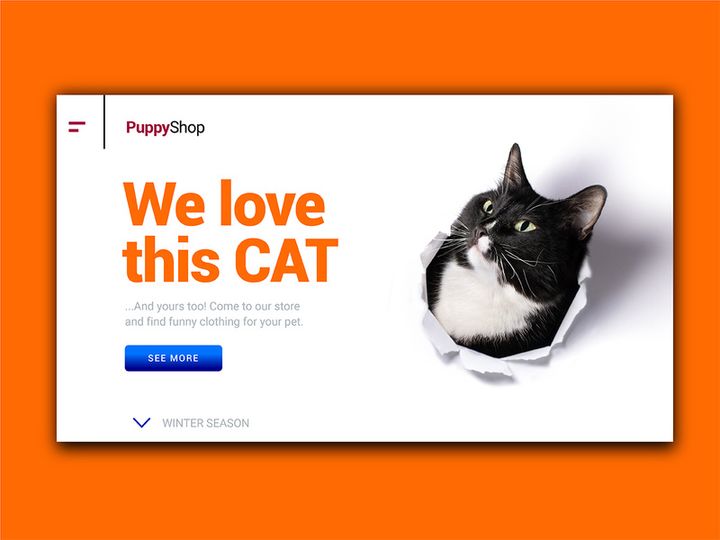
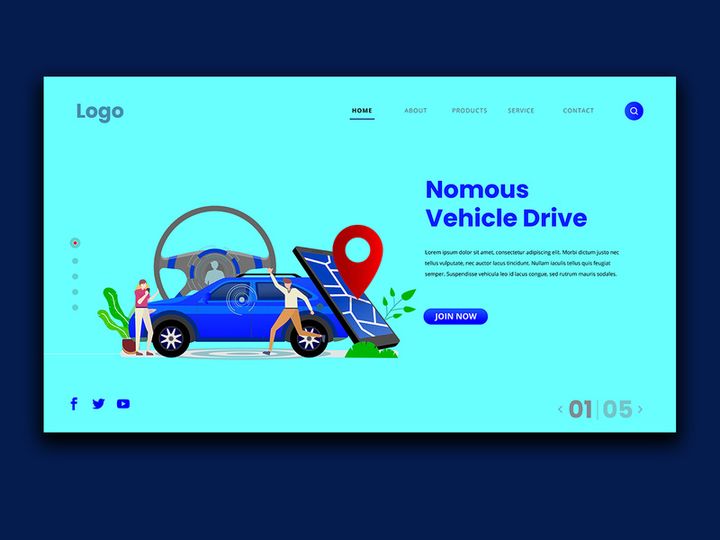
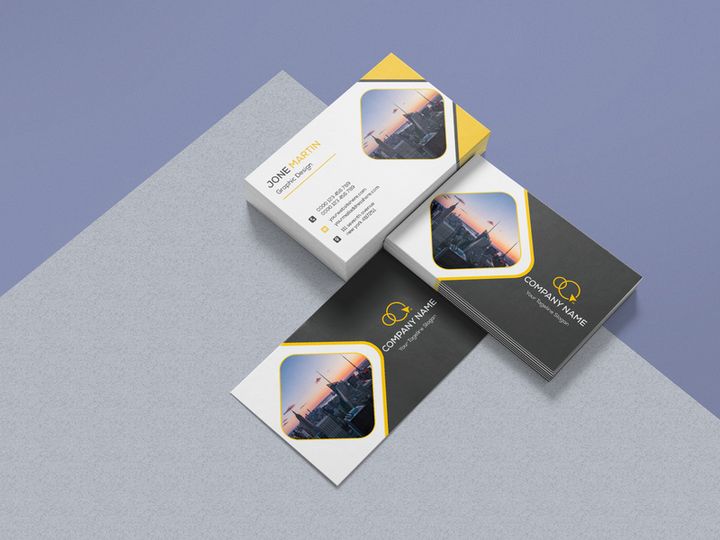
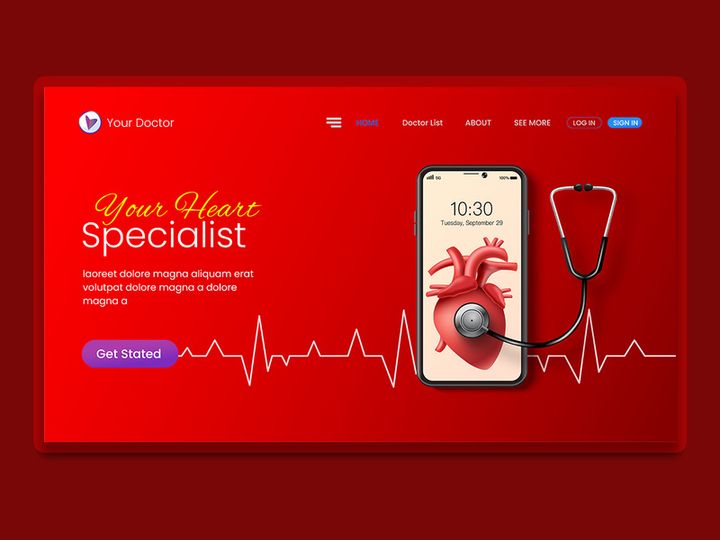
Probiere unsere kostenlosen Ressourcen aus
Lade eine davon kostenlos herunter – kein Konto erforderlich
Getting Started with Themes in Illustrator
Adobe Illustrator is a powerful vector graphics editor widely used by designers for creating logos, illustrations, and complex visual content. One of the most effective ways to streamline your design workflow is by using pre-designed themes. Themes in Illustrator provide a cohesive set of design elements—such as color palettes, typography, icons, and layout structures—that help maintain visual consistency across projects. Whether you're working on branding, UI/UX design, or print media, themes can significantly reduce production time while enhancing creative output.
Before diving into using themes, ensure you have the latest version of Adobe Illustrator installed. While older versions can open many theme files, updated releases offer better support for modern file formats, improved performance, and enhanced features like Global Colors and Live Shapes. Make sure your system meets Illustrator’s minimum requirements, including sufficient RAM and GPU support for smoother rendering of complex artwork.
Finding high-quality themes compatible with Illustrator is essential. Many designers turn to curated design marketplaces to access professionally built, production-ready resources. EpicPxls offers a robust collection of over 25+ resources tailored specifically for Illustrator users. These include themed UI kits, seasonal design packs, and industry-specific templates that integrate seamlessly into your workflow. The themes available on EpicPxls are crafted with scalability in mind, ensuring they work across various screen sizes and output formats.
Each theme includes layered, well-organized files that make customization straightforward. With 25+ resources to choose from, you can find themes suited for tech startups, creative portfolios, e-commerce platforms, and more. These resources are designed to be flexible—whether you need dark mode interfaces, minimalist layouts, or bold, vibrant color schemes. Starting with a solid theme foundation allows you to focus more on creativity and less on repetitive design tasks, ultimately elevating your project's overall quality and consistency.
How to Import Themes into Illustrator
- Choose the Right Theme File Format: When downloading themes from sources like EpicPxls, ensure the file is available in a format compatible with Illustrator. The native .AI format is ideal, as it preserves layers, vectors, and editable text. SVG and EPS files are also widely supported for vector-based themes. If the theme comes in PSD (Photoshop) format, confirm it uses vector layers or smart objects to maintain scalability when imported into Illustrator.
- Download and Extract the Theme Package: After purchasing or downloading your theme, save the file to a dedicated folder on your computer. Most theme packages come in ZIP format and may include multiple files—such as AI templates, color swatches, font links, and documentation. Extract the contents to access the Illustrator-ready files.
- Launch Adobe Illustrator: Open Illustrator and go to File > Open. Navigate to the extracted theme folder and select the .AI file. If the file is part of a CC Library, you may also import it directly into the Libraries panel for easy access across projects.
- Review the Document Structure: Upon opening, examine the Layers panel. Well-structured themes will have clearly labeled groups for colors, typography, icons, and layout grids. This organization makes it easier to customize elements later. Check for any missing assets, such as linked images or fonts, which will be indicated in the Links or Missing Fonts panels.
- Handle Non-AI Formats with Care: If you're working with an SVG or PSD file, use File > Place to import it into a new Illustrator document. For Figma designs (exported as SVG), be aware that some effects like blurs or advanced masks may not translate perfectly. Always verify the integrity of shapes and text post-import.
- Save as a Template (Optional): Once the theme is successfully imported and verified, consider saving it as an Illustrator template (.AIT). This allows you to reuse the theme across multiple projects while preserving the original file. Go to File > Save As, then choose "Illustrator Template" from the format dropdown.
By following these steps, you ensure a smooth import process and set the stage for efficient customization. With over 25+ resources available on platforms like EpicPxls, selecting and integrating the right theme becomes both intuitive and impactful.
Step-by-Step: Working with Themes in Illustrator
Editing Layers and Components
Once a theme is imported into Illustrator, the next step is customization. The Layers panel is your primary tool for navigating and modifying theme components. Most professionally designed themes—especially those from sources like EpicPxls—are organized into logical groups such as "Colors," "Typography," "Buttons," and "Headers." To edit a specific component, simply expand the relevant layer group and double-click to unlock or modify elements.
For example, to change a button’s color, locate the button symbol in the Layers panel, select its fill, and apply a new swatch from the Swatches panel. If the theme uses Global Colors, any change will automatically update across all instances of that color. Similarly, text styles are often set using Character and Paragraph Styles, allowing you to update fonts, sizes, and spacing globally through the Appearance panel.
Icons and vector shapes can be recolored using the Recolor Artwork tool (Edit > Edit Colors > Recolor Artwork), which is especially useful for adapting themes to different brand identities. You can also ungroup elements (if necessary) to modify individual anchor points or paths. However, use the Ungroup function sparingly to avoid disrupting symbol libraries or linked components.
Organizing Your Themes Library
As you collect more themes—especially with access to 25+ resources from trusted sources like EpicPxls—maintaining an organized library becomes crucial. Create a dedicated folder on your local drive or cloud storage labeled "Illustrator Themes" and subdivide it by category (e.g., "Web UI," "Print Templates," "Branding Kits"). Naming files clearly—such as "Minimal_Dark_Theme_v2.ai"—helps with quick identification.
Within Illustrator, use the CC Libraries panel to store frequently used assets like logos, color swatches, and custom icons. Drag and drop elements from your theme files into a library, and they’ll be accessible from any Illustrator document. This is particularly useful when working on multiple projects that share design language. You can also sync libraries across devices, ensuring consistency whether you're working from home or the office.
Consider creating a master swatch library with all your brand colors from various themes. This not only speeds up future projects but also prevents color drift. Regularly audit your library by removing outdated or unused themes to keep your workspace efficient and clutter-free.
Exporting for Production
After customizing your theme, the final step is exporting assets for real-world use. Illustrator offers powerful export options tailored to different delivery formats. For web and mobile projects, go to File > Export > Export As and choose PNG or SVG. Use PNG for raster images with transparency (e.g., logos or icons), and SVG for scalable vector graphics that maintain quality at any size.
When exporting for print, select PDF as your format. Ensure the color mode is set to CMYK (under Document Color Mode) and include bleed and crop marks if needed. Use the Save Adobe PDF preset optimized for print to preserve vector quality and font embedding.
For UI/UX projects, use the Assets Export panel (Window > Export > Assets) to batch-export multiple icons or components at various resolutions (1x, 2x, 3x). This is ideal for responsive web or app design. Always verify exported files in a browser or device to ensure fidelity. With 25+ resources at your disposal, consistent, high-quality exports become a repeatable part of your design process.
Troubleshooting Common Illustrator Issues
File Won't Open
One of the most frequent issues when using themes is the inability to open a file. This is often due to version incompatibility. Newer .AI files saved in the latest Illustrator version may not open in older releases. If you encounter this, check the version requirement listed in the theme’s documentation—especially for resources from EpicPxls. If upgrading isn’t an option, request a legacy version from the provider or use Illustrator’s Creative Cloud desktop app to open and resave the file in an older format.
Missing Fonts or Assets
Another common issue is missing fonts. When a theme uses custom typefaces not installed on your system, Illustrator will substitute them, altering the design. To fix this, check the Missing Fonts panel (Type > Find Font) and either download the required fonts from the theme’s included links or replace them with system fonts that match the weight and style. Some themes include web font links (e.g., Google Fonts) for easy access. Similarly, if linked images are missing, use the Links panel to relink or embed them directly into the document.
Performance Problems
Large theme files with numerous layers, effects, or embedded assets can slow down Illustrator. To improve performance, collapse unused layers, disable preview for complex effects, and use Flatten Transparency cautiously on static elements. Consider breaking large files into smaller components and linking them via File > Place. Also, increase Illustrator’s memory allocation in Preferences > Performance to allow more RAM usage, especially when working with high-resolution themes from collections of 25+ resources.
Advanced Illustrator Tips for Themes
Batch Processing
When working with multiple theme variations or exporting dozens of assets, manual processing can be time-consuming. Illustrator’s Actions panel (Window > Actions) allows you to record repetitive tasks—like resizing artboards or applying effects—and apply them across multiple files. Use File > Scripts > File > Export Multi Artboards to automate the export of multiple layouts from a single theme, saving hours of manual work.
Plugins and Extensions
Enhance your theme workflow with Illustrator plugins. Tools like Fontself let you turn vector icons into custom fonts, ideal for building icon sets from theme resources. Other extensions help with color management, grid alignment, and style synchronization. Many premium themes from EpicPxls are designed to work seamlessly with popular plugins, increasing flexibility and efficiency in complex projects.
Collaboration Workflows
When working in teams, maintaining design consistency is critical. Use Creative Cloud Libraries to share themes across team members. Create a shared library with approved colors, components, and text styles from your curated 25+ resources. Team members can access the library directly within Illustrator, ensuring everyone uses the same assets. Combine this with clear layer naming conventions and documentation to reduce confusion and streamline collaboration on large-scale design systems.
Warum bei EpicPxls herunterladen?
Kommerzielle Lizenz
Nutzung in persönlichen und kommerziellen Projekten
Kein Konto erforderlich
Kostenlose Ressourcen sofort herunterladen
Qualitätsgeprüft
Jede Ressource wird auf Qualität geprüft
Dateien vorab ansehen
Figma- und Photoshop-Dateien vor dem Download ansehen
Wer nutzt diese Designs?
Profis und Teams, die am meisten von unserer Sammlung profitieren
UI/UX-Designer
Beschleunige deinen Workflow mit einsatzbereiten designs für Illustrator. Perfekt für Prototyping und Kundenpräsentationen.
Entwickler
Erhalte produktionsbereite Assets ohne Designkenntnisse. Exportiere in jedem Format für Web- und Mobile-Apps.
Startups & Agenturen
Spar dir das Design-Budget mit erschwinglichen Premium-designs. Kommerzielle Lizenz inklusive.
Marketing-Teams
Erstelle professionelle Kampagnen schneller. Alle designs sind für Social Media und Werbung optimiert.
Designs für Illustrator-FAQHäufige Fragen zu diesen Ressourcen
Einfache, transparente Preise
Erhalte unbegrenzten Zugriff auf alle Premium-Ressourcen
Yearly
- 20 Downloads pro Monat
- Alle Dateiformate
- Kommerzielle Lizenz
Lifetime
- Unbegrenzte Downloads für immer
- Alle Dateiformate
- Kommerzielle Lizenz
Bereit zum Starten?
Greife heute auf 4.442+ kostenlose Design-Ressourcen zu.
Kostenlose Ressourcen durchsuchenPremium-Pläne anzeigenVerdienen Sie 85% und
mehr bei allen Verkäufen
Laden Sie Ihre Produkte hoch und stellen Sie sie
zum Verkauf zu jedem beliebigen Preis zur Verfügung.


